This article continues Orauria’s practical Grok Bot series. Earlier posts covered a lead-research loop that prepares meeting briefs, a morning inbox, calendar, and Notion brief, and teaching a Bot a browser task by showing it once. This one picks up where the meeting brief ends: what happens during and after the call. It shows how a Bot can join a video meeting, take notes, and leave you a summary, action items, and follow-up drafts that you review before anything goes out. The story is an illustrative example, not a client case study, and Orauria has no official partnership with xAI or Grok Bot.
Facts about Grok Bot come from the public documentation at docs.x.ai: Add a Bot to your meetings, plus the pages on skills and routines, files and results, and approvals, security, and privacy, checked on 12 November 2026. According to the docs, Meetings are available on Team, Enterprise, and Ultra plans, and Enterprise admins can turn the feature on or off. We have not run the exact workflow below end to end, and the Slack and email follow-up steps are described from the docs, not from a test. Screens on the laptops in this article are example compositions built on the Grok Bot app layout, with invented content.
Key takeaways. A Bot can join Google Meet, Zoom, or Microsoft Teams calls when you paste the link and approve its card. The host still admits it, and it shows up with “transcribing” in its name. After the call it posts a summary and action items in its chat. The useful part is what you add on top: a skill that turns those notes into your format, follow-up drafts that wait for you, and a clear rule about what the Bot may say in the meeting chat. Tell people a Bot is taking notes, and keep every message to a client behind your approval.

Six calls a day and a follow-up that never gets written
Meet Anan. He is an example persona: around forty, account manager at a small creative agency in Bangkok. On a normal day he has five or six calls: two client check-ins, an internal creative review, a supplier call about printing, and one or two “quick syncs” that are never quick. He is good in the room. He listens, asks the right question, and remembers who is sensitive about what.
The problem is everything after the call. He takes notes in a notebook, on his phone, and sometimes not at all because he is the one presenting. By the evening he has three half-written follow-up emails, a vague memory that the client asked for a revised timeline “by Friday”, and a feeling that one action item from the 11:00 call has already been lost. The follow-ups go out late, or shorter than they should be, or not at all.
He has tried recording calls and listening back. He never has the time. He has tried writing the follow-up during the call. Then he is not really in the call.
The “after” he wants is not a robot that talks to his clients. It is a quiet note-taker that sits in the call, writes down what was decided and who owns what, and, when he hangs up, has already drafted the follow-up he would have written if he had twenty spare minutes. He reads it, fixes one line, and sends it himself.
That is what the Meetings feature in Grok Bot is designed for. The docs describe a Bot that joins your Google Meet, Zoom, or Microsoft Teams calls, listens, takes notes, answers questions in the meeting chat, and sends you a summary and action items when the call ends.
What effectiveness looks like, and how to measure it
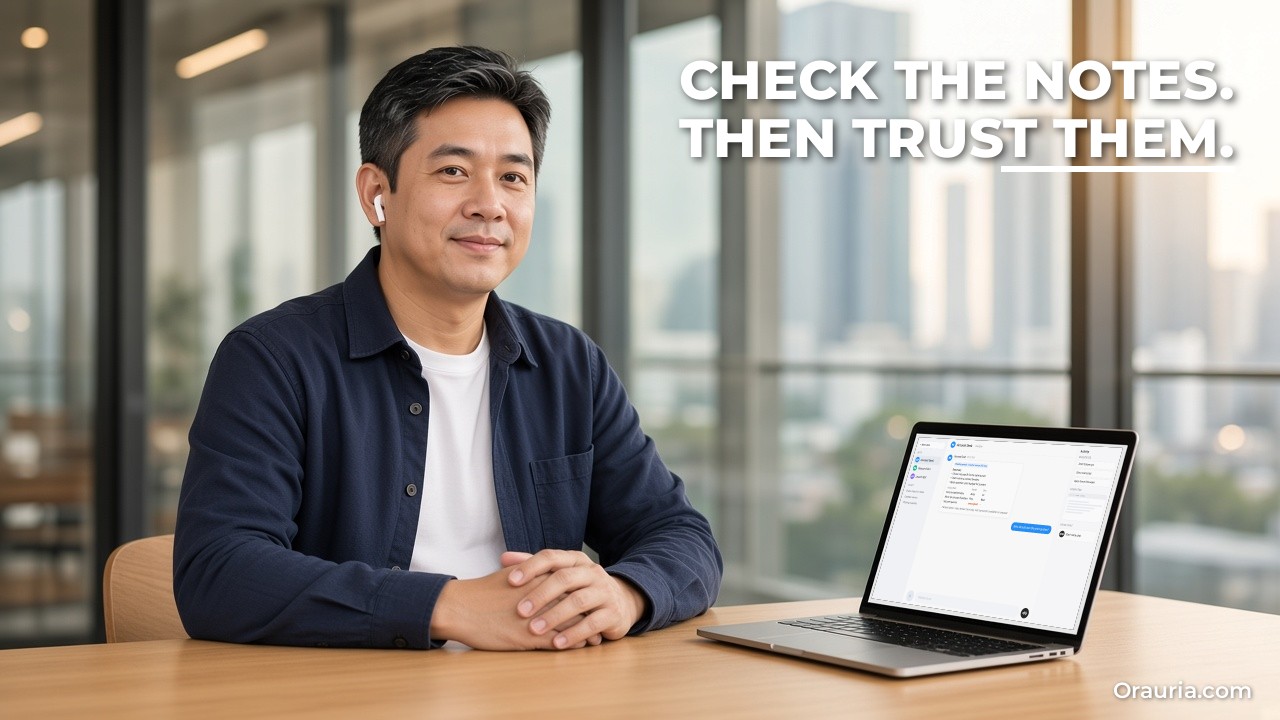
It would be easy to promise “never miss an action item again”. We will not, because a note-taker can mishear a name, miss a decision that happened in a side comment, or record a maybe as a yes. What we can describe is what good looks like and how you check it in your own calls.
A meeting Bot is doing its job when:
- The summary is recognizable. Someone who was in the call agrees it says what happened, without invented decisions.
- Action items have owners and dates. Each item names a person and, when one was said, a deadline. Items without an owner are marked as such instead of being assigned at random.
- Follow-ups are drafts. Nothing reaches a client, a supplier, or a Slack channel until you approve it.
- The Bot stays in its lane during the call. It answers in the meeting chat only when addressed, and holds back anything sensitive.
- Your follow-up time drops. You spend minutes editing a draft instead of writing from memory.
To measure it, keep a simple log for your first ten meetings with the Bot:
- Meeting type (client, internal, supplier) and length.
- Action items the Bot captured vs. the ones you would have listed yourself.
- Errors: wrong owner, wrong date, invented item, missed decision.
- Minutes from “call ended” to “follow-up sent”.
- Edits you made to the draft: none, light, heavy.
- Anything the Bot said or shared that it should not have (this should stay at zero).
Compare the last column and the error column first. If the Bot is accurate and quiet, then look at time. If it is fast but wrong, slow down and fix the skill before you rely on it. And keep the numbers to yourself: they describe your meetings, not anyone else’s.
A practical tip: score the first meetings within an hour of the call, while your own memory is fresh. If you wait until the end of the week, you will not remember whether the client really said Friday, and you will end up trusting the summary by default. The point of the log is to earn that trust, not to assume it. After ten meetings you will know which meeting types the Bot handles well, often structured internal reviews, and which ones still need your own notes, often fast-moving negotiations with several people talking at once.
One more thing to measure is comfort. Ask a colleague or a friendly client how it felt to see a Bot in the participant list. If people speak less freely, the notes get worse, and no summary is worth that.

How it works: joining, listening, and handing back
Under the hood, a meeting Bot is the same Grok Bot you use in chat, with a meeting as one more place it can work.
Joining a call
According to the docs, you paste a Google Meet, Zoom, or Microsoft Teams link into your chat with the Bot and ask it to join and take notes. You approve the card when the Bot asks. When the meeting starts, the host admits it, and it joins with a name like “Bot name (your first name’s Bot) – transcribing”. A Bot that follows your calendar can also join scheduled meetings on its own. The visible label matters: participants can see that a note-taker is present.
Managing upcoming meetings
In the Bot’s details, meetings it is joining or attending appear under Upcoming, with a countdown, the next join time, or “Taking notes” while it is in the call. For a meeting you scheduled, Meeting actions include Disable Interactivity (it keeps listening and taking notes but does not answer in the meeting, and the row shows Muted), Cancel, and Quit.
Talking to the Bot in the meeting
You address the Bot by name in the meeting chat and it answers there. In Zoom, a private chat message gets a private answer. The docs add an important detail: if someone in the meeting asks for something the Bot held back, the Bot tells you who asked and offers to send it, and it will not share your credentials in a meeting. That is the human-in-the-loop moment you want.
After the call
When the call ends, the Bot posts a summary and action items in its chat. If you have Pages, a longer report goes on a page, with the link in the chat. You can ask later for the summary or transcript of a past meeting. The docs also note that meetings use the settings of the person who started them.
Skills, routines, and drafts
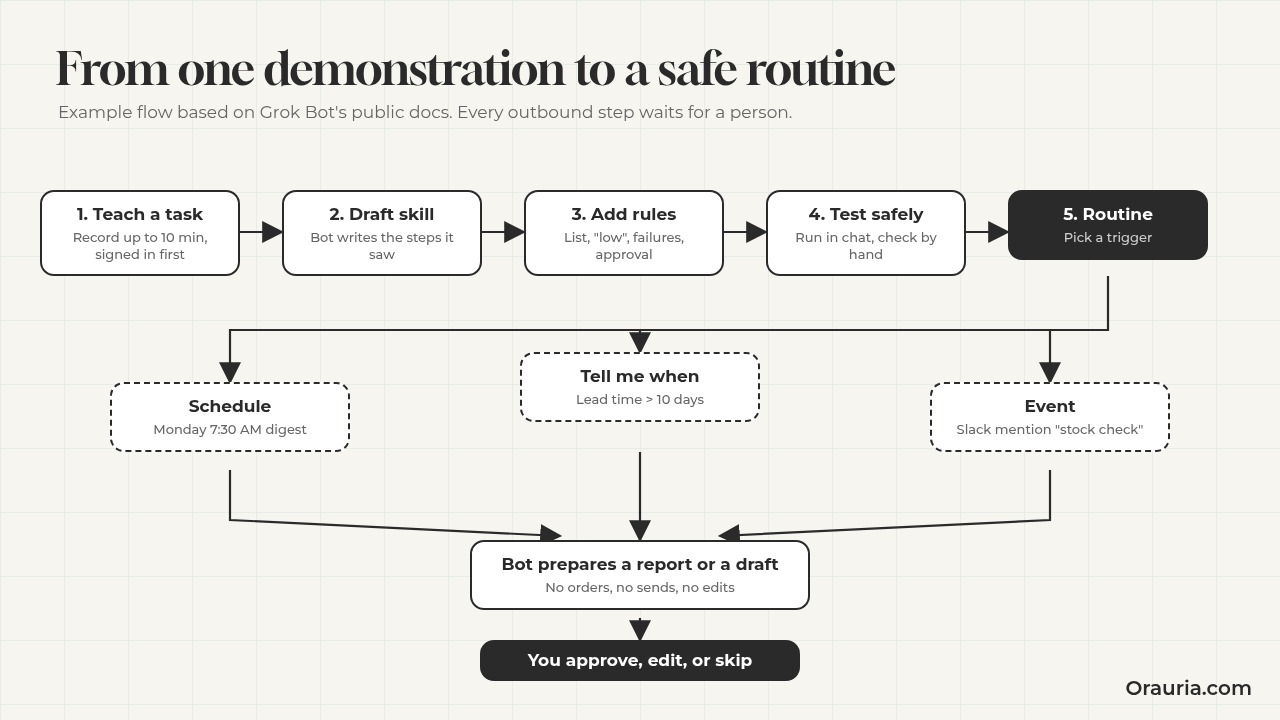
The meeting output is raw material. A skill turns it into your format: your summary headings, your action-item table, your follow-up tone. A routine can run on a schedule, for example a Friday review of the week’s meeting notes. Outbound messages follow the general approval rules: Auto Review checks actions before they run and shows an approval card when one needs you, and email from a routine waits as a draft until you press Send. The Bot proposes; you decide.
Boundaries worth writing down
A meeting is a room full of people who did not all choose to talk to a Bot. A few boundaries make the setup safer. Decide which meeting types the Bot may join at all: internal reviews and supplier calls are easier than sensitive HR or legal conversations, which may be better left out entirely. Decide what it may answer in the meeting chat: factual questions about the agenda are fine; anything involving prices, contracts, or files should wait for you, which matches the docs’ description of the Bot holding things back and asking you first. And decide how long notes are useful: a summary that sits in a chat forever may be more than anyone agreed to. Write these rules into the skill so they apply to every call, not just the ones where you remember.
Memory
Because the Bot keeps context between conversations, it can link today’s call to last week’s: “the revised timeline you promised on Monday is still open”. That is useful, and also a reason to be careful about which meetings you invite it to.
Setup: your first meeting with a Bot, step by step
Here is how Anan sets it up, following the docs. Check first that your plan includes Meetings and, on a team plan, that your admin has it turned on.
Step 1: Pick a low-stakes meeting
He starts with an internal creative review, not a client call. Colleagues already know the plan, and a mistake costs nothing.
Pitfall: starting with your most important client. If the summary is off, you lose trust in the tool and maybe a little trust from the client.
Step 2: Tell people a Bot will be taking notes
He adds one line to the invite: “A Grok Bot note-taker will join and transcribe; tell me if you’d prefer it didn’t.” Rules on recording and consent differ by country and by company. This is not legal advice; check what applies to you.
Step 3: Paste the link and approve the card
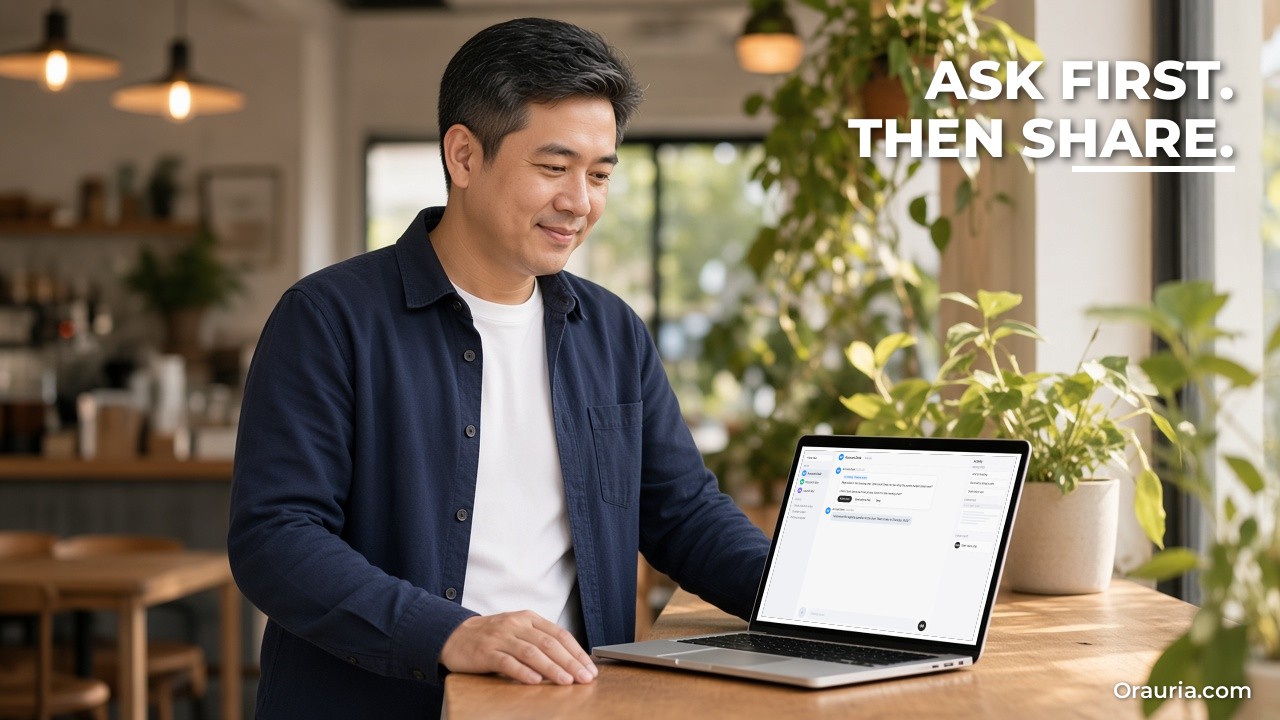
In his one-to-one chat with a Bot he calls “Account Desk”, he pastes the meeting link and writes: “Join this call at 10:00, take notes, and stay quiet in the meeting chat unless I address you.” He approves the card the Bot shows.
Step 4: Admit the Bot when the call starts
He is the host, so he admits the Bot from the waiting room. Its name ends with “transcribing”, which is easy for everyone to see.
Pitfall: forgetting that the host must admit it. If someone else hosts, ask them in advance.
Step 5: Read the summary and action items
When the call ends, the summary and action items arrive in the Bot’s chat. He compares them with what he remembers, line by line, and logs any errors.
Step 6: Ask for a follow-up draft
He asks: “Draft the follow-up to the team based on these notes. Keep it under 150 words, list action items with owners and dates, and save it as a draft.” He edits and sends it himself.
Pitfall: letting the first draft go out unread. The draft may repeat a misheard name or a deadline that was only floated.
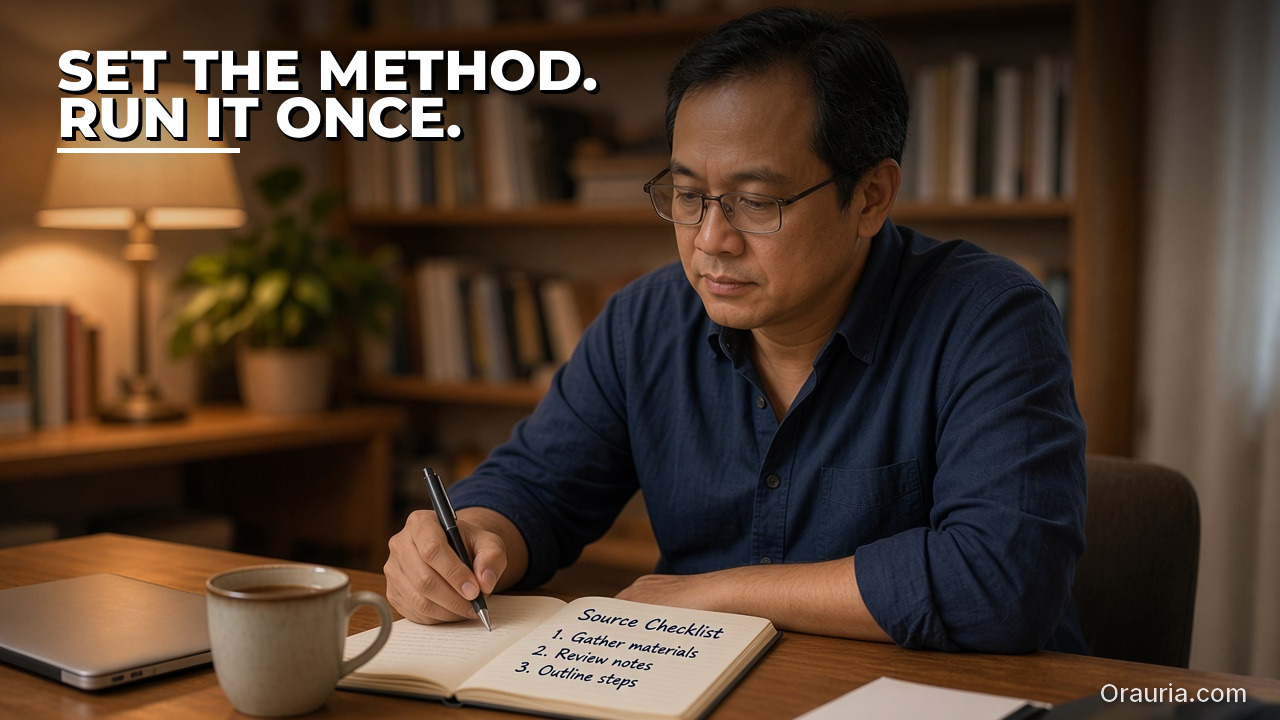
Step 7: Save the pattern as a skill
After three or four meetings he asks the Bot to save the process as a skill called “Meeting follow-up”. The docs recommend that a skill states when to use it, required inputs and access, the sequence, how to validate the result, what to return, and what requires approval.

The optimization journey: from v1 to v3
v1: Default notes
In the first week, Anan uses what the Bot gives by default: a summary and action items in chat. It is already better than his notebook. But the summaries are long, the action items mix “we should” ideas with real commitments, and he still writes each follow-up himself.
What he learns: capture is solved; judgment and format are not.
v2: A skill with his rules
He writes the “Meeting follow-up” skill with clear rules:
- Summary in five bullets or fewer: decisions, open questions, risks.
- Action items only when someone agreed to do something; ideas go to a separate “parked” list.
- Every item has an owner; if no owner was named, write “owner: unassigned” and ask him.
- Deadlines only when one was said; never guess a date.
- Follow-up drafted in his tone, under 150 words, saved as a draft, never sent.
- During client calls, Disable Interactivity: listen and take notes only.
Now the output after each call is a short summary and a draft he can send in a few minutes.
What he learns: the skill’s value is in the rules that separate commitments from ideas.
v3: Follow-ups where the work lives
Once the drafts are reliable, he adds two things. First, for internal meetings, the Bot prepares a short Slack post with the action items for the team channel, as a draft he approves before it posts. Second, a Friday routine reviews the week’s meeting notes and lists action items that are still open, with links back to the summaries. It posts the list in his chat and does not message anyone.
We describe both from the docs and have not tested this exact setup. Slack posting requires the Slack app connected, and the Friday routine depends on the meeting summaries being available to the Bot.
What he learns: the meeting is only the start. The value is in closing loops, and closing loops is safest when the Bot drafts and he sends.
The order matters here too. He did not start with automatic Slack posts. He started with one internal meeting and a notebook to compare against.
What to try this week
Check that your plan includes Meetings. Pick one internal meeting you host. Tell attendees a Bot will join and transcribe. Paste the link into your chat with a Bot, ask it to join, take notes, and stay quiet unless addressed, and approve the card. Admit it when the call starts. Afterwards, compare the summary and action items with your own memory and log errors, missing items, and time to follow-up. Ask for a short follow-up draft and send it yourself. After three or four meetings, save your rules as a skill: what counts as an action item, how to handle missing owners and dates, your tone, and that nothing goes out without your approval. Only then try client calls with interactivity disabled, a Slack draft, or a Friday open-items routine.
For more on skills and routines, read how to teach Grok Bot a browser task by showing it once, the lead-research and meeting-brief loop, and the multi-bot team guide. If your team needs meeting notes connected to a CRM, a project tool, or an internal system, send Orauria a brief and we will help you design it.