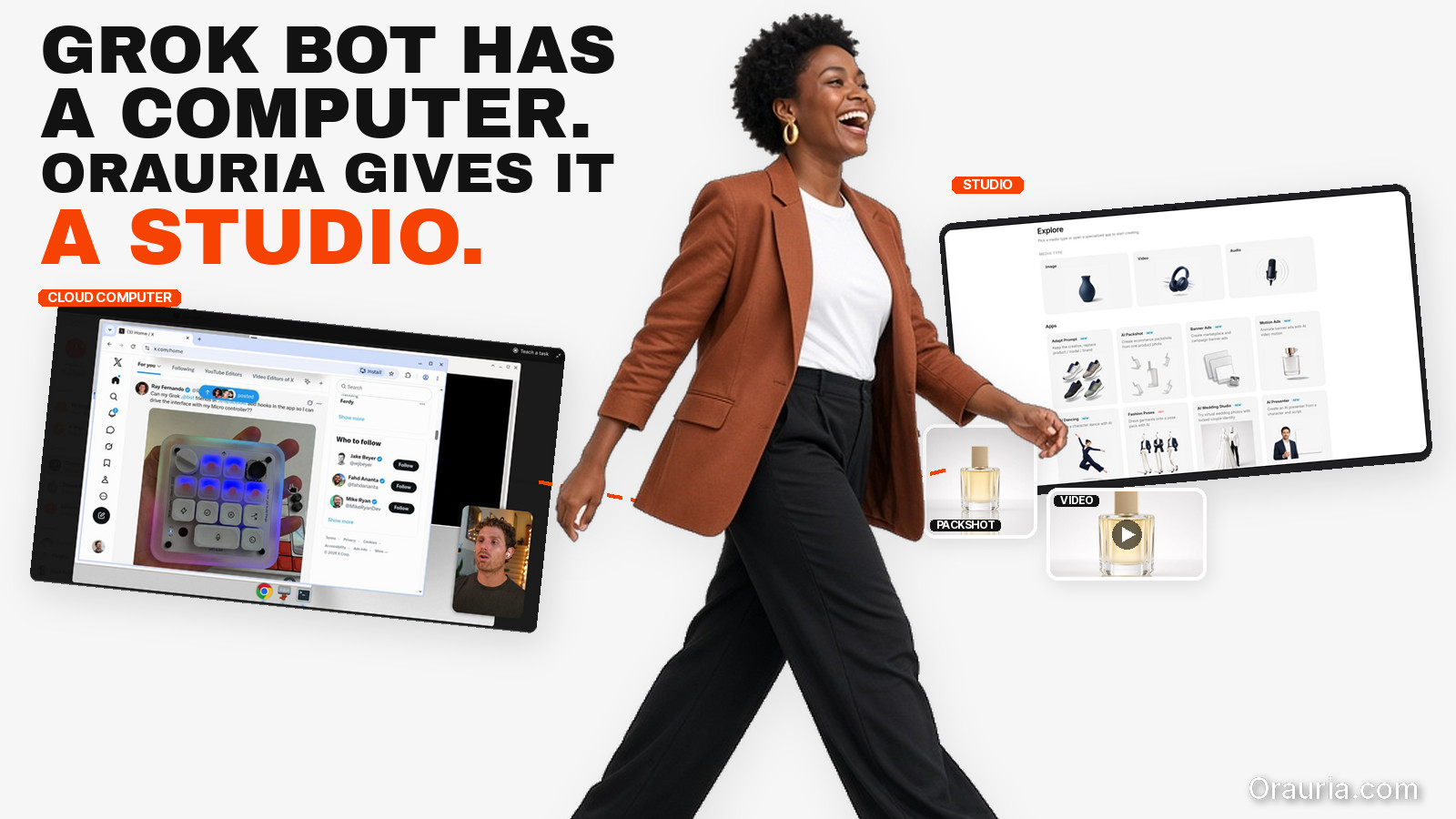
If you already brief work, sort a calendar, or watch a Slack channel in Grok Bot, you have felt the difference between an assistant that talks and an agent that can act. Product creative is still a different job. Listing images, ratio variants, and short product videos need models, credits, and a pipeline you can trust — not one more loose prompt.
This article is a map, not a partnership announcement. Grok Bot facts come from public pages on x.ai and docs.x.ai, checked on 11 November 2026 (Asia/Saigon, UTC+7). Orauria facts come from Orauria’s own site, including the MCP page, What is Orauria, and Orauria là gì. We describe how the two systems can fit together on paper. We do not claim an official partnership with xAI, and we do not claim that Orauria MCP has already been verified end-to-end inside Grok Bot. A connection tutorial will come only after that test.
Key takeaways. Grok Bot is an AI teammate with a persistent cloud computer, skills, routines, and Connect apps — including a documented way to add a custom MCP server. Orauria already ships Studio plus an MCP server whose tools generate images and video and bill a credit wallet. The cleanest intended path is to add that server as a Remote HTTPS connector with an Authorization header; a second path is to open Studio in the Bot’s browser when you need a visual UI. Until the connector is tested, treat the first path as documented design, not a finished how-to.
What Grok Bot is — public facts only
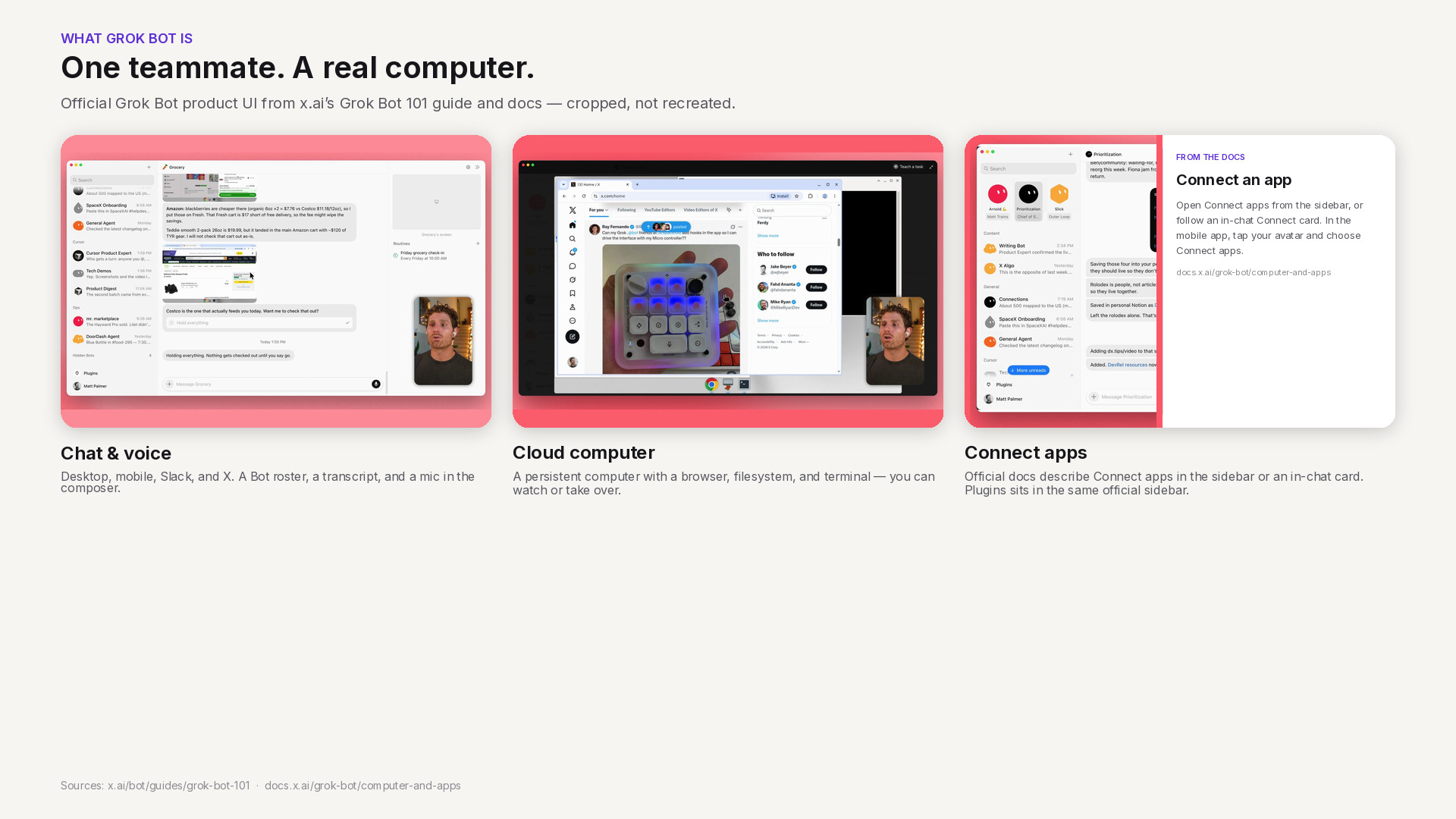
xAI describes Grok Bot as a proactive AI teammate: an agent with access to a real computer in the cloud, so it can do the kinds of work a person can do on a machine. The overview is on x.ai/bot and in the Grok Bot documentation. Chat is the main interface. You can also start a voice call or send a voice note. The same docs say you can work with Bots on desktop, on mobile, in Slack, or on X.
That combination is the useful starting point for ecommerce teams. You are not only asking a model for copy. You are handing work to an agent that can keep going after you close the laptop.
A shared cloud computer and a team of Bots
Under the hood, your Bots share a persistent cloud computer with a browser, a filesystem, and a terminal. Files, sign-ins, and browser sessions persist between tasks, and work continues while your own laptop is closed. The documentation on using the computer and apps is explicit about the sharing model: every Bot on your account uses the same computer. Browser cookies, signed-in sessions, files, and command-line credentials are visible to every Bot you run. The computer is assigned to your user account, not to one Bot. Each Bot gets its own screen, so several Bots can use browser and desktop tools in parallel, but those screens are separate work surfaces, not separate security boundaries. Durable project files belong in the shared workspace at /workspace.
You can also run more than one Bot. Official materials describe Bots that message each other, work in a group chat, hand work along, and bring you in to approve, edit, or send something back. That is the collaboration model, not a promise that every workflow is already built for your catalog.
Skills, routines, and Connect apps
Grok Bot turns a successful task into a repeatable process in two parts, as described in the skills and routines documentation (that page was last updated 9 November 2026). A skill is a reusable set of instructions for how to do a task: when to use it, required inputs, the sequence of work, how to validate the result, what to return, and what requires approval. A routine tells one Bot when to run a workflow — on a schedule, or when something happens, such as a Slack message, a GitHub, Linear, Sentry, or PagerDuty event, an email, or a webhook. Routines run in the cloud while your laptop is closed. They also have published rate limits: all of your routines together can run up to 300 times an hour, and each routine up to 200 times an hour.
Bots work more reliably when they use structured app connections rather than only clicking through a website. The overview mentions everyday tools such as Slack, Notion, Drive, and Teams. The computer-and-apps documentation goes further on what a connected app can do, including Google Calendar, Sheets, Docs, Slack, Gmail, Stripe, an X plugin, 1Password, and an Email address for your Bots at mail.grokbot.com. Connected apps belong to the account you used to sign in to Grok Bot and are available to every Bot you run.
Custom tools are part of the same picture. The official overview states that Grok Bot supports custom tooling, so it can interact with any MCP or API. The Grok Bot 101 guide (11 September 2026) says Grok Bot supports the same MCP servers, plugins, and skills as Cursor. To add a server that is not in the catalog, the computer-and-apps documentation tells you to open Connect apps, choose Add a custom connector, and pick a type: Remote HTTPS takes a server URL, with optional HTTP headers and an OAuth Client ID; Command takes a command and its arguments. You can also ask a Bot to add an MCP server by URL or by a command that runs on its computer.
Two safety notes from the same public docs will matter later in this series. Do not paste passwords or API keys into ordinary chat; Grok Bot’s documented path is a Vault, a Secure Form, or a secret card. And because the computer is shared, a login or file you leave there is available to your other Bots.
The product-creative work you still have to attach
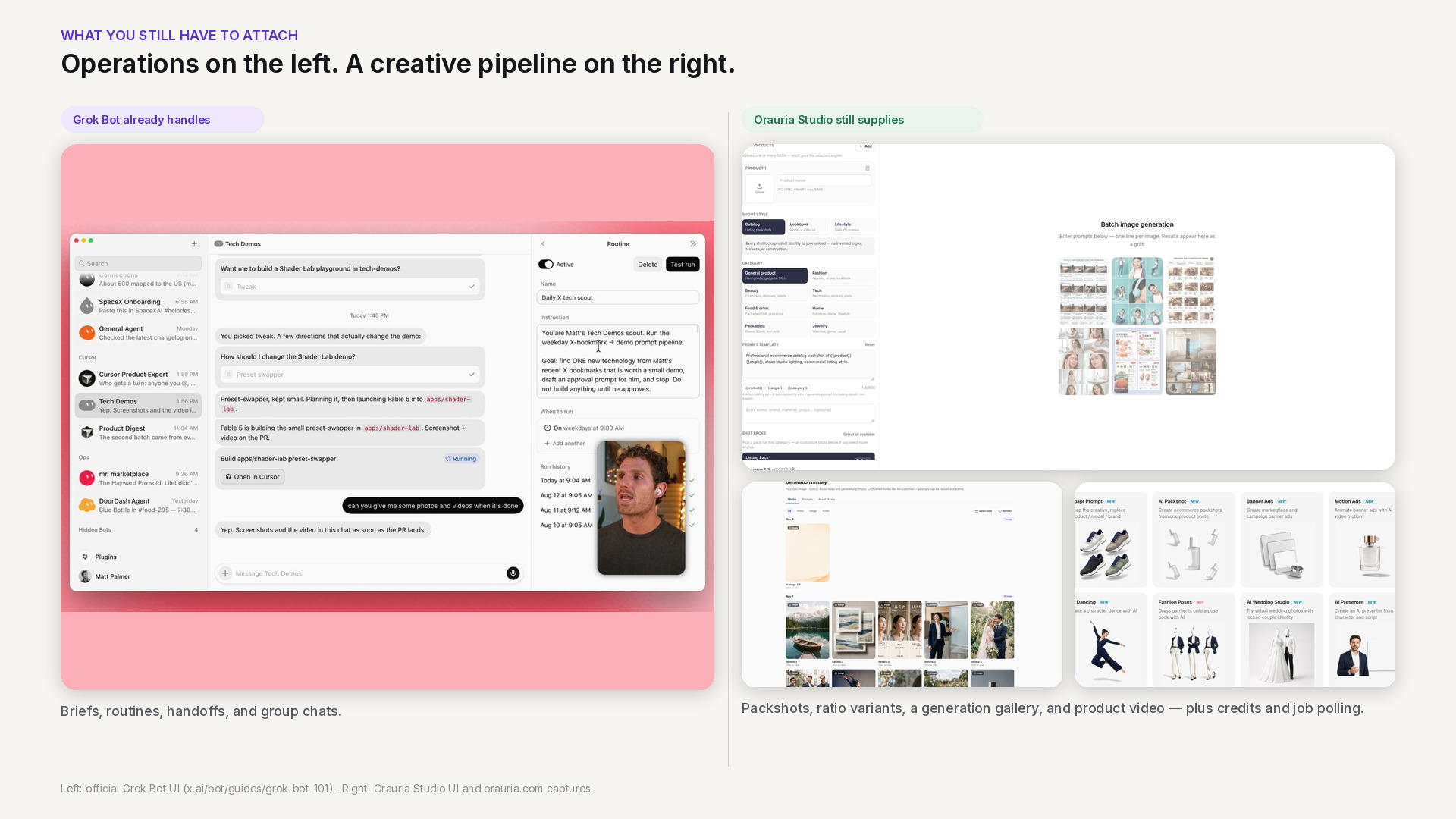
None of the above makes Grok Bot a product photography studio. That is not a criticism. It is a boundary. Grok Bot is strong at intake, coordination, and repetition: a brief in chat, a routine every morning, a mention in Slack, a handoff between specialist Bots, a pause for your approval. Those are real advantages for a merchandising or marketing team.
Selling a physical product still asks for a different layer. You need a consistent set of packshots, not one pretty frame. You need 1:1 and 9:16 variants from the same SKU. You often need a short video after the stills are clean. You need to know which model you called, whether the wallet still has credit, and how to wait for a long video job without guessing. We have written about that production mindset in pieces such as node thinking in the Workflow Builder — the point here is simply that the agent needs a tool with a contract, not only a browser window and a prompt.
If you do not attach that layer, the Bot will improvise: scrape a site, invent a pipeline, or stop halfway. If you do attach it, the Bot can call the same capabilities you already use in a studio, then bring the URLs back for you to review.
What Orauria adds: Studio, MCP, and a credit wallet
Orauria is a creative production workspace for ecommerce and marketing teams — a place to generate and QA product images, video, and campaign variants. If you are new to the product, start with What is Orauria or the Vietnamese introduction Orauria là gì.
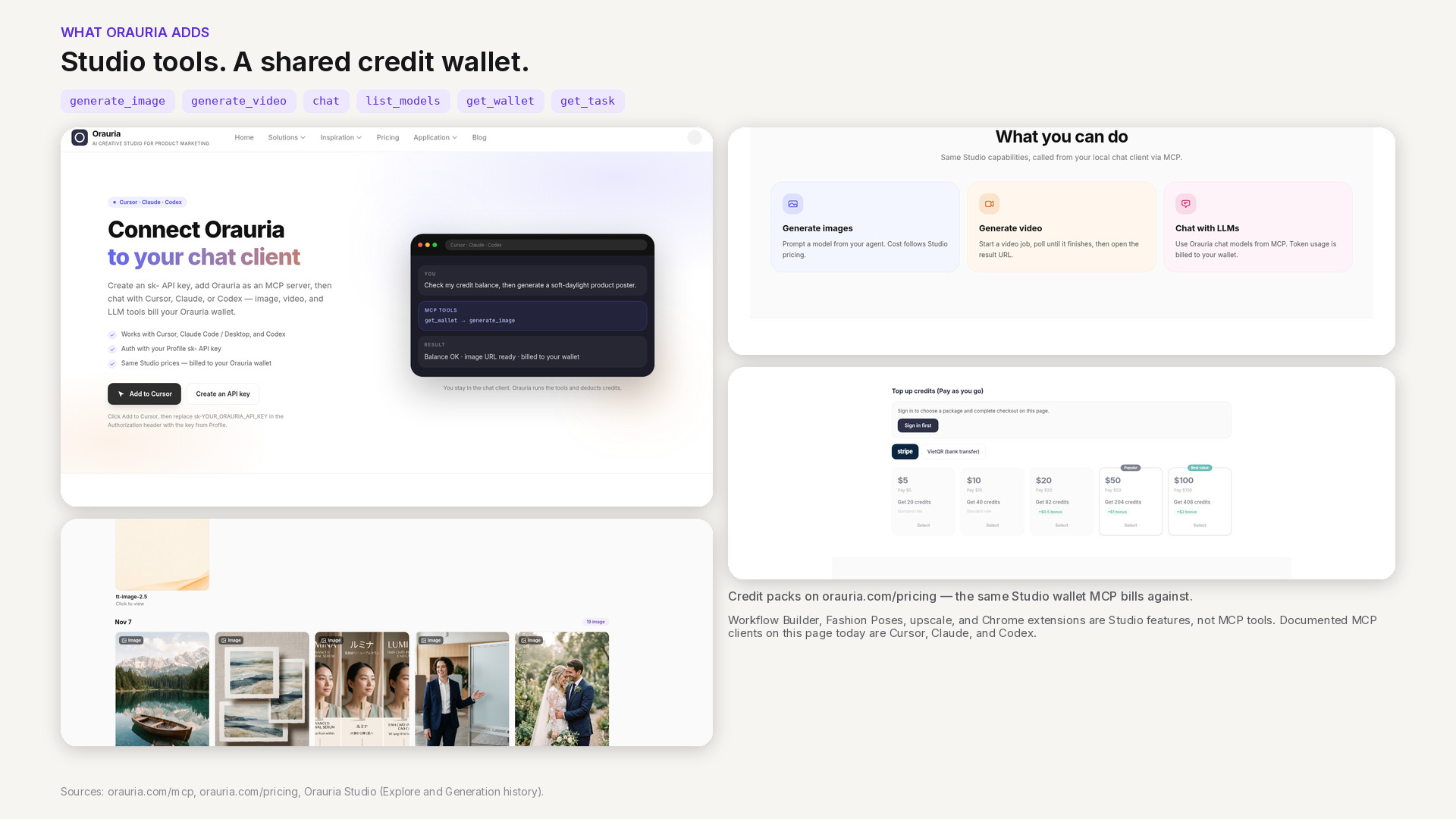
The part that matters for Grok Bot is not only the Studio UI. Orauria also publishes an MCP server. The MCP setup page documents how to connect Cursor, Claude (Code or Desktop), and Codex with an sk-… API key in an Authorization: Bearer header. Image, video, and chat calls use the same wallet and prices as Studio; pricing is public. If credit is too low, the call returns an error rather than silently skipping a charge.
The tools currently listed on that page are:
generate_image— create an image from a prompt and model; returns a result URL.generate_video— start a video job.chat— chat with an Orauria LLM, billed per token.list_models— see available image, video, and chat models.get_wallet— check remaining credits before you generate.get_task— poll an image or video job until it finishes.
That list is also a list of things the MCP server does not currently expose. The published MCP documentation does not list tools for Workflow Builder, Fashion Poses, marketplace upscale, or the Chrome extensions. Those remain Orauria products you can use on the web (for example Workflows). We will not pretend they are MCP tools until the docs say they are.
One documentation detail to treat carefully: the MCP page currently shows the endpoint as http://orauria.com/api/mcp. A cloud agent should almost always call a public HTTPS URL. Whether Grok Bot accepts that exact URL, and whether the production endpoint you should save is the HTTPS form, still needs to be confirmed. We will not invent the answer here.
The framing for every article in this series is the same: how to use Orauria with Grok Bot. That is a user-side integration, not a claim that xAI endorses Orauria or that the two companies have a commercial partnership.
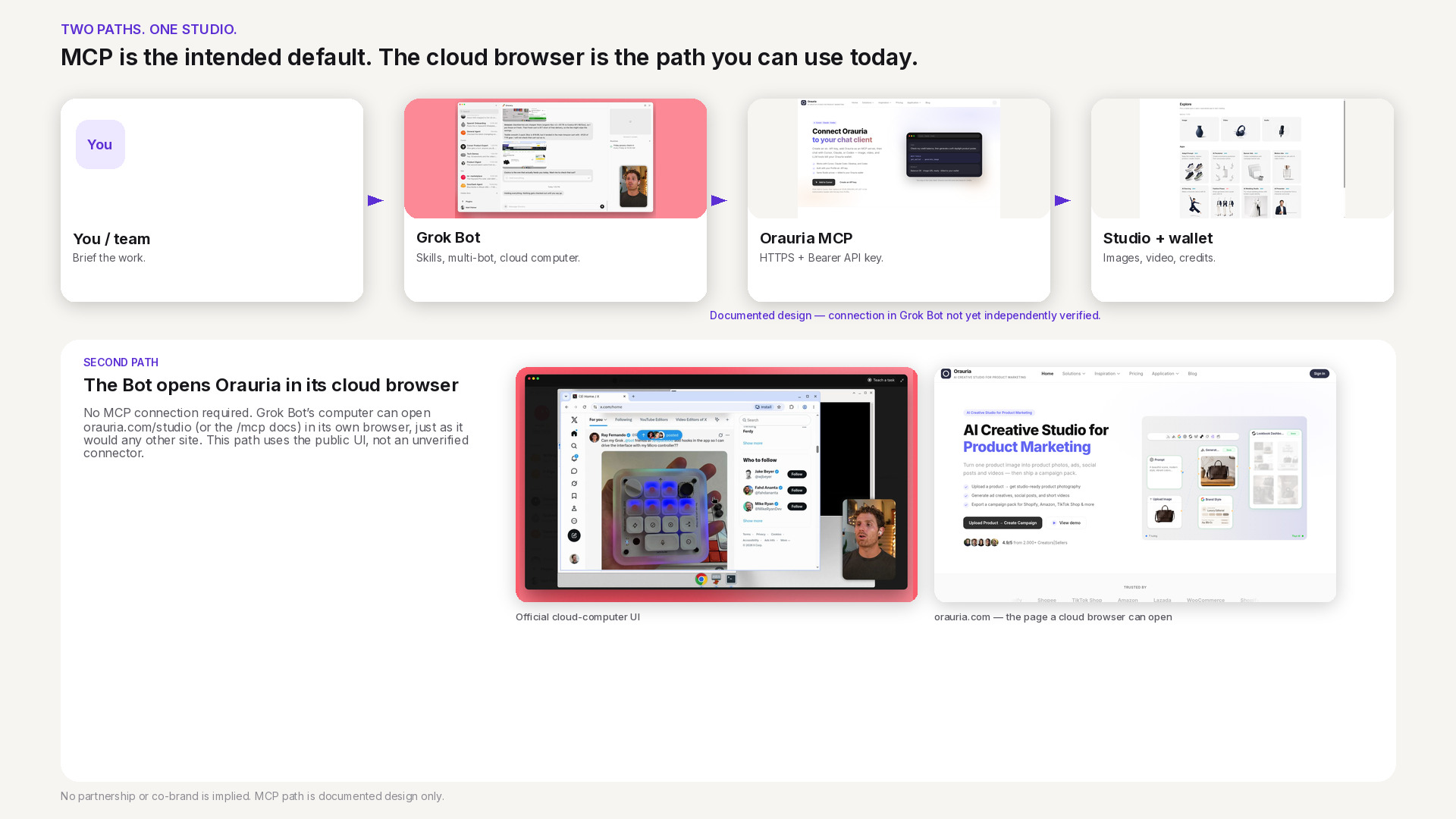
Two paths: MCP, and the browser on the cloud computer
Once you put the public facts side by side, two integration paths appear.
Path 1 — MCP, the intended default. Grok Bot’s own docs say you can add a custom Remote HTTPS connector with a server URL and optional HTTP headers. Orauria’s MCP docs say the server authenticates with an Authorization: Bearer sk-… header. Those two shapes match. In principle, a Bot could call get_wallet, list_models, and generate_image from chat or from a routine, then return result URLs for you to approve. That is the clean path: structured tools, measurable credit use, and instructions you can save as a skill.
It is also the path we will not walk through click by click in this article. As of 11 November 2026, Orauria’s MCP page documents Cursor, Claude, and Codex — not Grok Bot. We have not published an official “it works” test of Remote HTTPS plus a Bearer header inside Grok Bot. Until that test exists, Path 1 is a design that follows both sets of public docs, not a verified recipe. If you try it yourself, keep the API key in the connector header or a secret card, never in ordinary chat.
Path 2 — the cloud browser, for visual work. When you need a canvas, a crop, or on-screen QA, a Bot can open orauria.com in its cloud browser and use Studio or Workflow the way a person would. Grok Bot’s computer documentation is clear that browser sessions persist and that a sign-in for one Bot is available to your other Bots. That is convenient, and it is a reason not to leave extra credentials on the machine. Path 2 does not replace MCP. It is the overflow path for UI that the current MCP tool list does not cover.
A third layer sits on top of both: skills, routines, and multiple Bots. You can imagine one Bot writing a merchandising brief and another calling image tools, then handing a pack to you. The collaboration model is documented. Wiring it to Orauria, again, waits on a verified connector and on skills we will only publish after they run for real.
How to read the rest of this series, and what to do next
This is the pillar for a cluster of guides and design essays around Grok Bot and Orauria. The next piece zooms in on architecture: why MCP should be the default, where the browser path belongs, and how to think about secrets on a shared computer. A step-by-step connection tutorial will follow only after we have tested the connector and updated the MCP page with Grok Bot instructions. Later articles will cover skill templates, image and video workflows, routines, and security — always with a clear label when a step is still unverified.
If you want to use Orauria from an agent today, start where the docs are already complete: connect Cursor, Claude, or Codex with a key from your profile, check the wallet, and generate one image. If you want a connector, a skill, or a creative Bot built around your own catalog and approvals, that is a software project. Hire Orauria to build it — the same team that already shipped Studio and the MCP server.
Use Grok Bot for the teammate layer. Use Orauria for the product-creative layer. Keep the language honest: this is how the two systems can work together, not a joint product and not a completed integration announcement.
Leave a Reply