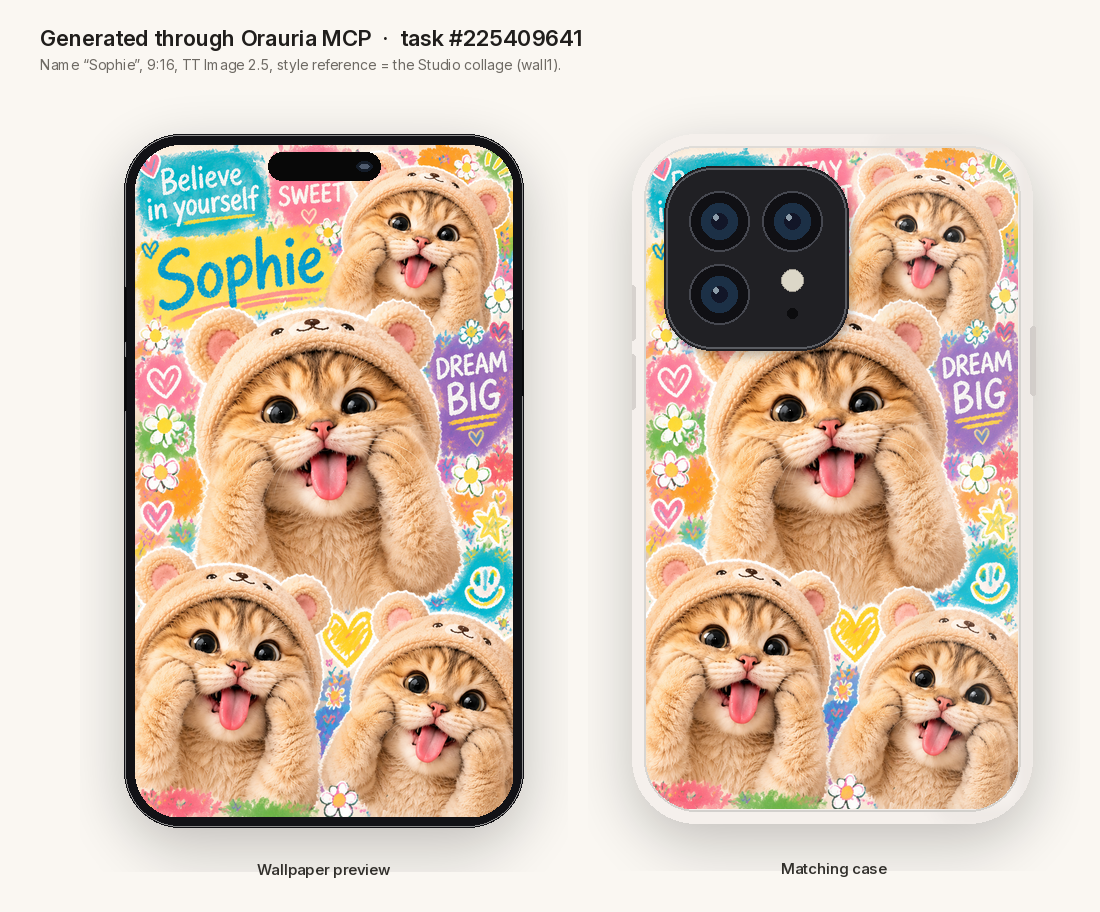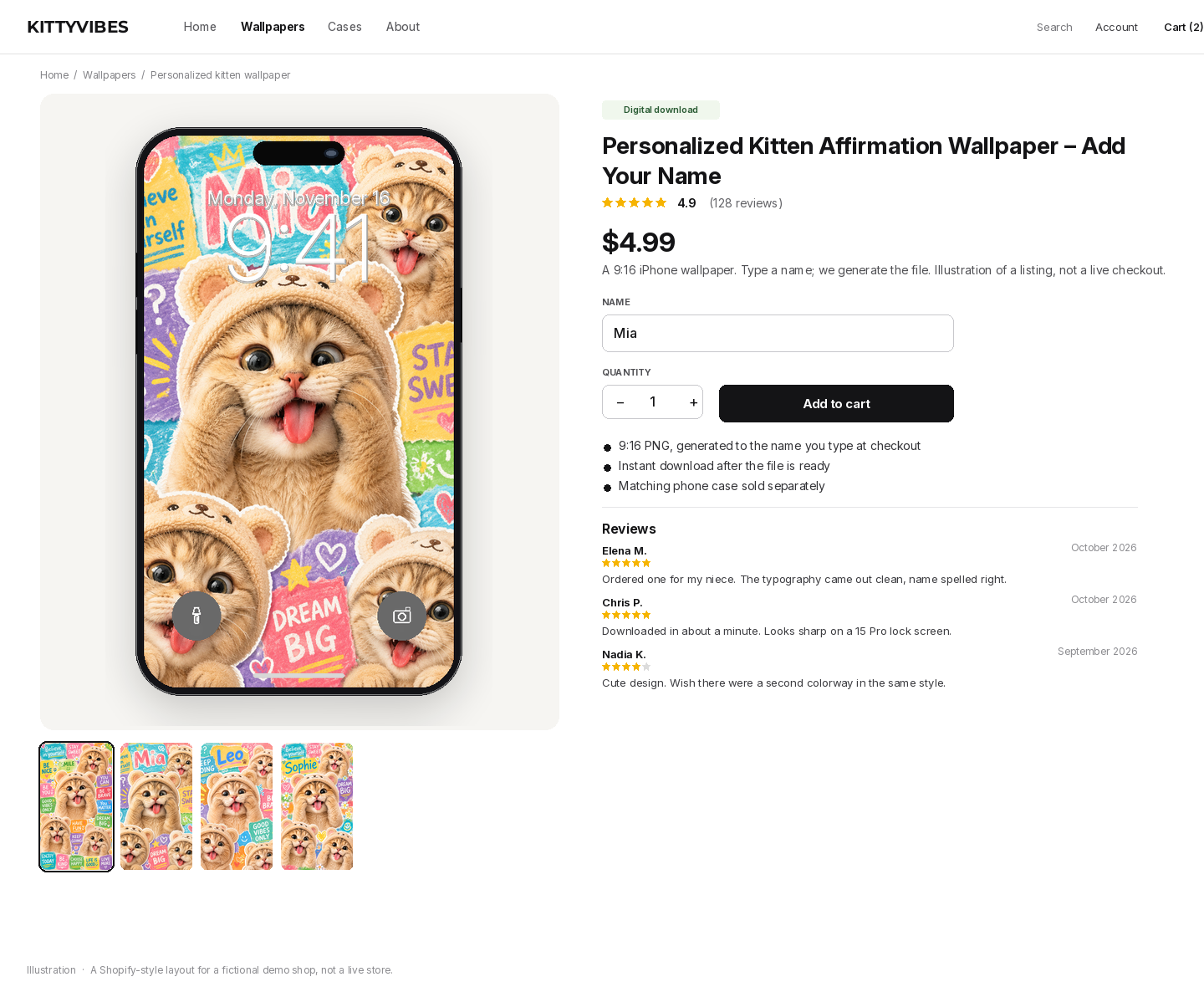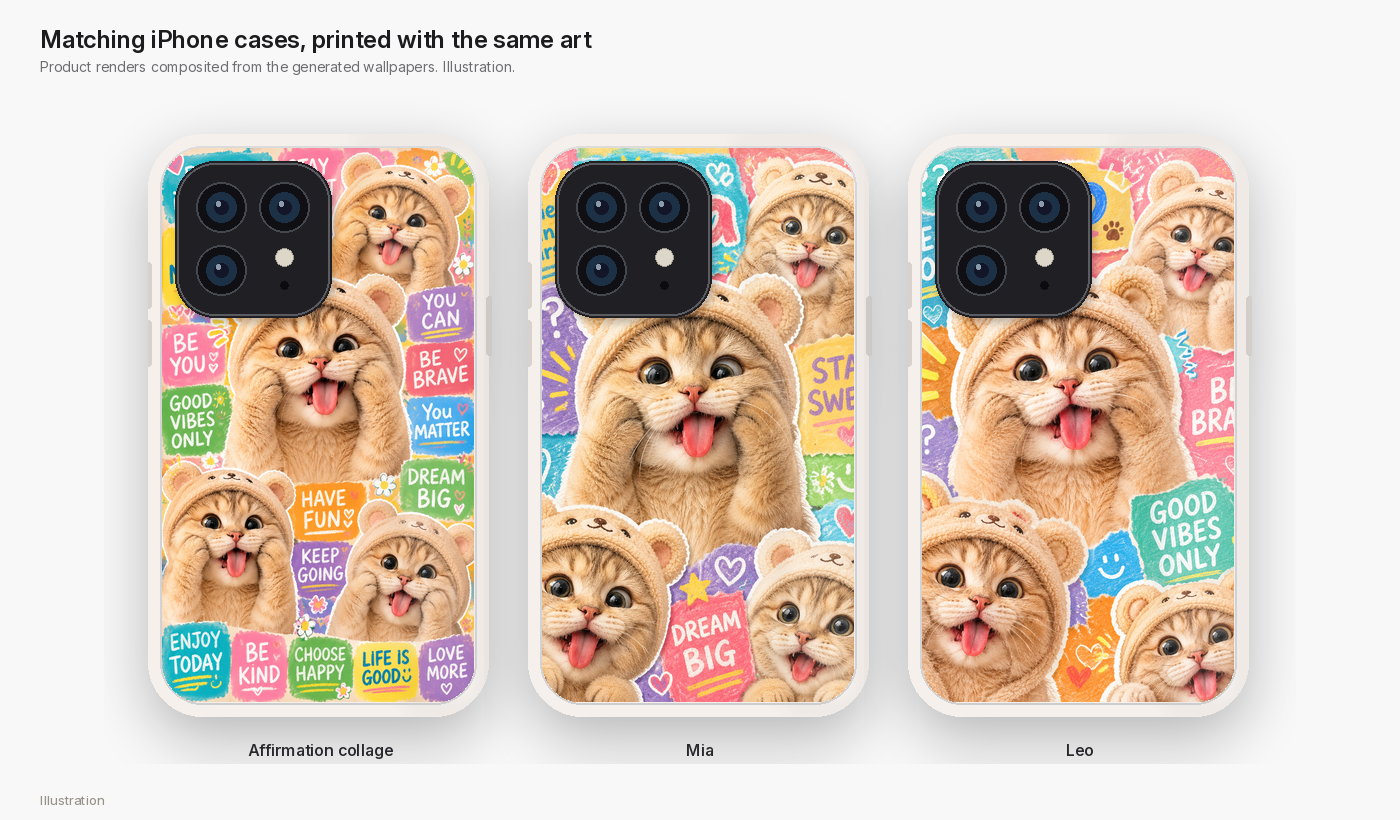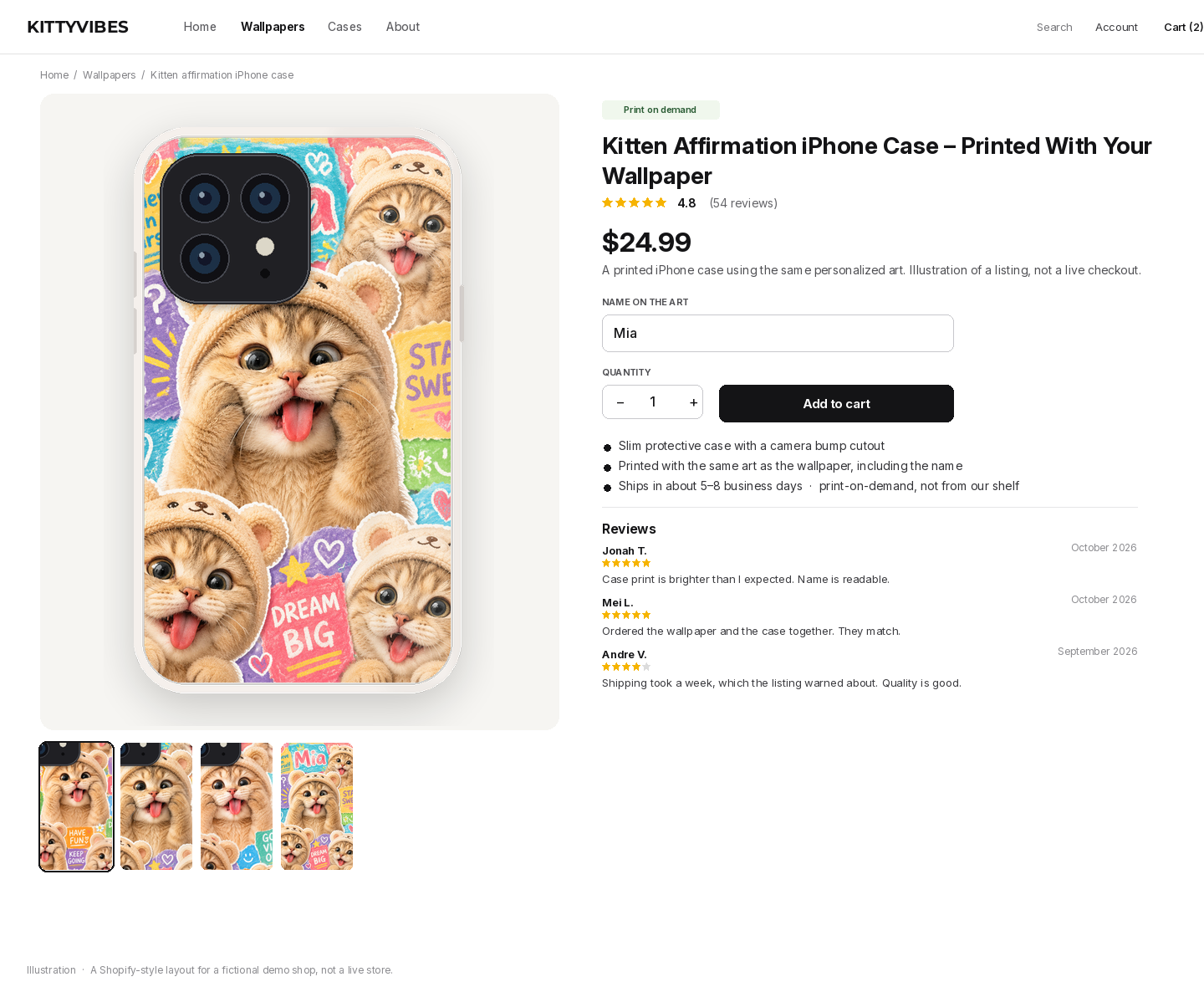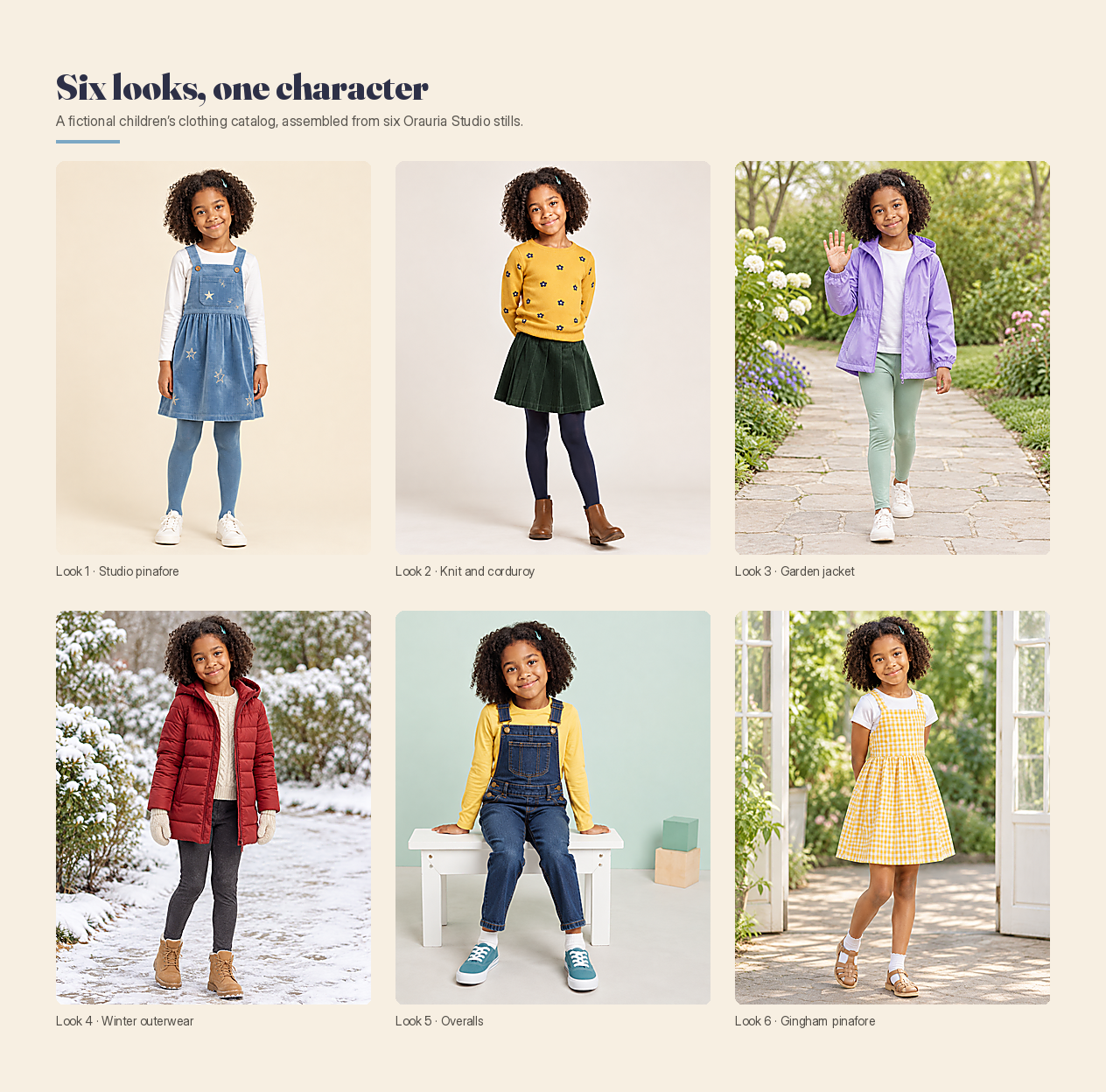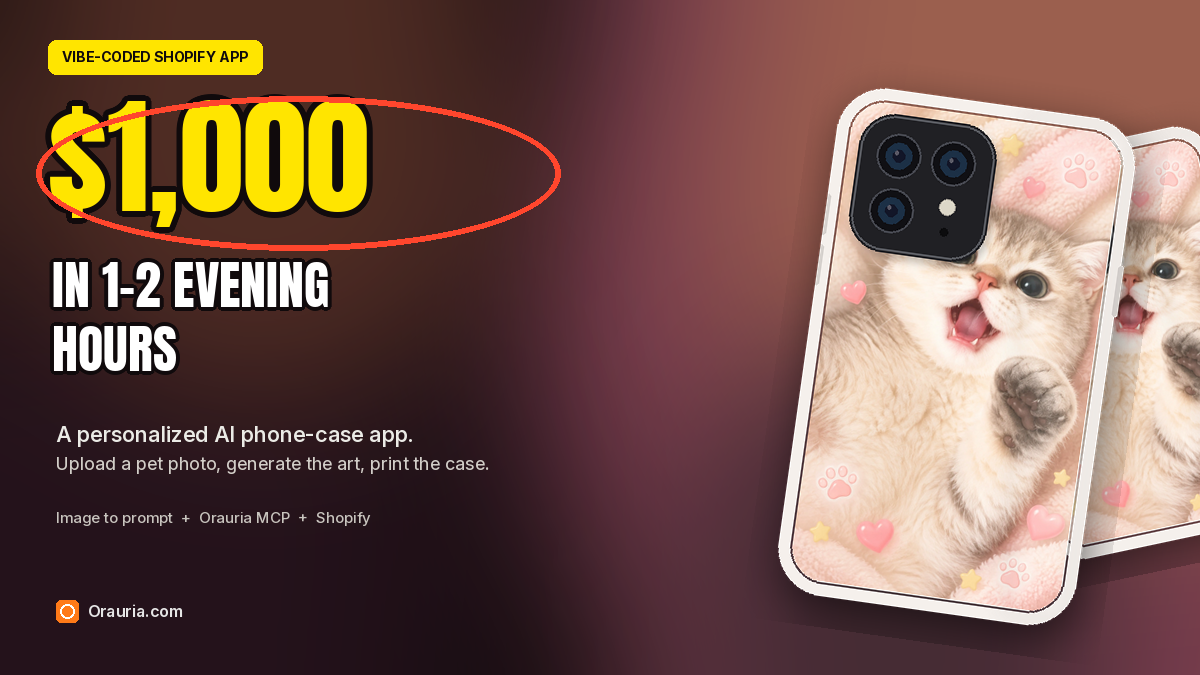
I did not want a catalog of cases already sitting on a shelf. I wanted a shop that starts with a photo a customer already has: their cat, their dog, a scribble of an idea. So I vibe-coded a small Shopify app. The shopper uploads a picture. The app calls Orauria to turn that picture into a detailed prompt, rewrites it as printable phone-case artwork, generates the file, and previews it on an iPhone case. When they pay $24.99, the file goes to print-on-demand.
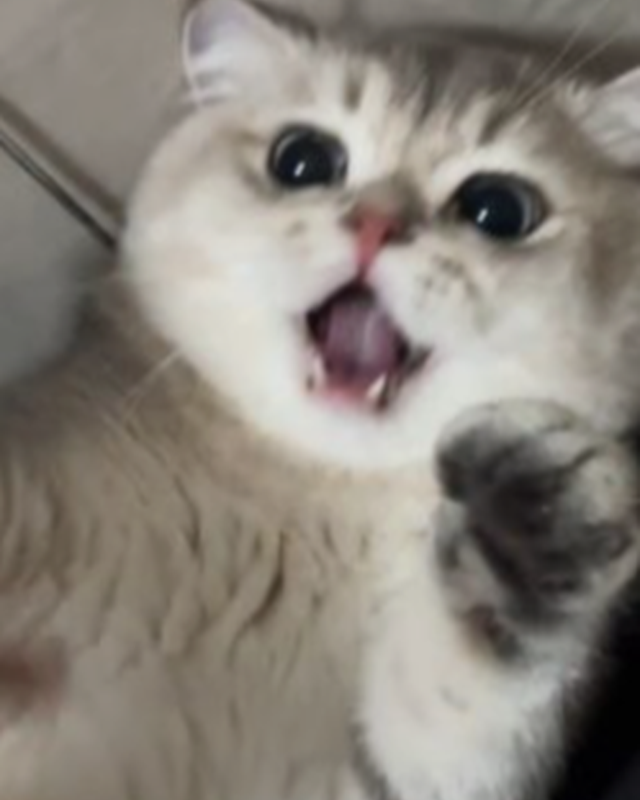
This walk-through uses a real photo of a wide-eyed cream kitten — one paw up, mouth open mid-meow — as the stand-in for a shopper upload, a real Image to prompt run on a public cat collage pin to show that step, and a real file from Orauria Studio — task #225830817 — generated with the kitten photo as a reference. The shop around it, PawCase Studio, is a fictional demo of the app I would wire up next.
The playbook at a glance
- Install the Chrome extension.
- Start with a photo you have the right to use — a customer’s own pet is the point of the shop.
- Run Image to prompt to get a detailed brief (the app would call this on the upload; below, we demonstrate the step on a public pin).
- Rewrite a 9:16 case brief for that pet, attach the photo as a reference, and generate it in Orauria Studio.
- Vibe-code a small Shopify app: upload → Image to prompt API → rewritten brief → Orauria MCP (
generate_image, thenget_task) → case preview → print-on-demand. - Keep the token on the server. Treat a week of evening totals as a worked example, not a promise.
First, install the extension
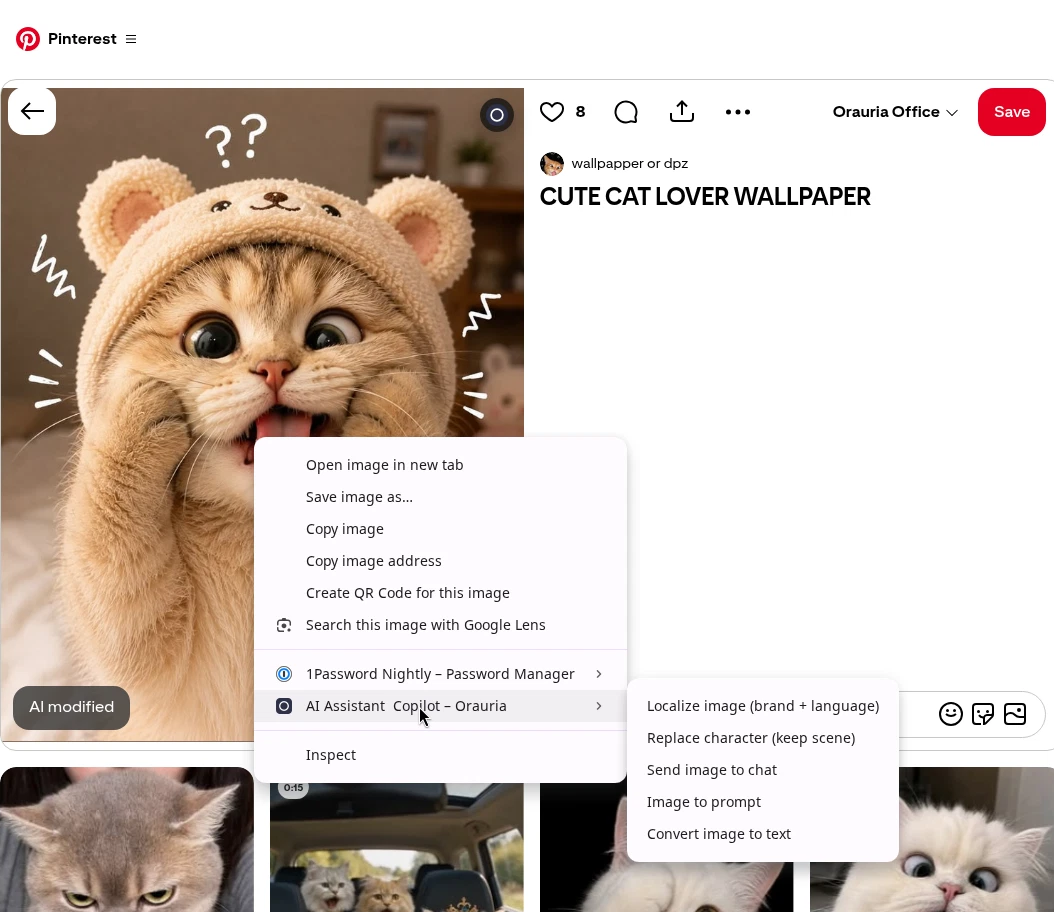
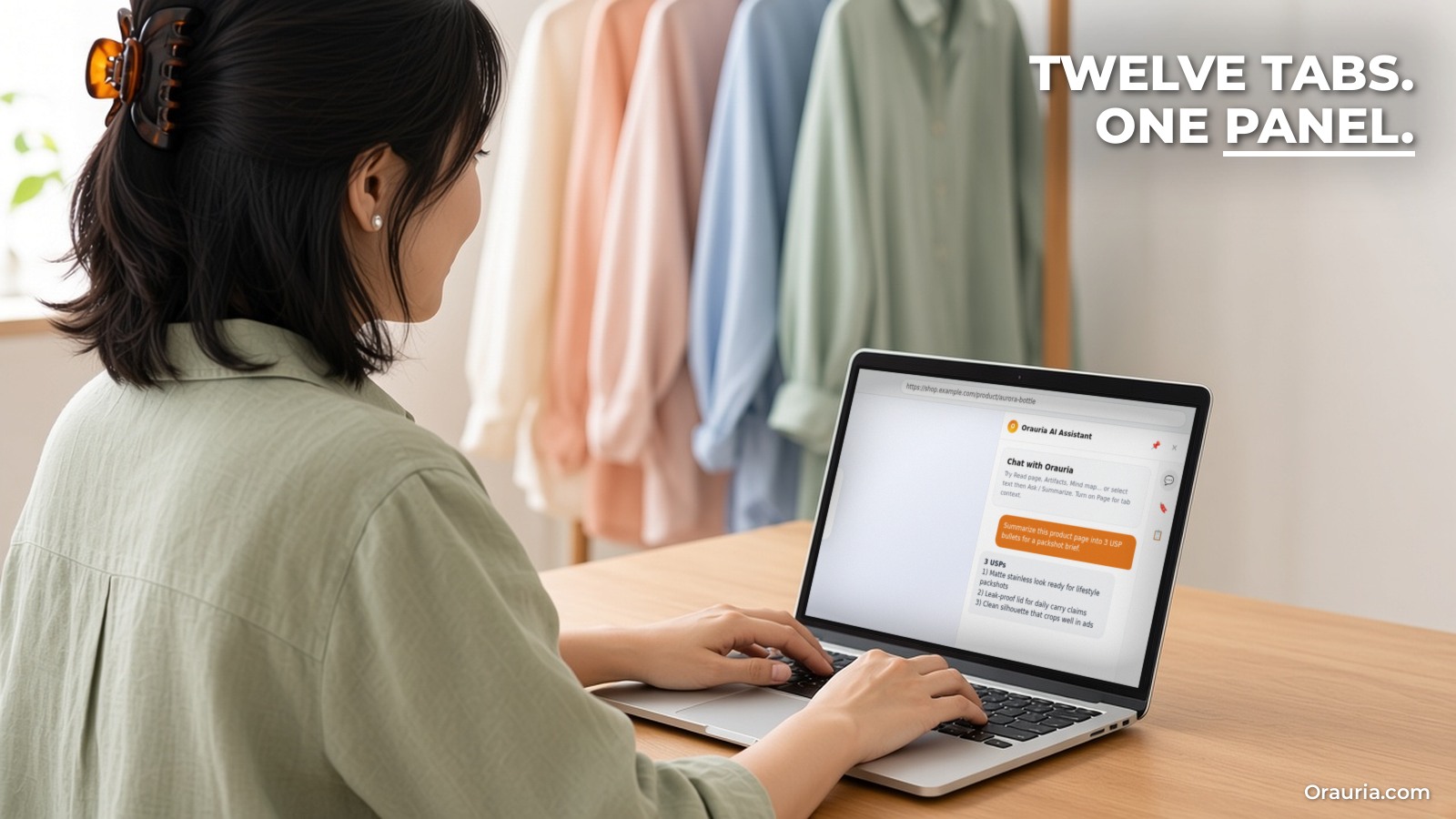
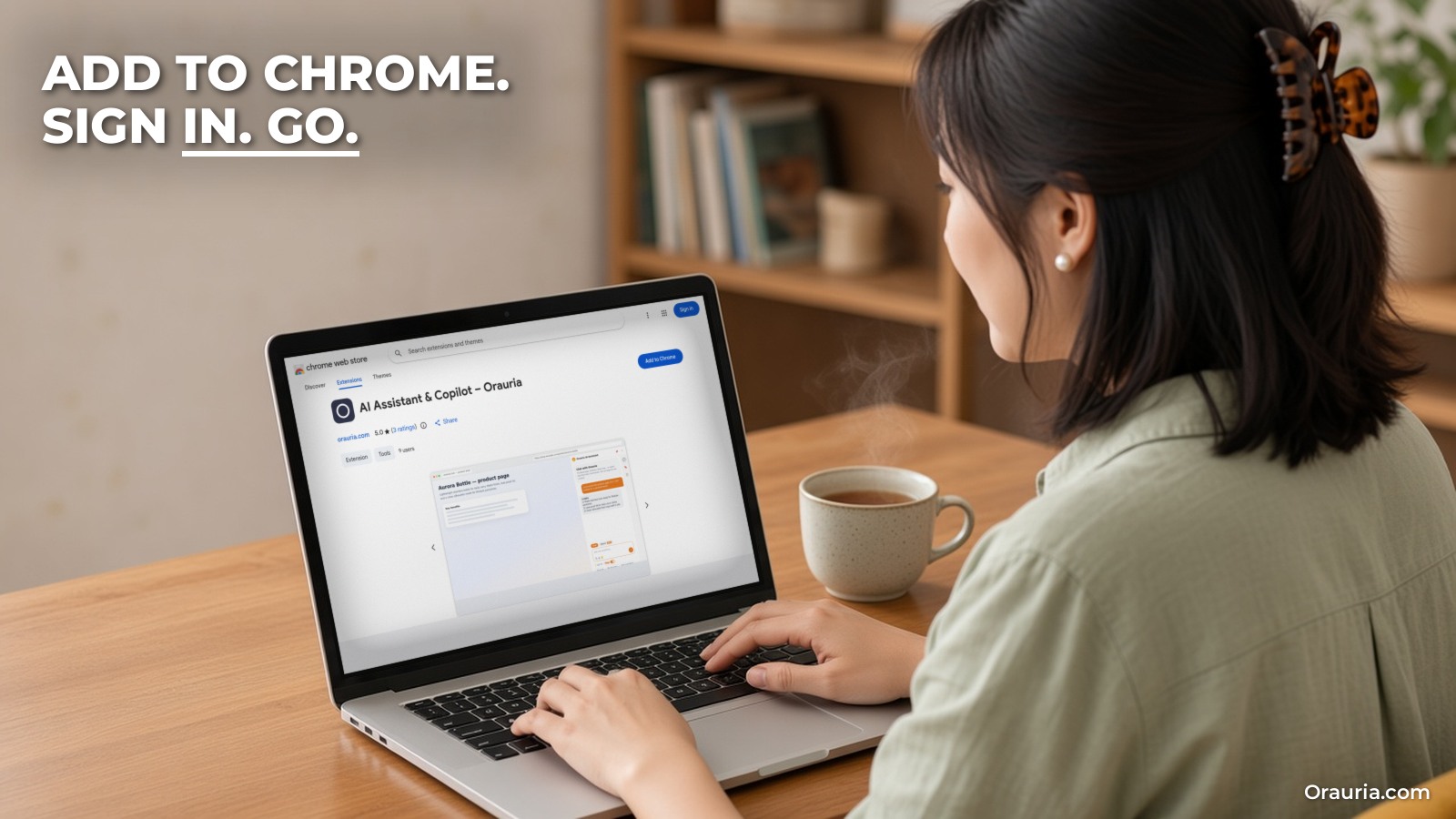
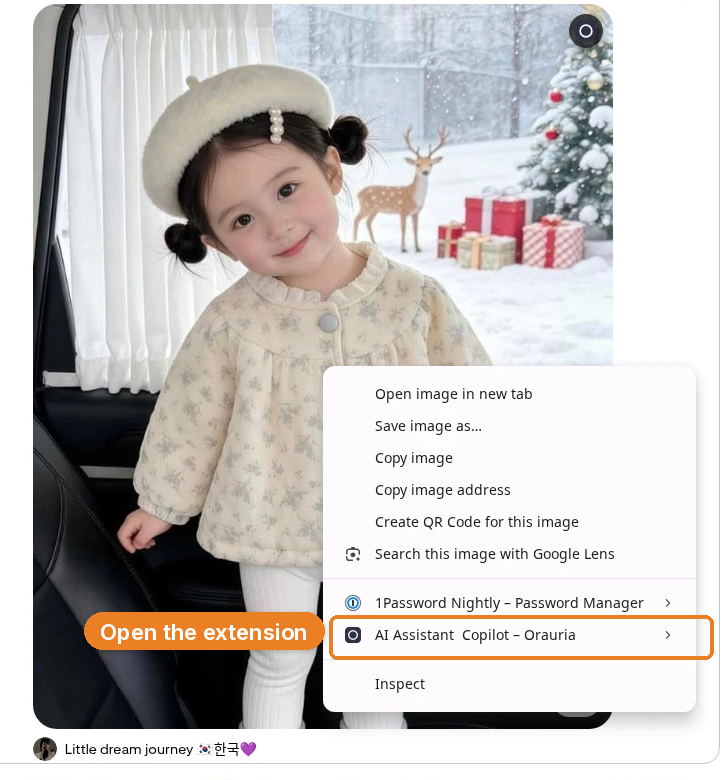
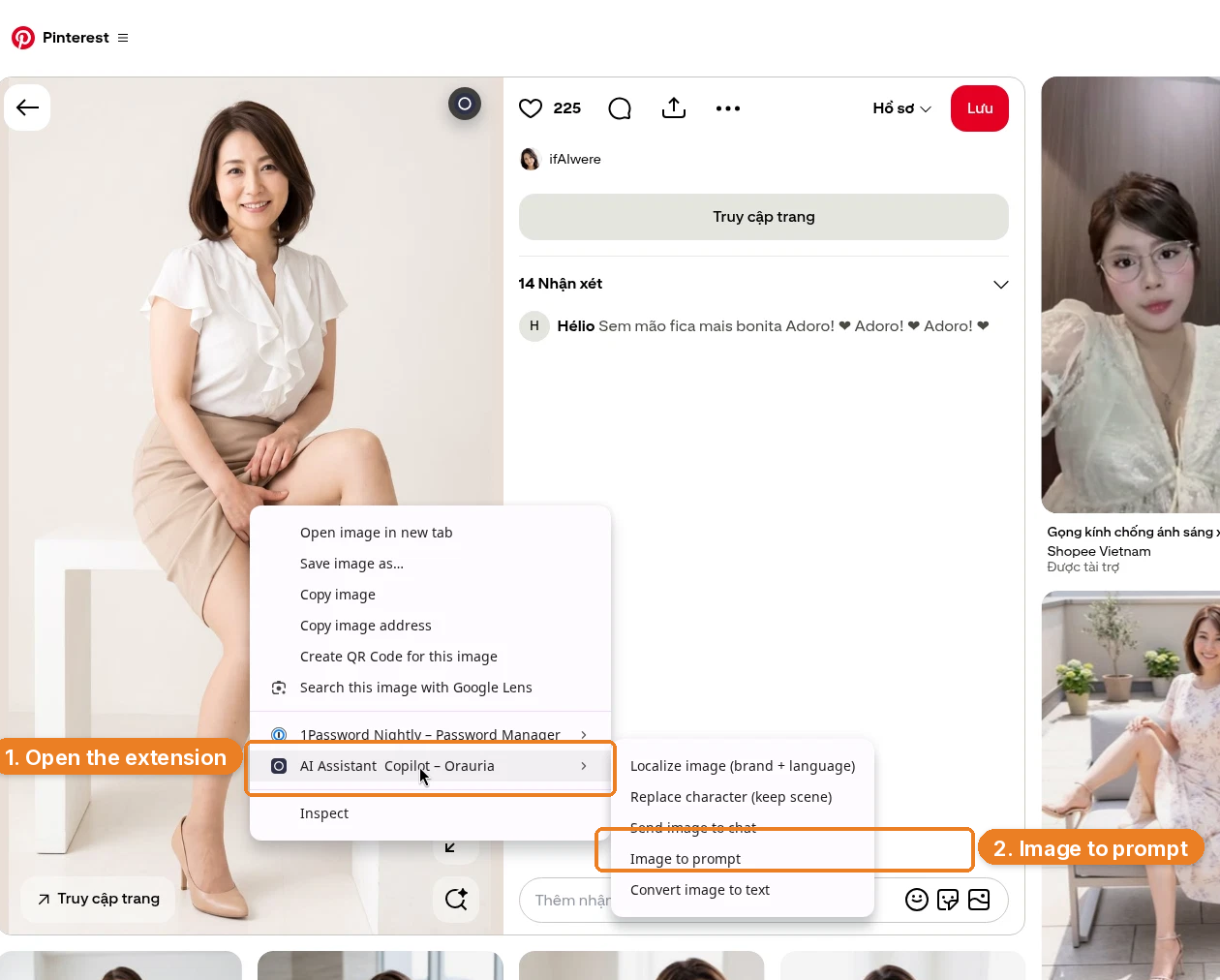
Image to prompt only works after you install the Chrome extension AI Assistant Copilot – Orauria. Get it from the Chrome Web Store before you go looking for a reference, or before you run it on an upload. Once it is on, you can right-click a photo and pull a prompt from it.
The shopper’s photo
The useful photo for a case shop is already doing the work a product has to do: a face you can recognize at a glance, an expression that will still read on a four-inch back, and a pose you can turn into a character rather than a crop. This cream kitten does that job. It lies on its back, huge dark eyes on the camera, a tiny pink nose, mouth open in a happy meow, one grey-tipped paw reaching up — the kind of picture a customer would actually pull off their phone.
That photo is the upload. It is not a file to reprint onto a case. The app’s job is to write a new piece of illustrated artwork from it, with the photo as a reference, not as the print file.
How Image to prompt works — the step the app calls
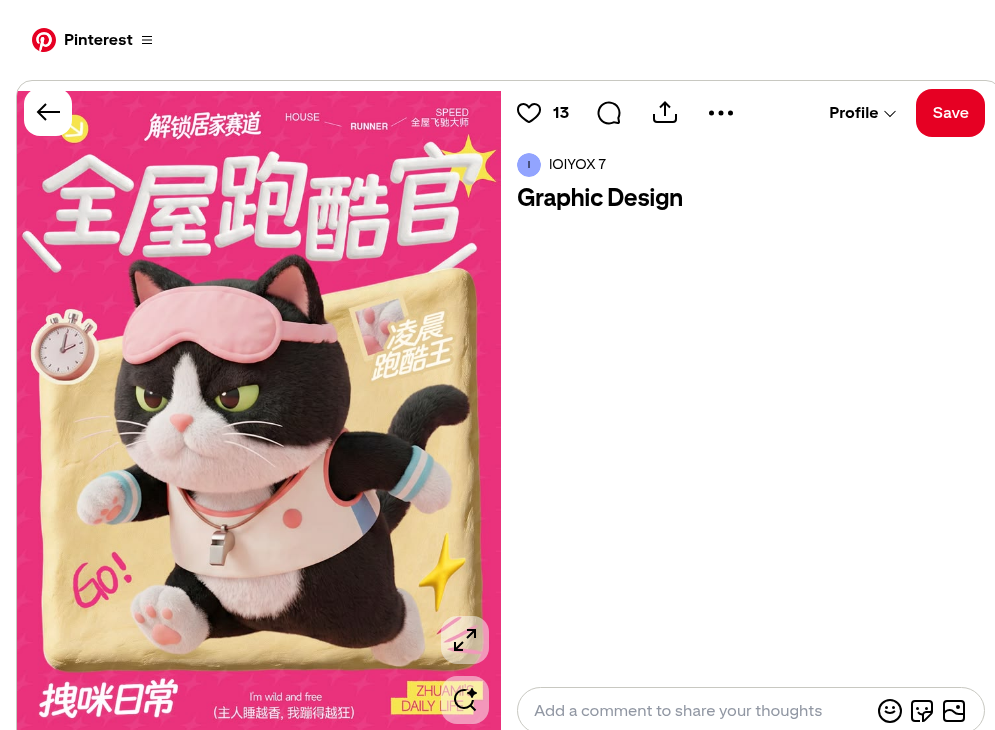
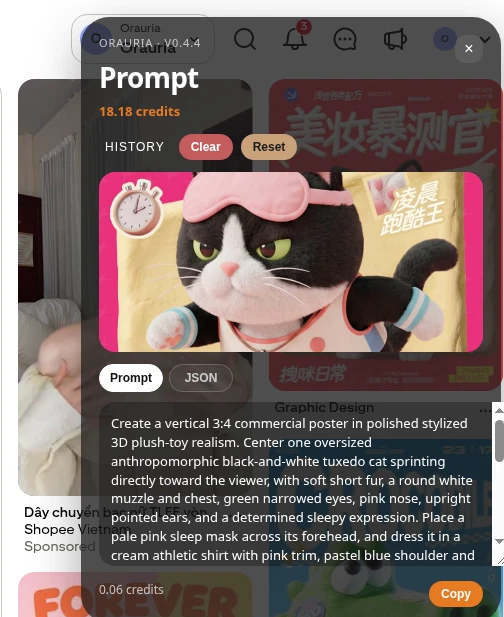
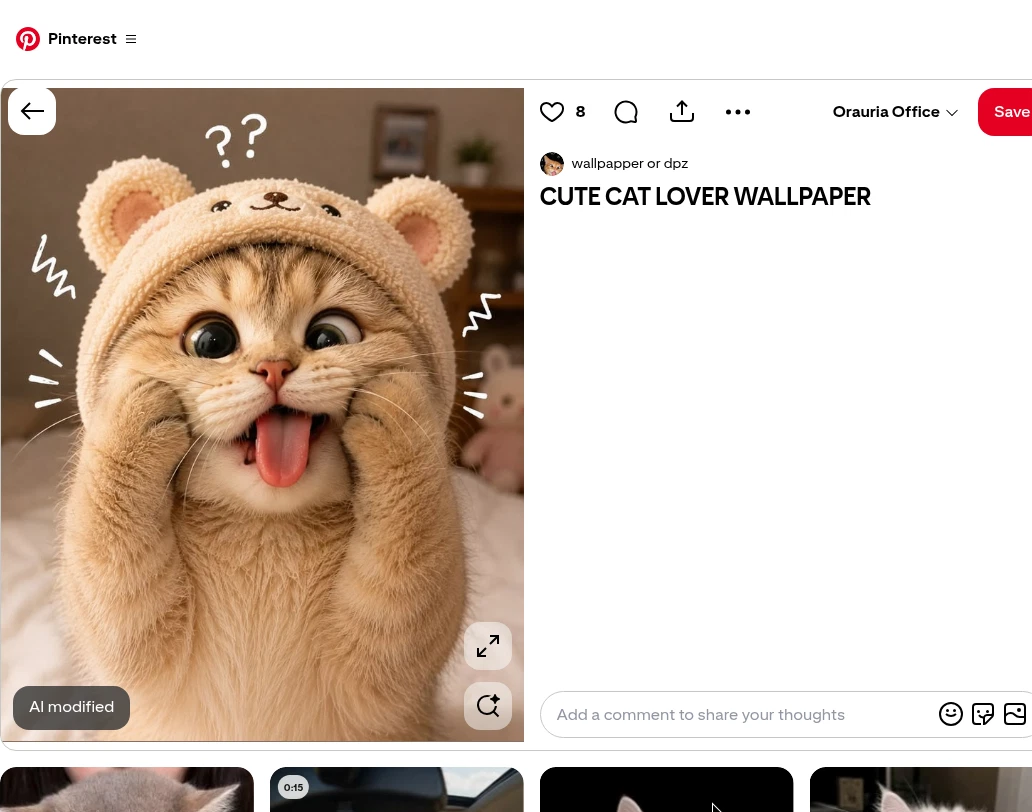
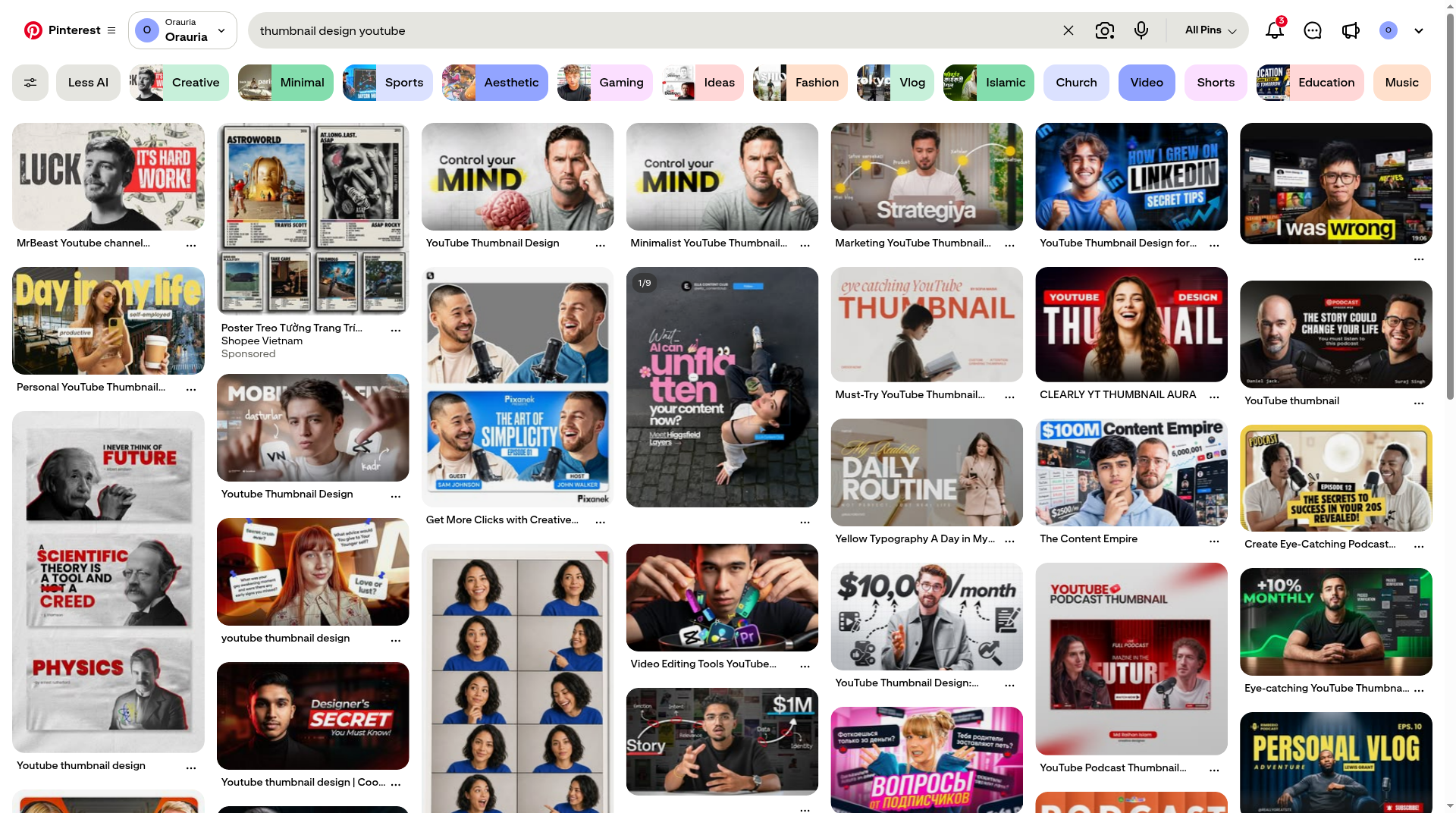
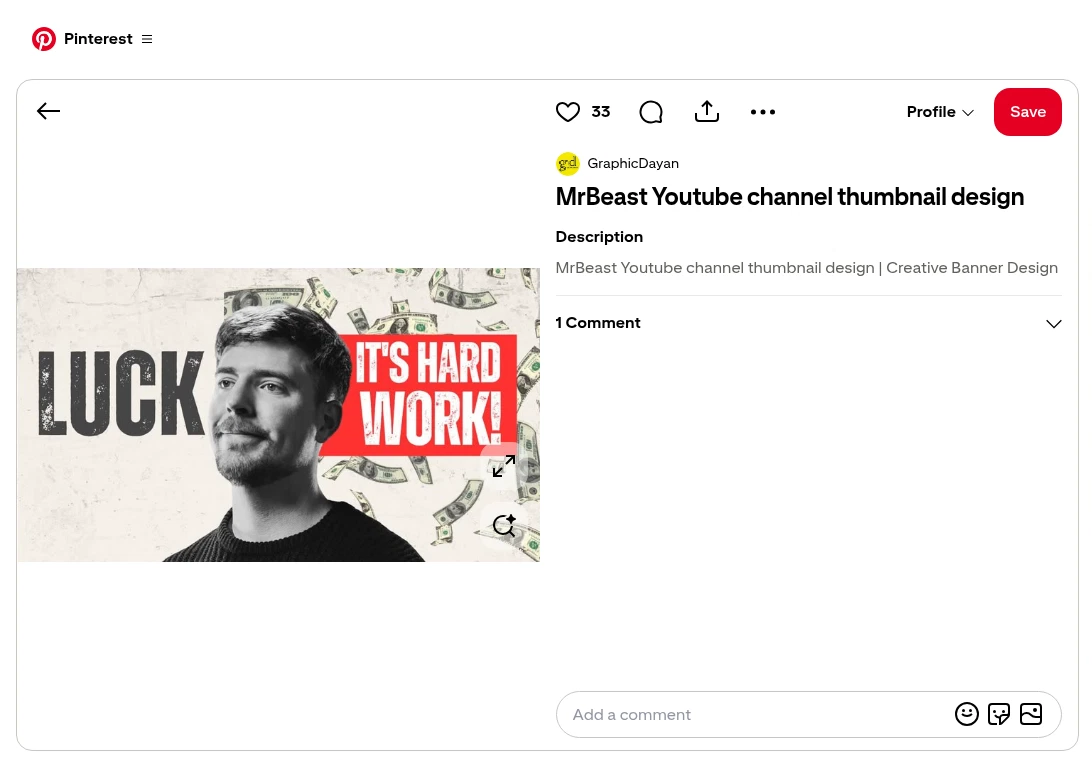
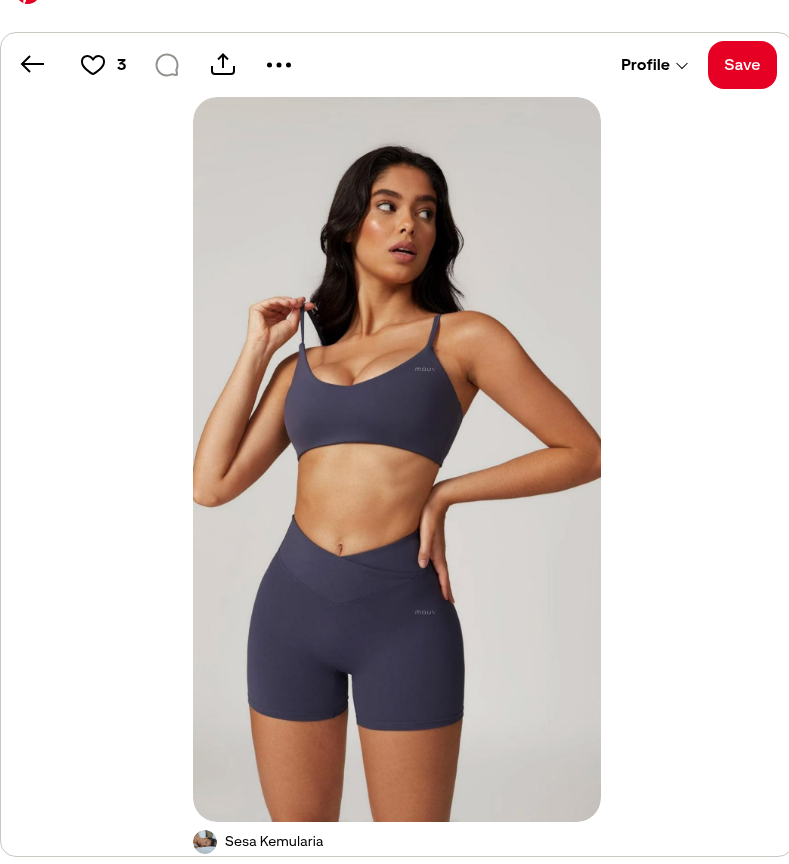
In the live app, the first call after an upload is Orauria’s Image to prompt API. To show what that step actually looks like, we ran the Chrome extension on a public cat collage pin: cream-white, round-faced cats with sleepy green eyes, grassy sticker cutouts, and a sage-and-ivory checkerboard. Credit the pin. It is a style-and-subject teacher, not a product you are allowed to resell, and it is not the customer photo above.
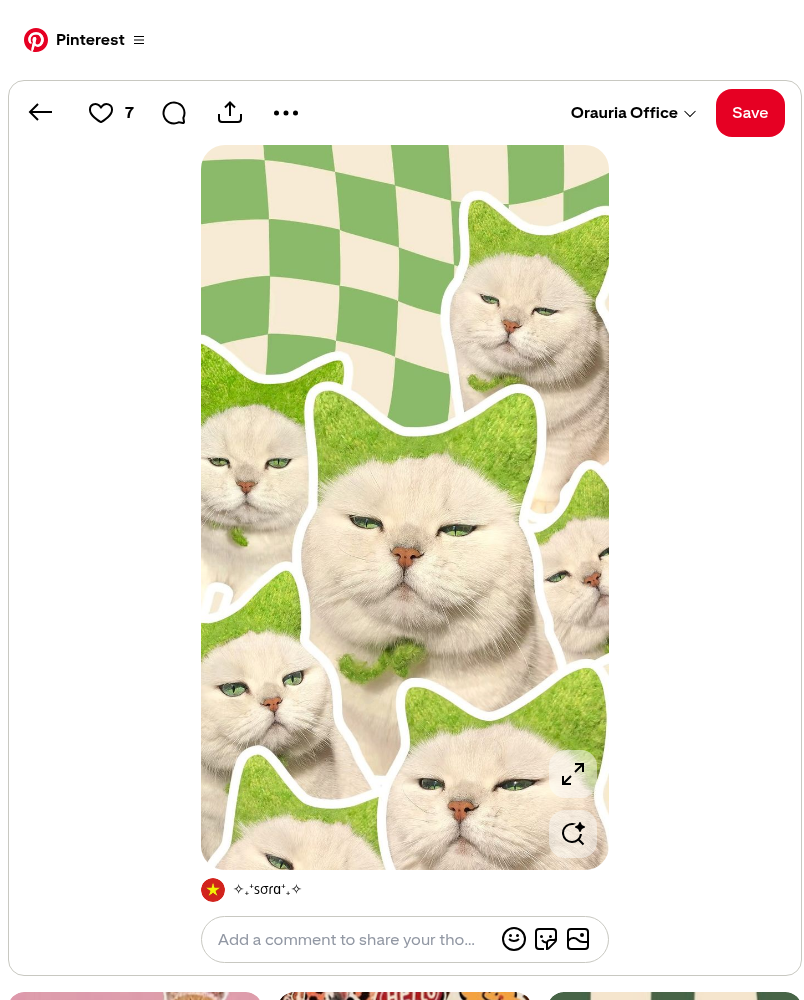
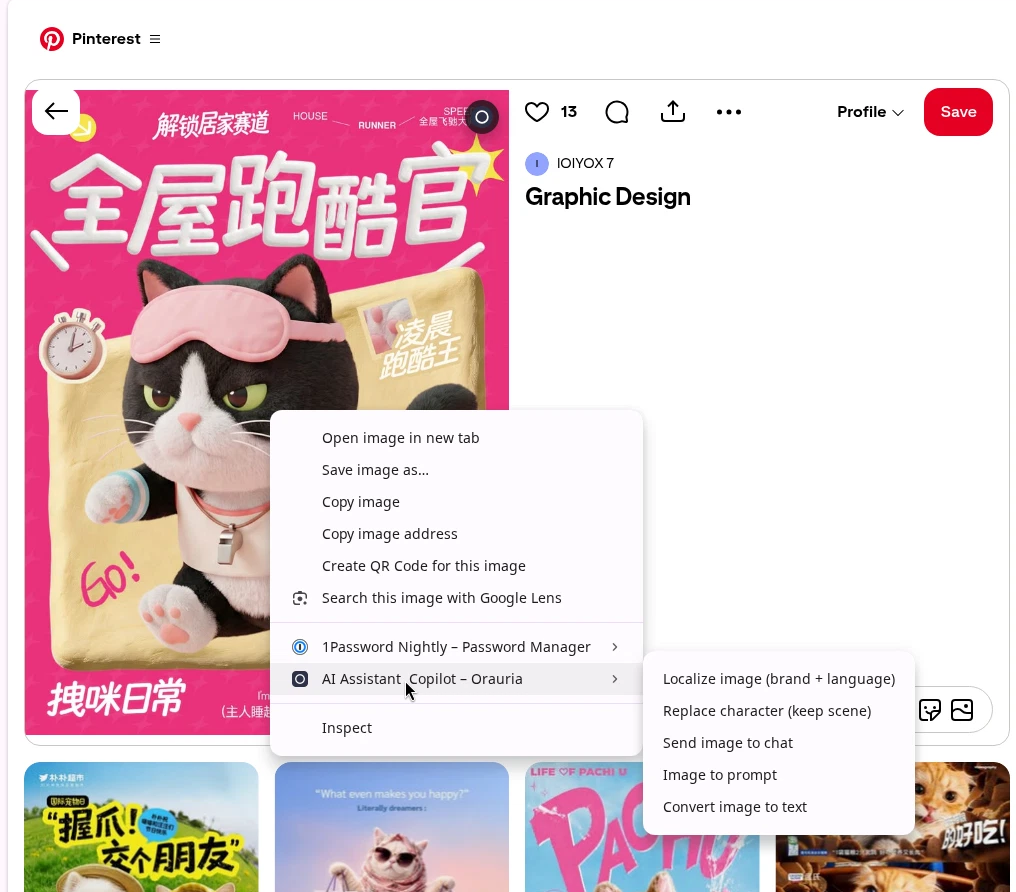
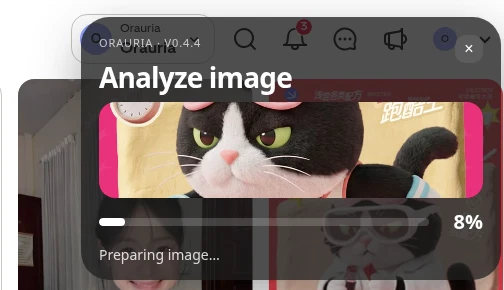
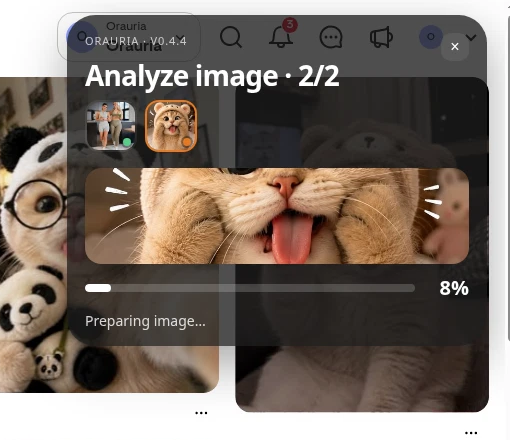
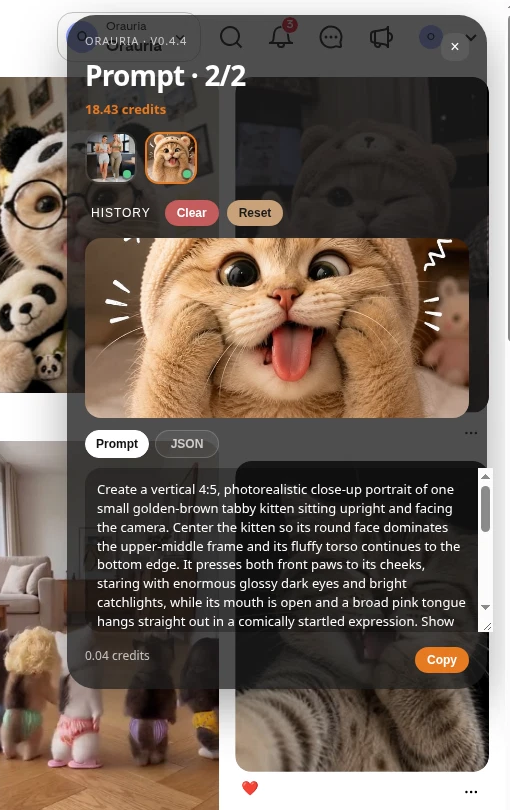
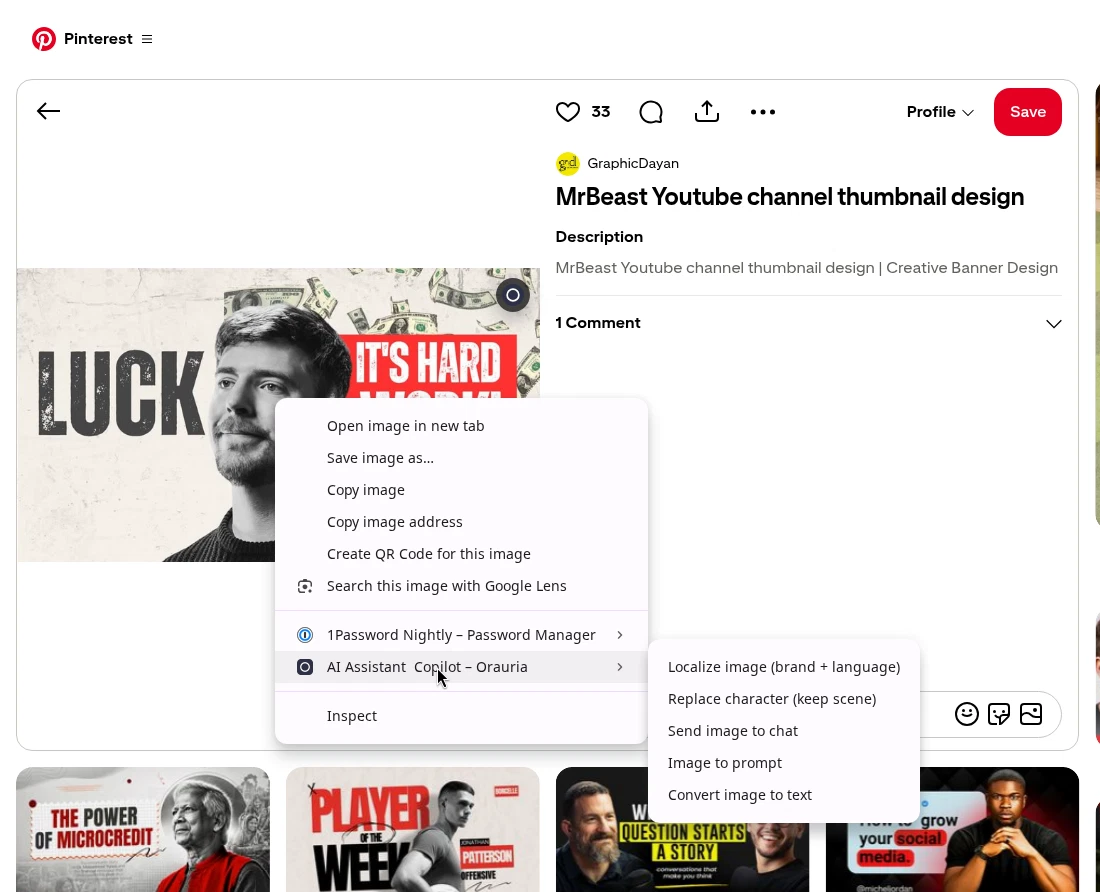
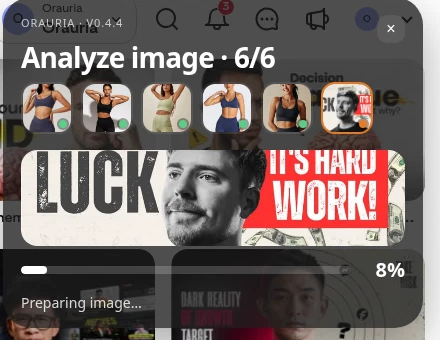
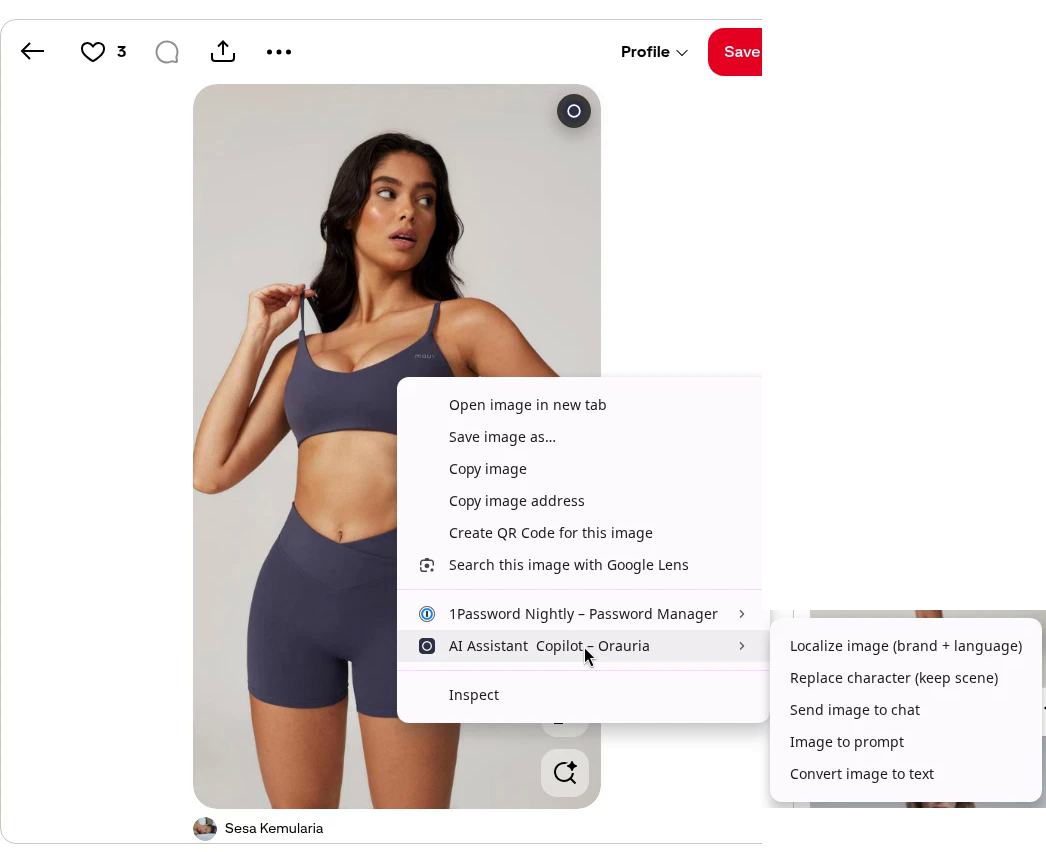
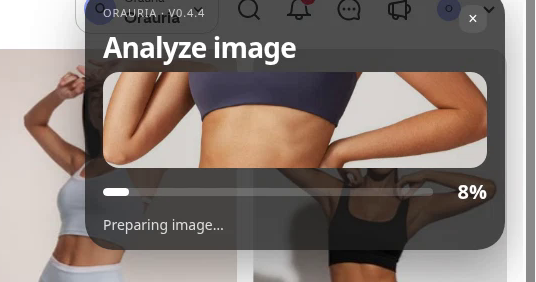
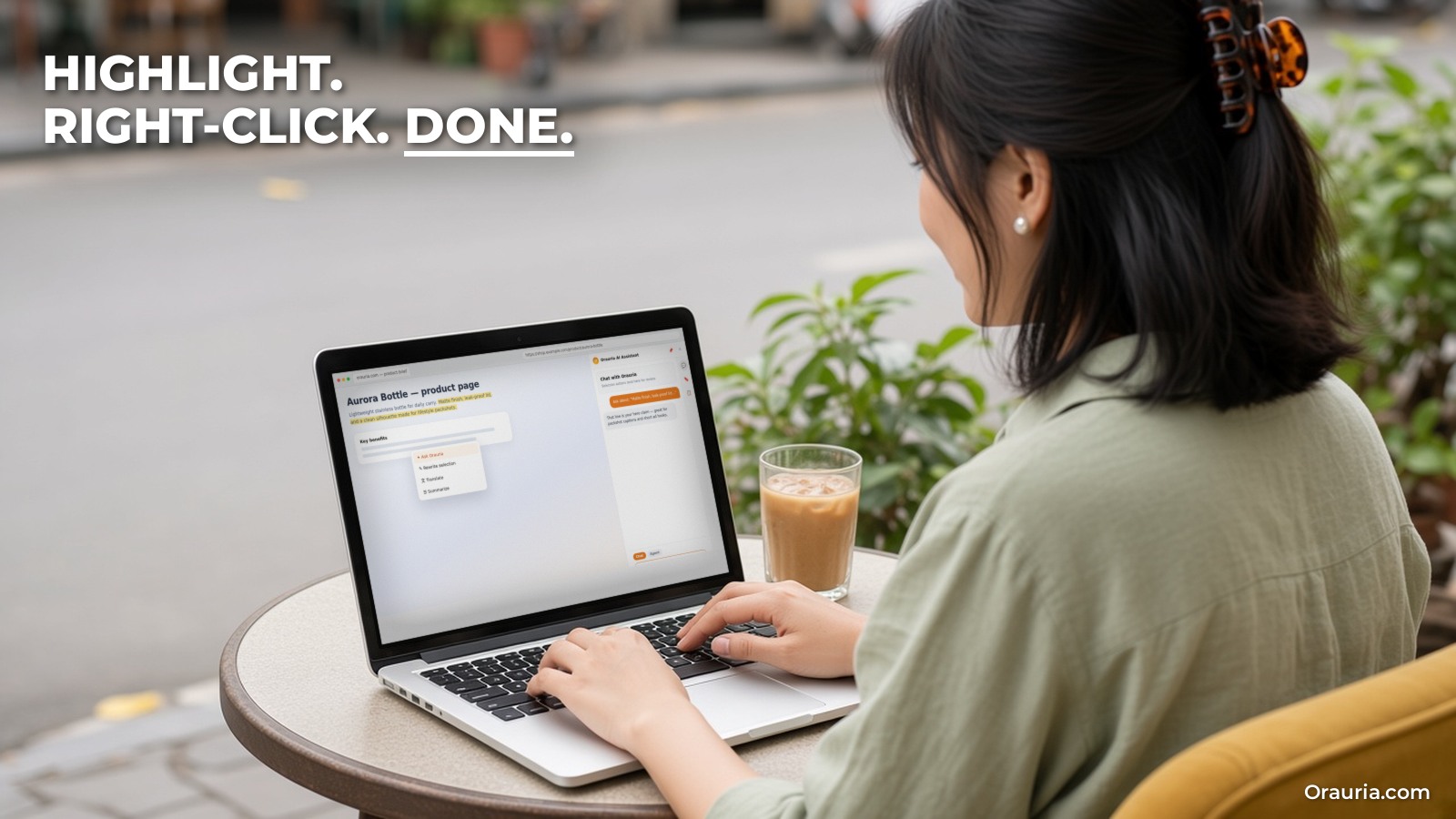
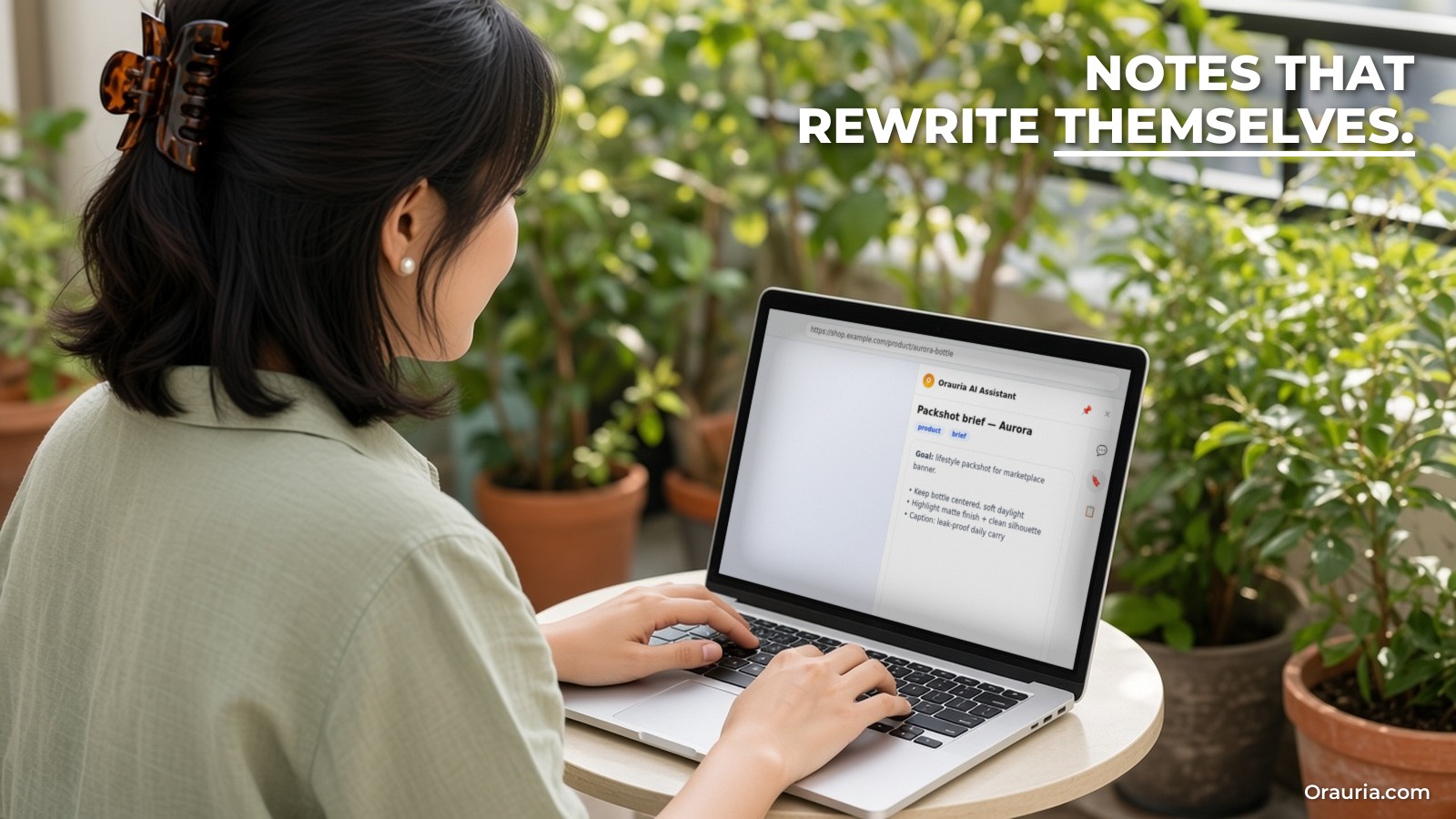
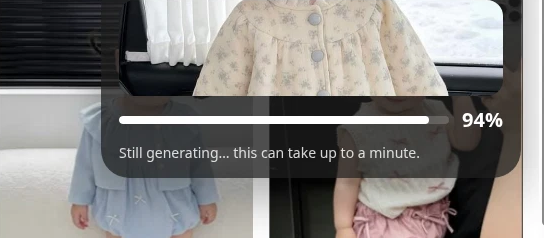
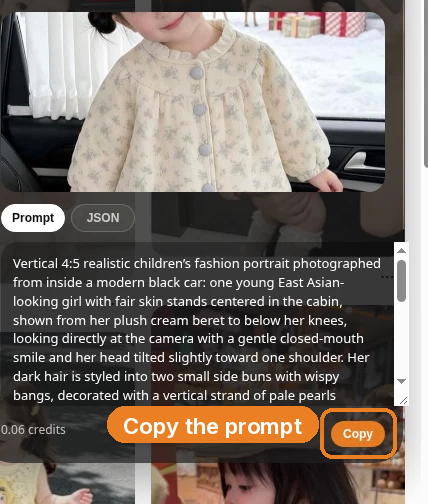
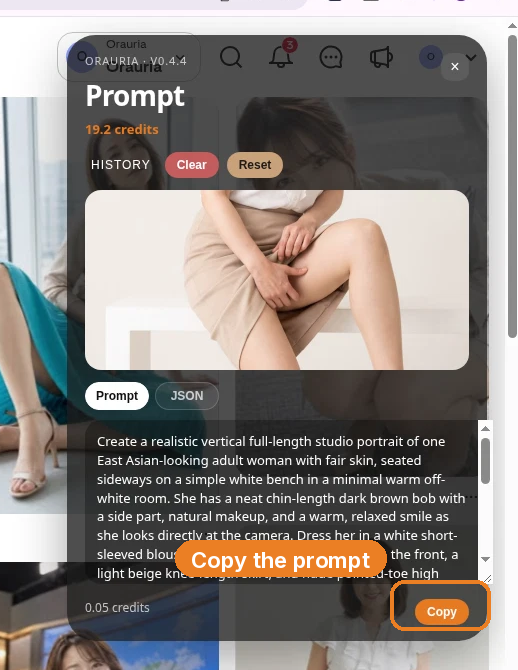
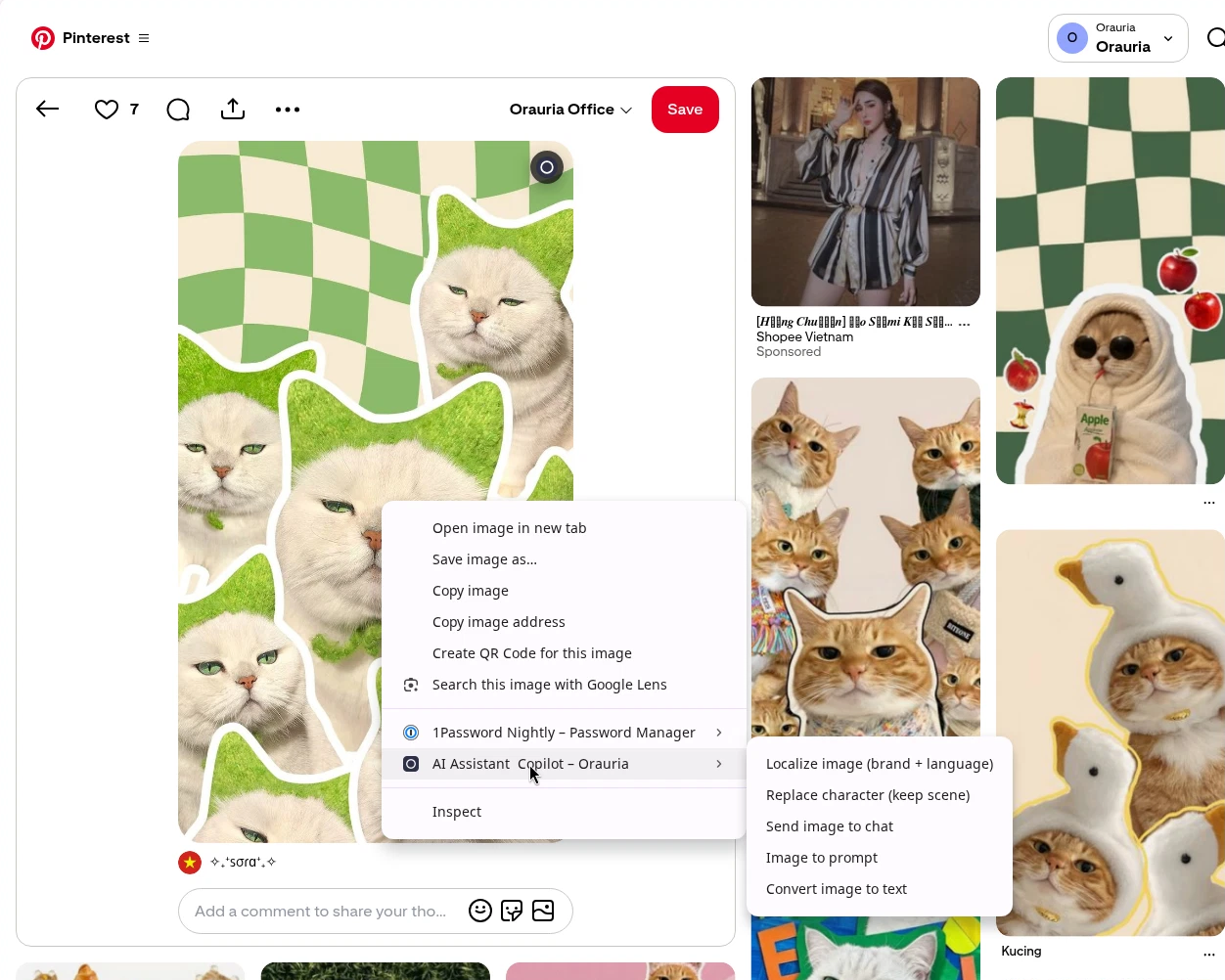
Right-click the image, open AI Assistant Copilot – Orauria, and choose Image to prompt. The extension analyzes the picture and writes a brief you can actually reuse.
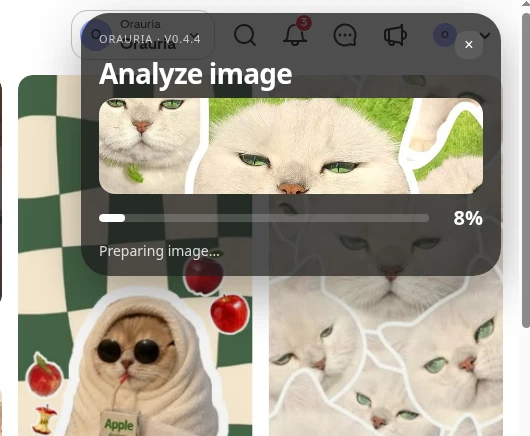
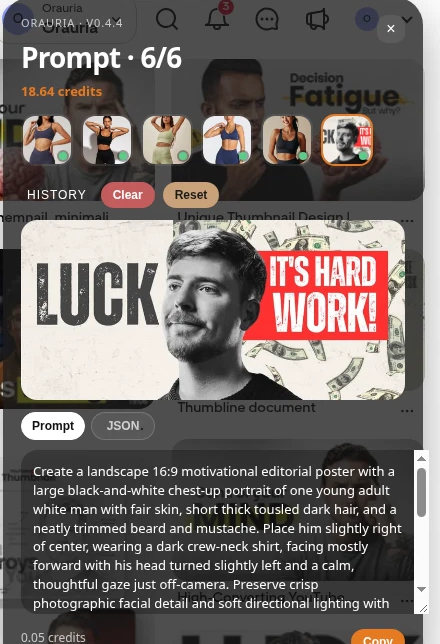
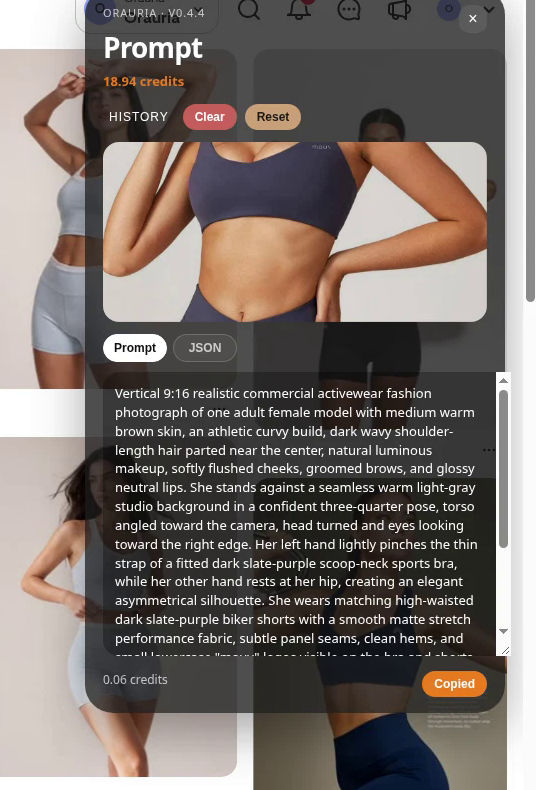
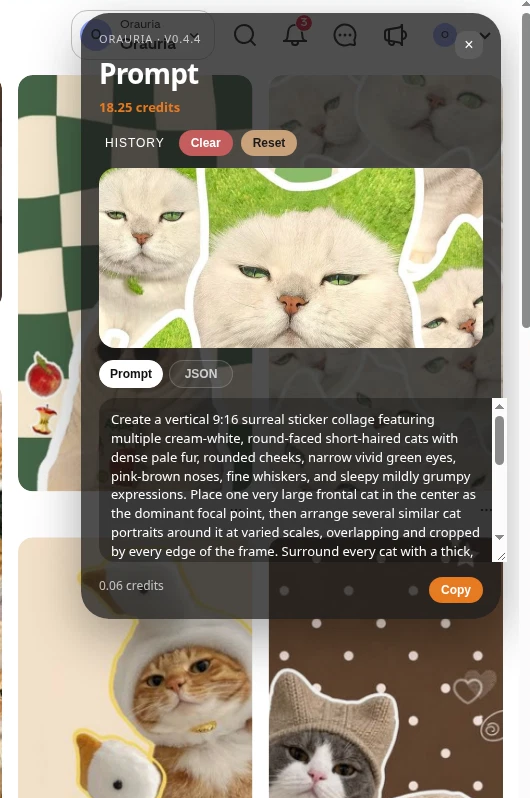
This run cost 0.06 credits. The brief that came back is an example of the kind of document the tool writes — a detailed visual description, not a license to reprint the pin, and not the brief we later used for the customer’s kitten. This is the extracted prompt, copied in full:
Create a vertical 9:16 surreal sticker collage featuring multiple cream-white, round-faced short-haired cats with dense pale fur, rounded cheeks, narrow vivid green eyes, pink-brown noses, fine whiskers, and sleepy mildly grumpy expressions. Place one very large frontal cat in the center as the dominant focal point, then arrange several similar cat portraits around it at varied scales, overlapping and cropped by every edge of the frame. Surround every cat with a thick, uneven hand-cut white outline. Include vivid bright green fibrous grass texture inside the irregular cutout regions and around portions of the cats, as though the portraits are pasted over grassy sticker shapes. Fill the background with a warped retro checkerboard of alternating sage-green and warm ivory squares, the grid bending in soft organic waves. Use soft diffuse frontal lighting, realistic fur and facial texture, crisp graphic layering, gentle shadows, straight-on close portrait framing, playful uncanny editorial collage design, clean print-like finish, no text, no logos, no humans, no extra species.
Rewrite a brief for the customer’s kitten
A case shop should not sell the upload. It should sell a new piece of art that the upload inspired — the same cream kitten, redrawn as a full-bleed 9:16 illustration a printer can put on the back of a case. In the app, that rewrite would start from the Image to prompt brief. For this walk-through I wrote the case brief from the customer photo, kept the pose and the face (the wide eyes, the open mouth, the raised grey-tipped paw), and asked for soft pastel kawaii artwork, not a 3D phone mockup, with no name, text, or logos on the file.
This is the Studio prompt, copied in full:
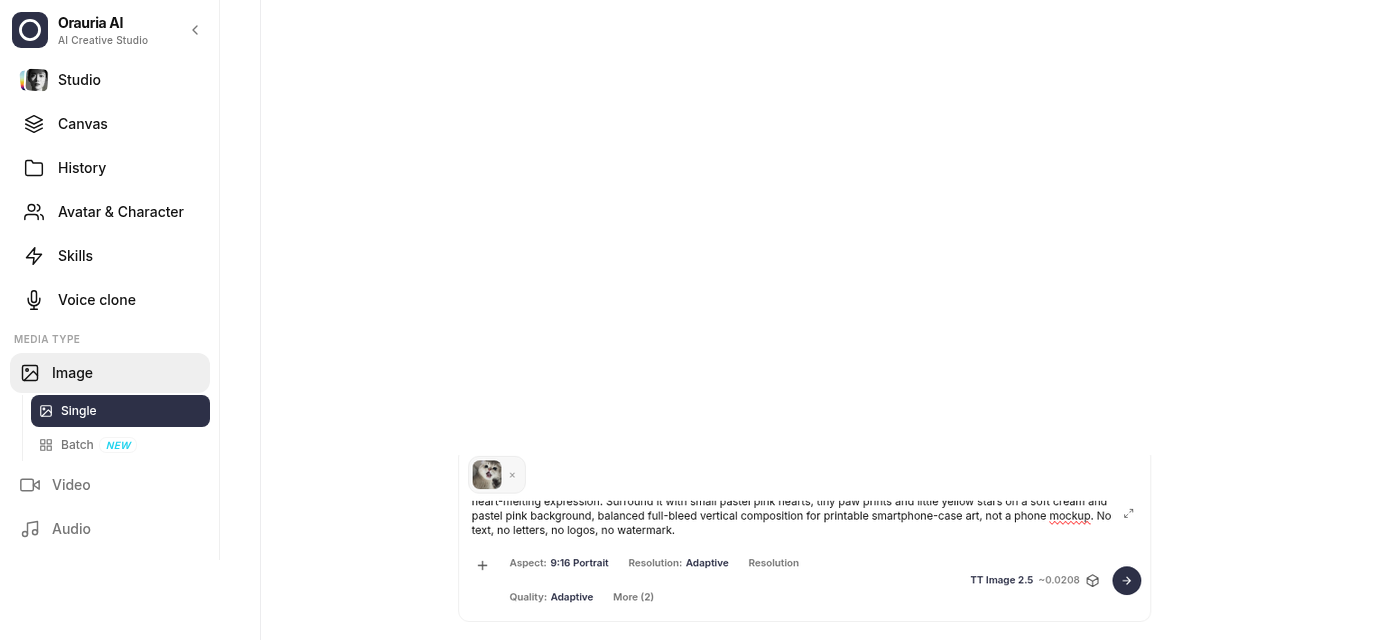
Create a vertical 9:16 adorable phone-case artwork of the SAME kind of kitten as in the reference photo: a fluffy cream-white British-shorthair kitten with huge round shiny dark eyes, a tiny pink nose, soft chubby cheeks, mouth wide open in a happy little meow showing a pink tongue, one small grey-tipped paw raised toward the viewer as if waving, lying on a soft beige cushion. Render it in a soft pastel kawaii cute 3D illustrated style with silky fluffy fur, gentle glossy highlights and a sweet, heart-melting expression. Surround it with small pastel pink hearts, tiny paw prints and little yellow stars on a soft cream and pastel pink background, balanced full-bleed vertical composition for printable smartphone-case art, not a phone mockup. No text, no letters, no logos, no watermark.
Generate the case art in Orauria Studio
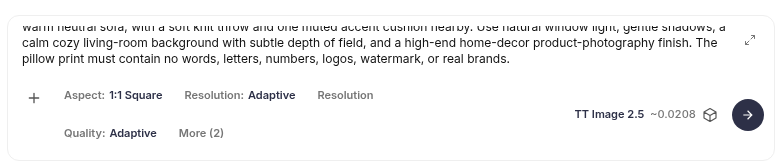
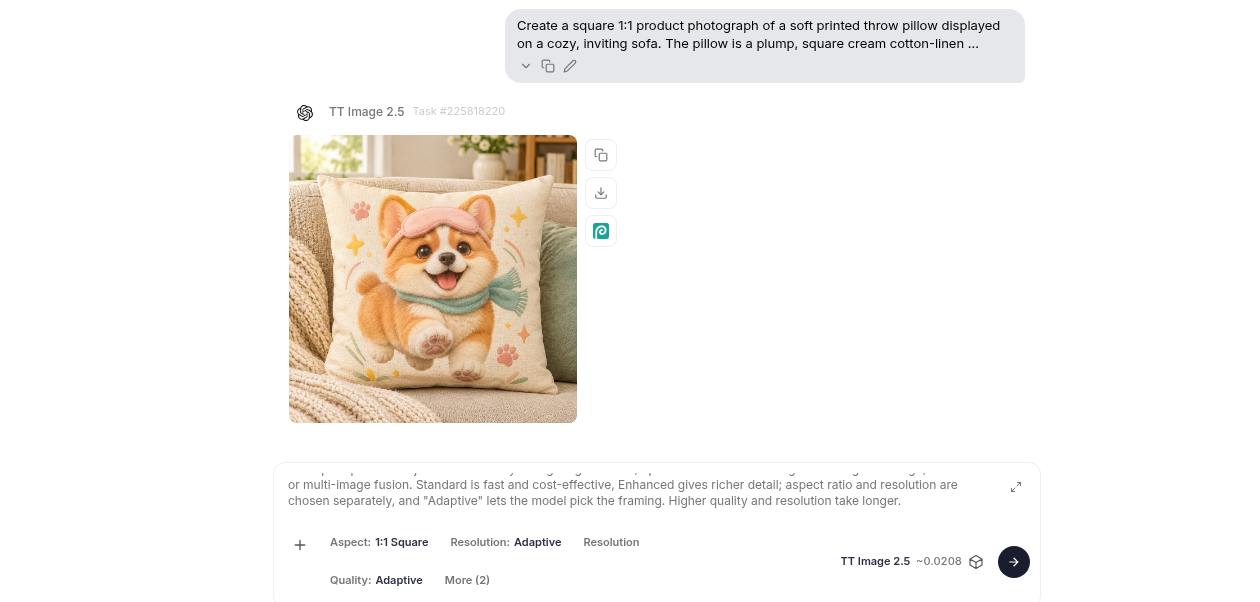
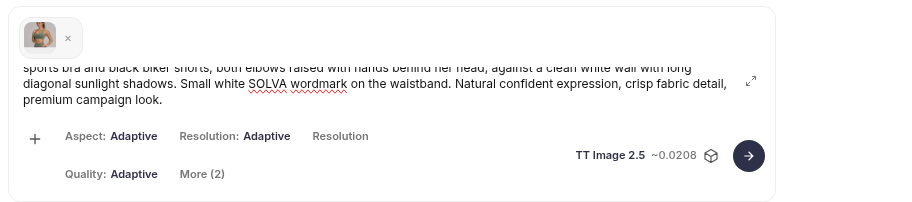
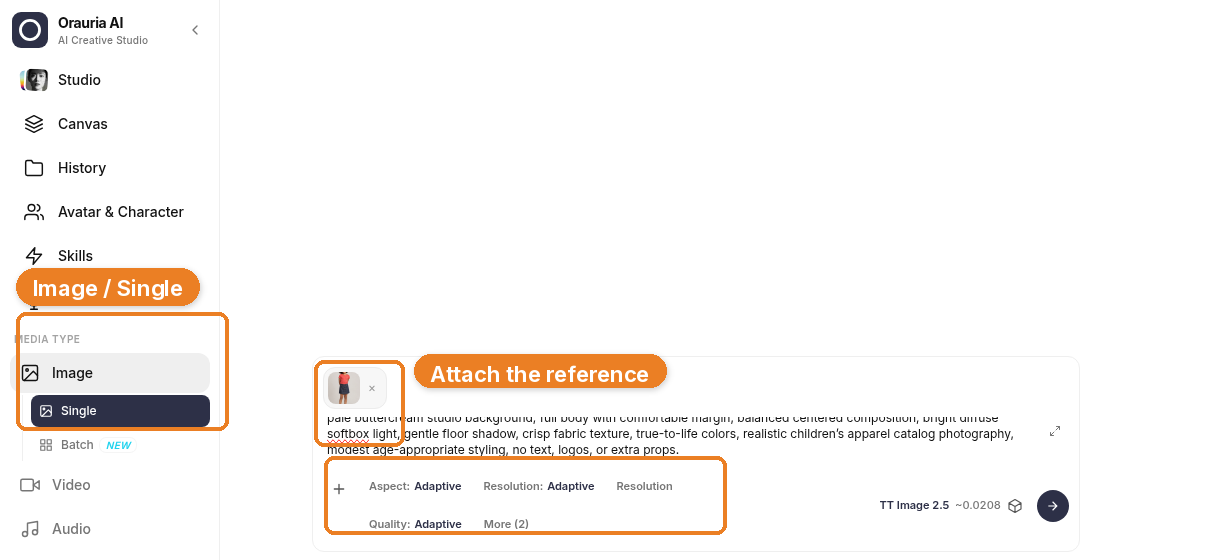
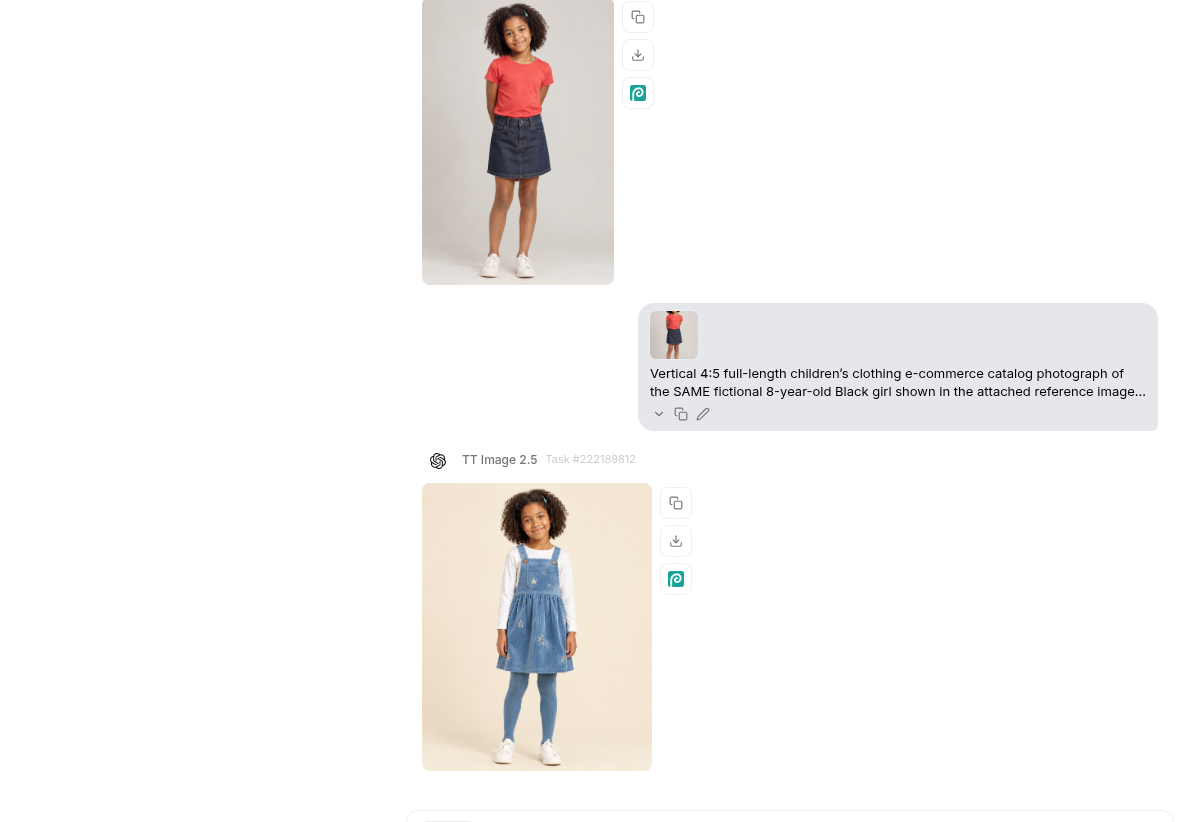
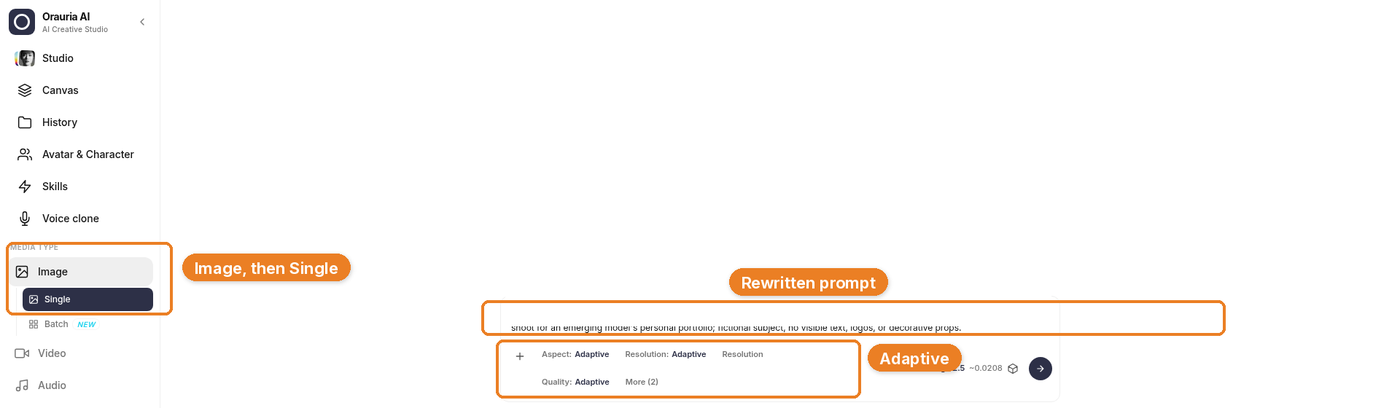
I pasted that brief into Orauria Studio, attached the customer photo as a reference, and set Image, Single, TT Image 2.5, aspect 9:16 Portrait, and Adaptive for resolution and quality. The composer showed about 0.0208 credits for the generation.
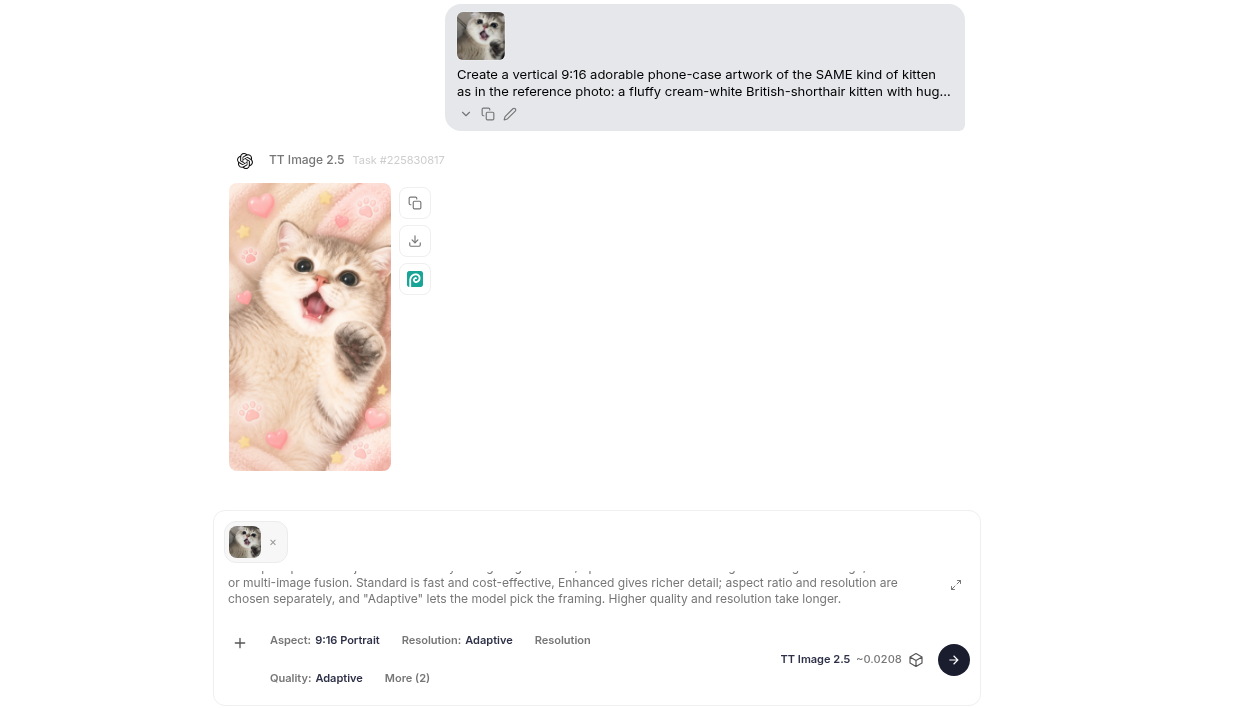
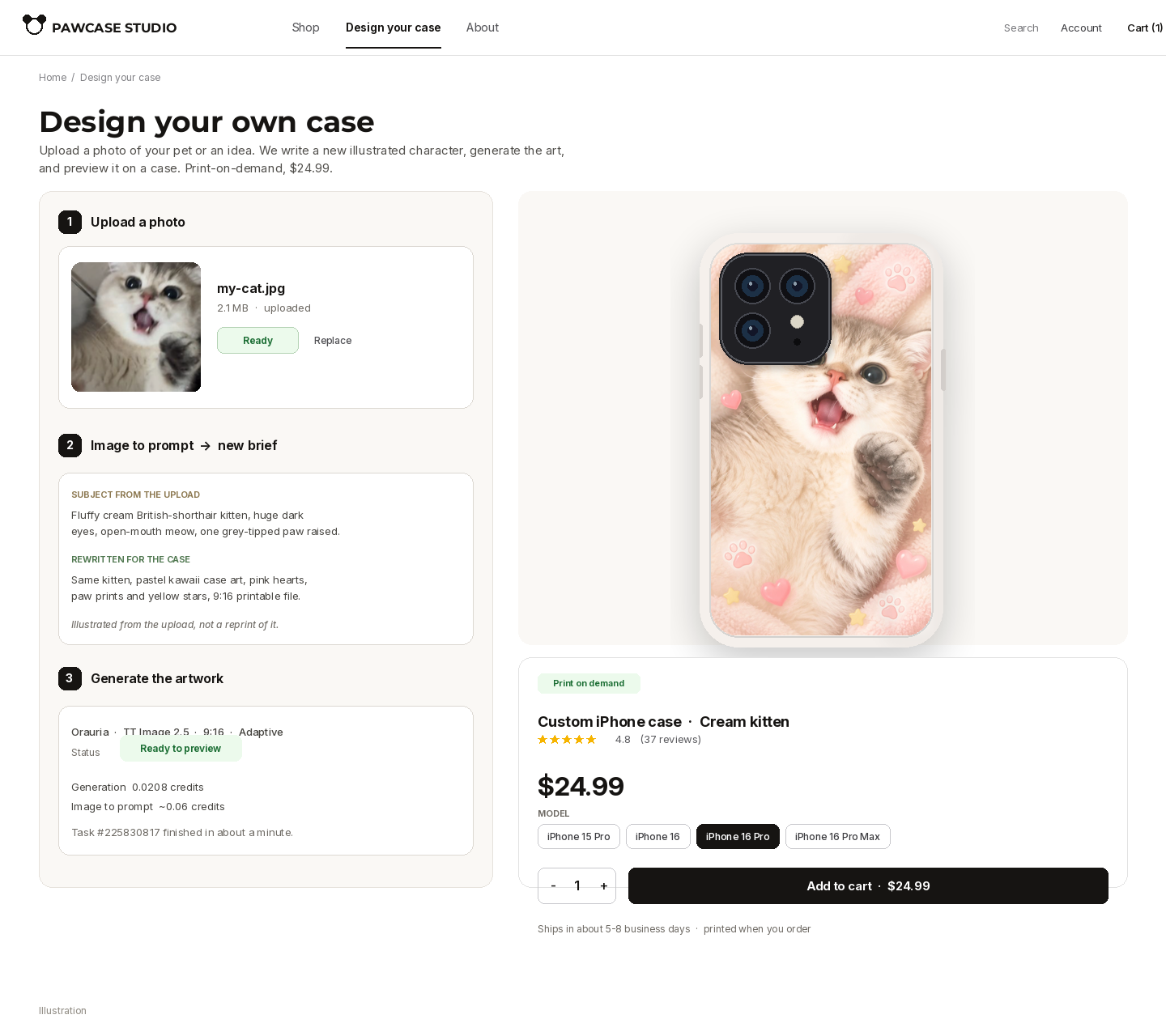
The file that came back is the same kitten as case art: fluffy cream fur, the open-mouth meow, the raised paw, pastel hearts, paw prints, and yellow stars on a soft pink cushion. Task #225830817. That is the printable back of the case.
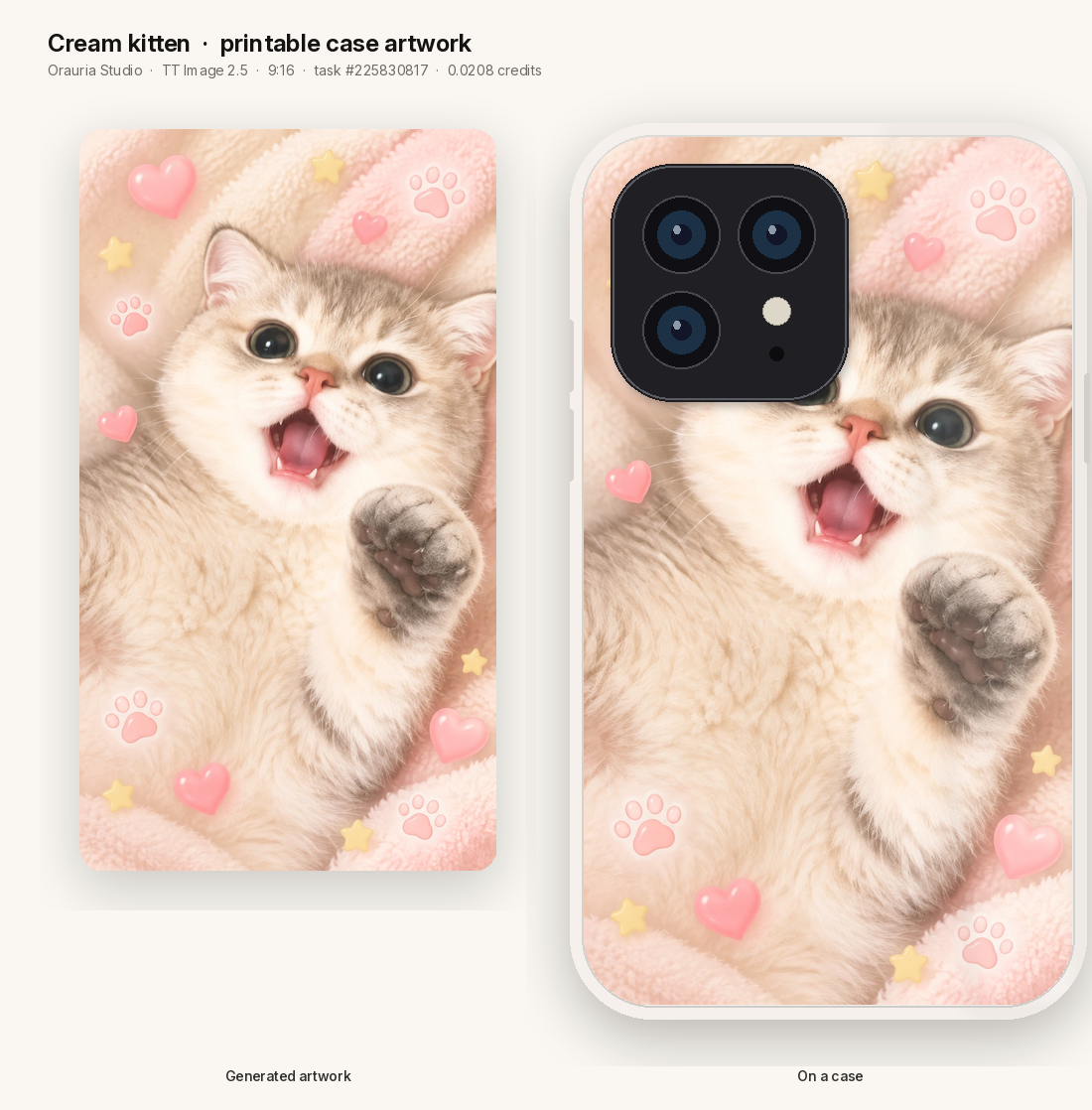
That is as far as the browser needs to go for a first sample. A shop that takes a new photo on every order needs a second door: an app that can run the same loop when the upload arrives, without opening Studio again.
The app architecture
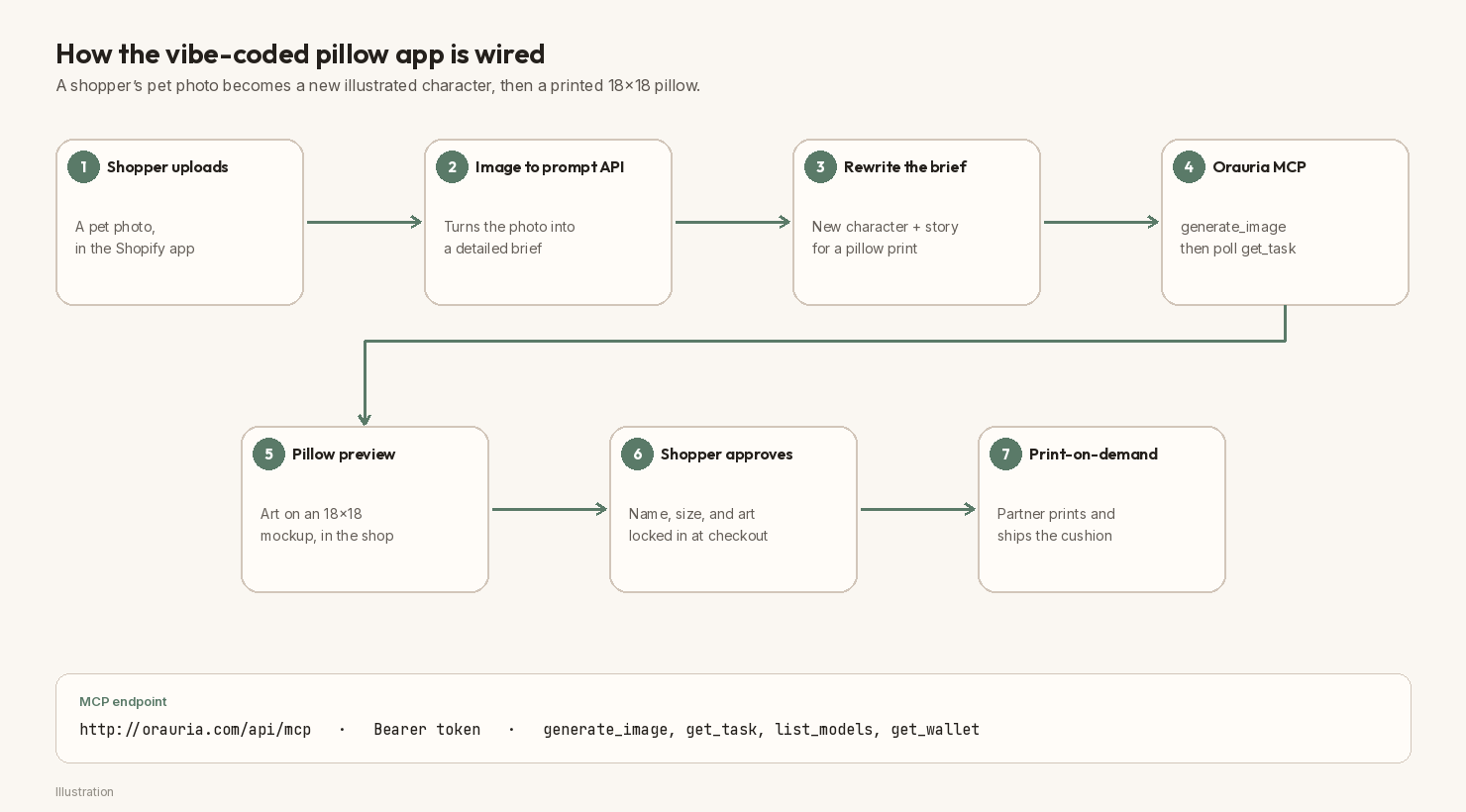
The Shopify piece is a custom app, or a theme app extension, that you vibe-code in Remix and Node. It is not a Shopify app Orauria ships. The flow is one straight line.
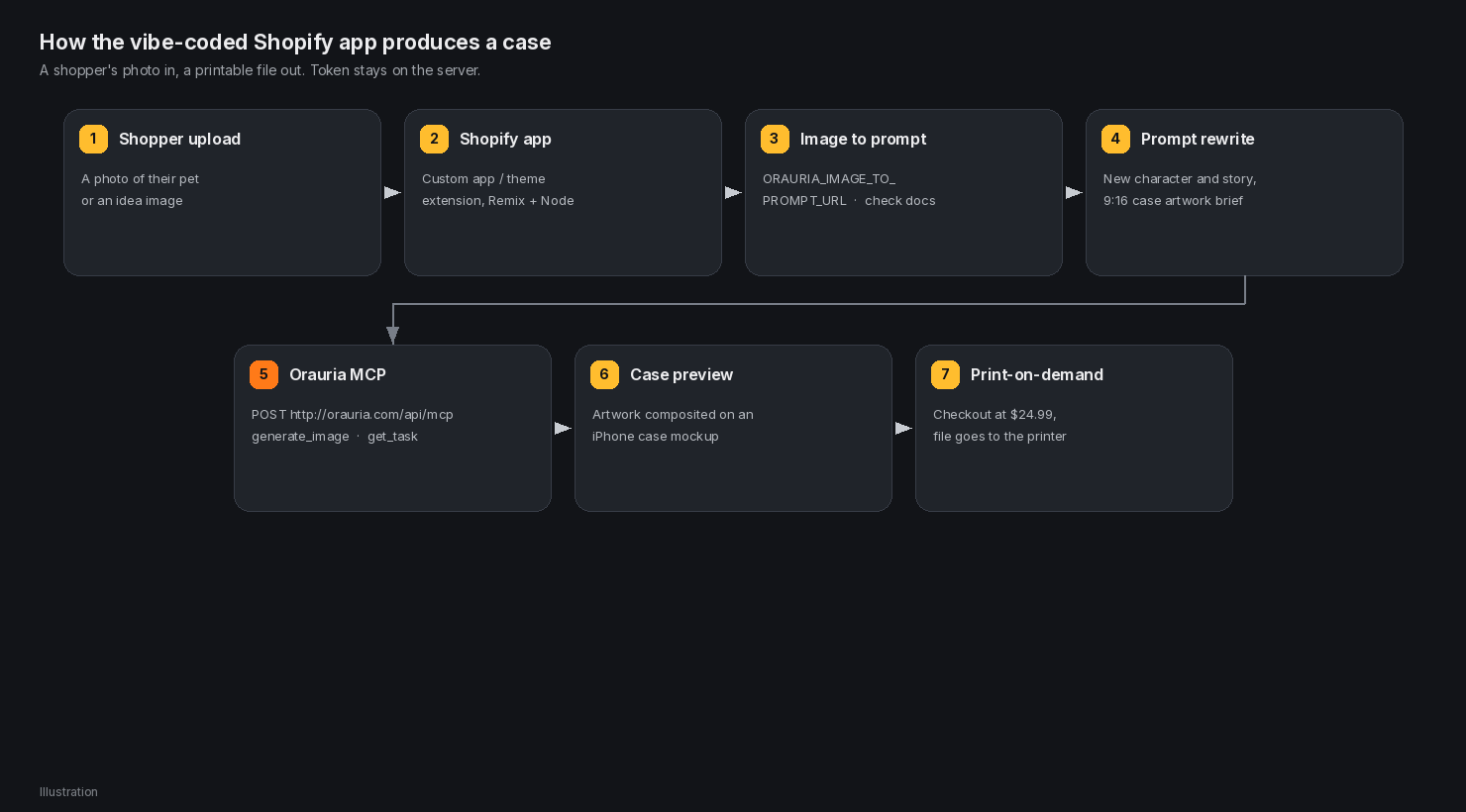
A shopper drops a photo on a Design your own case page. The app sends that photo to Orauria’s Image to prompt API, using a URL you store as ORAURIA_IMAGE_TO_PROMPT_URL and confirm in the Orauria docs — this post does not invent an exact path. The returned brief is rewritten into a new 9:16 case prompt, the way this cream kitten was rewritten from the upload. The app then calls the Orauria MCP server at http://orauria.com/api/mcp with Bearer-token auth and the generate_image tool, polls get_task until is_final is true, and composites the PNG onto a case mockup. Checkout at $24.99 hands the file to a print-on-demand partner. The token never leaves the server.
The same MCP surface also exposes list_models and get_wallet, which are useful while you are wiring the client, not something the shopper needs to see.
A vibe-coding prompt you can paste
If you are scaffolding this in Cursor, Claude, or another coding tool, start with a prompt like this and then check every URL against current Orauria docs:
Build a Shopify app in Remix and Node called PawCase Studio.

Add a storefront page, "Design your own case," where a shopper uploads a photo of their pet or an idea.

When they upload:
1. POST the image to process.env.ORAURIA_IMAGE_TO_PROMPT_URL with
   Authorization: Bearer process.env.ORAURIA_TOKEN.
   Confirm the exact path in the Orauria docs. Do not hard-code a guessed URL.
2. Rewrite the returned prompt into a new phone-case brief: keep the pet recognizable,
   invent a fresh 9:16 composition, no text or logos,
   printable case artwork (not a 3D mockup).
3. Call the Orauria MCP server at http://orauria.com/api/mcp with the same Bearer
   token. Use the generate_image tool, model tt-image-2.5, params.aspect_ratio "9:16".
   Poll get_task until is_final is true.
4. Preview the artwork on an iPhone case mockup. When the shopper checks out at
   $24.99, send the file to a print-on-demand partner.

Keep the token in process.env. Never put it in the theme, the client, or the repo.
Call Image to prompt and Orauria MCP from a Shopify route
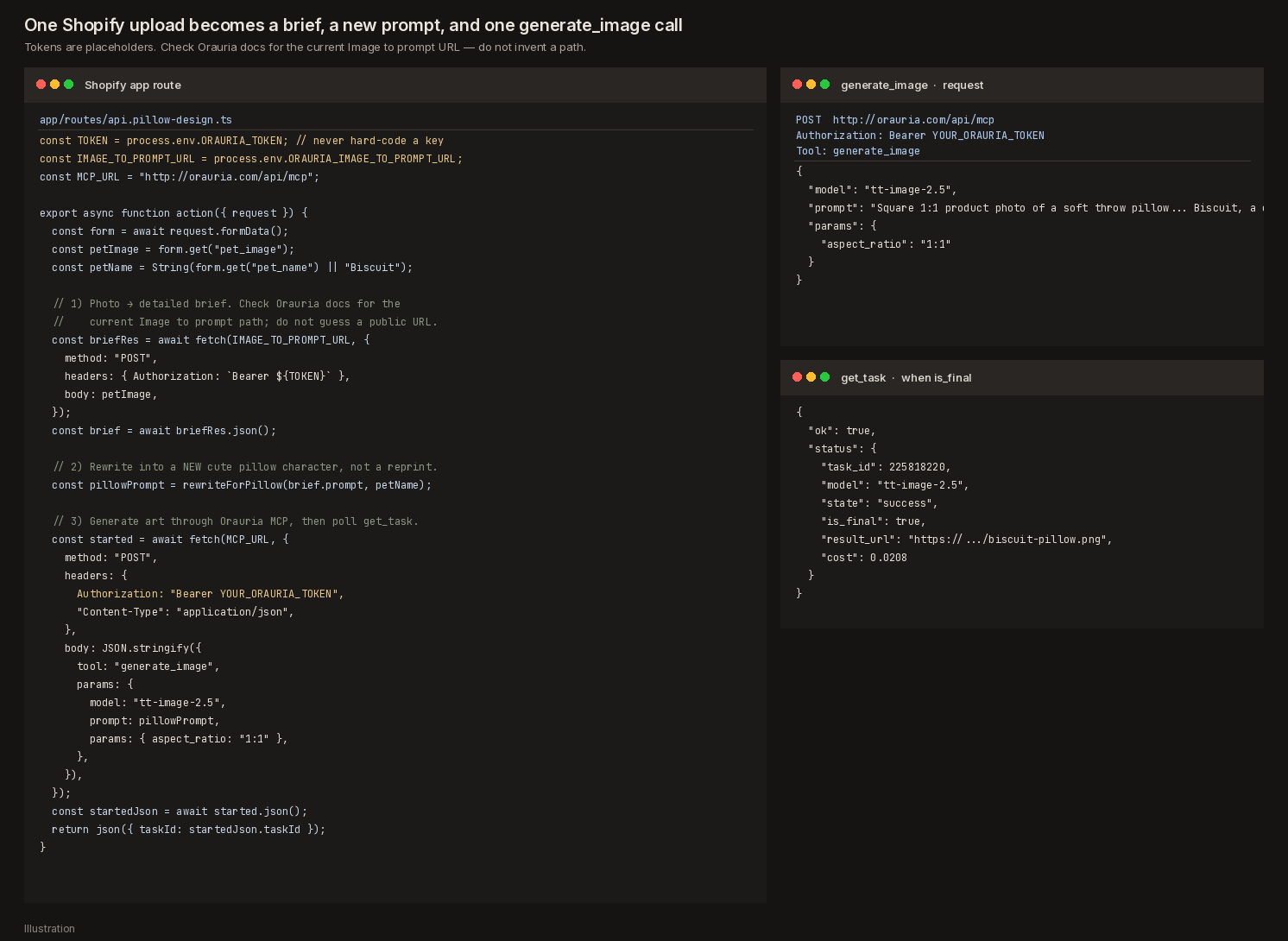
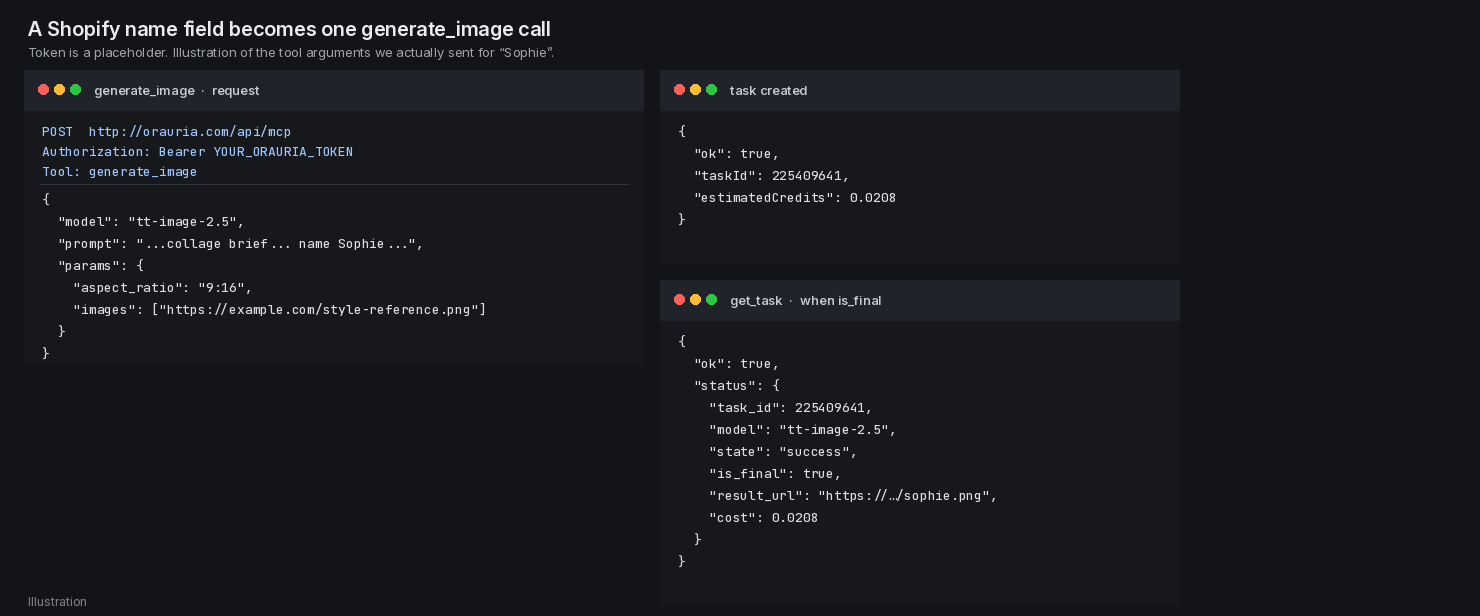
The shape of the server route is small. Use process.env.ORAURIA_TOKEN in your app. The YOUR_ORAURIA_TOKEN string below is a placeholder for the illustration, never a real key.
// app/routes/api.design.tsx
import { json, type ActionFunctionArgs } from "@remix-run/node";

const TOKEN = process.env.ORAURIA_TOKEN;
const IMAGE_TO_PROMPT_URL = process.env.ORAURIA_IMAGE_TO_PROMPT_URL;
const MCP_URL = "http://orauria.com/api/mcp";

export async function action({ request }: ActionFunctionArgs) {
  const form = await request.formData();
  // 1. Turn the shopper's photo into a detailed prompt.
  //    Confirm IMAGE_TO_PROMPT_URL in the Orauria docs.
  const promptRes = await fetch(IMAGE_TO_PROMPT_URL!, {
    method: "POST",
    headers: { Authorization: `Bearer ${TOKEN}` },
    body: form,
  });
  const { prompt: extracted } = await promptRes.json();
  const designPrompt = rewriteForCase(extracted);

  // 2. Generate the artwork through Orauria MCP.
  const gen = await fetch(MCP_URL, {
    method: "POST",
    headers: {
      Authorization: `Bearer ${TOKEN}`, // never hard-code YOUR_ORAURIA_TOKEN
      "Content-Type": "application/json",
    },
    body: JSON.stringify({
      // Tool: generate_image
      model: "tt-image-2.5",
      prompt: designPrompt,
      params: { aspect_ratio: "9:16" },
    }),
  });
  const created = await gen.json();
  const art = await pollTask(created.taskId); // get_task until is_final
  return json({ prompt: designPrompt, artUrl: art.result_url });
}
The JSON body around generate_image should follow whatever your MCP client already sends. The illustration below is the argument shape we actually use for this kind of call — a model, a prompt, and params.aspect_ratio — with a placeholder token and a placeholder task id. The kitten file in this post was generated in Studio (task #225830817), not through a live MCP task, so this diagram is the wiring, not a second receipt.
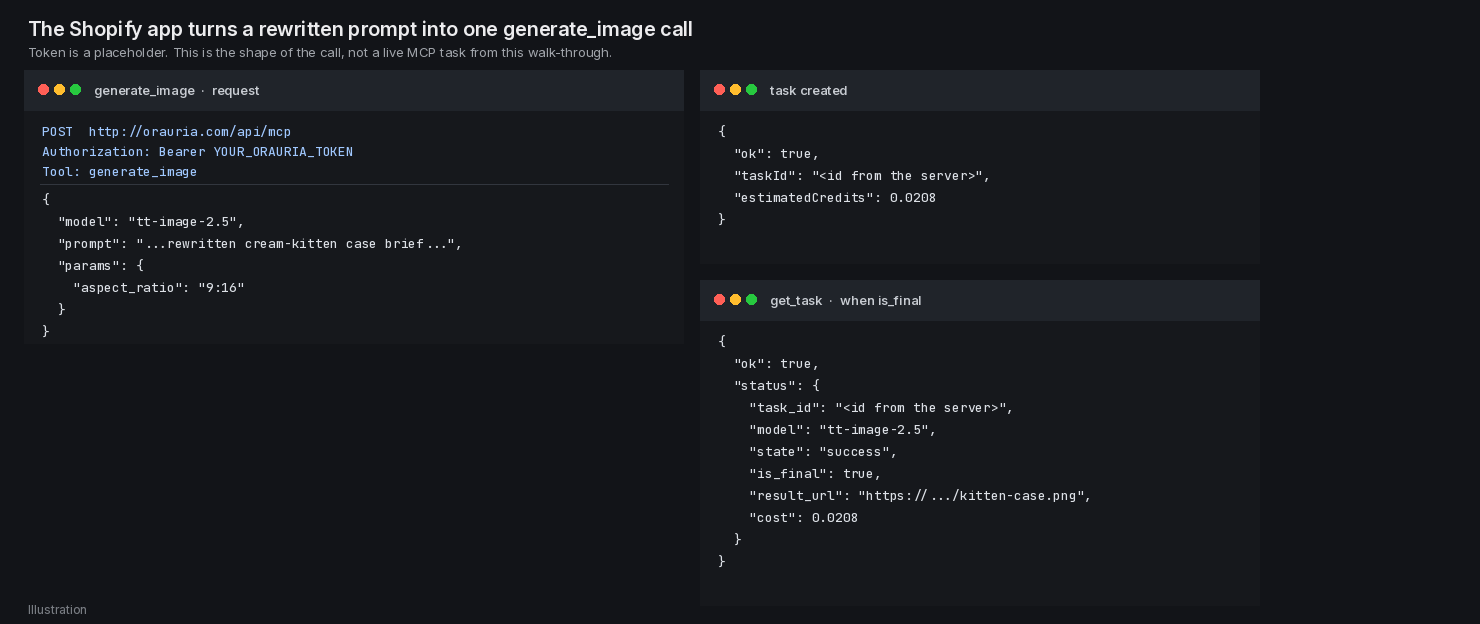
You create an sk- key under Profile → API keys and put Authorization: Bearer YOUR_ORAURIA_TOKEN in the server config. Never paste a real key into a blog, a theme file, or a public repo.
What the shopper sees
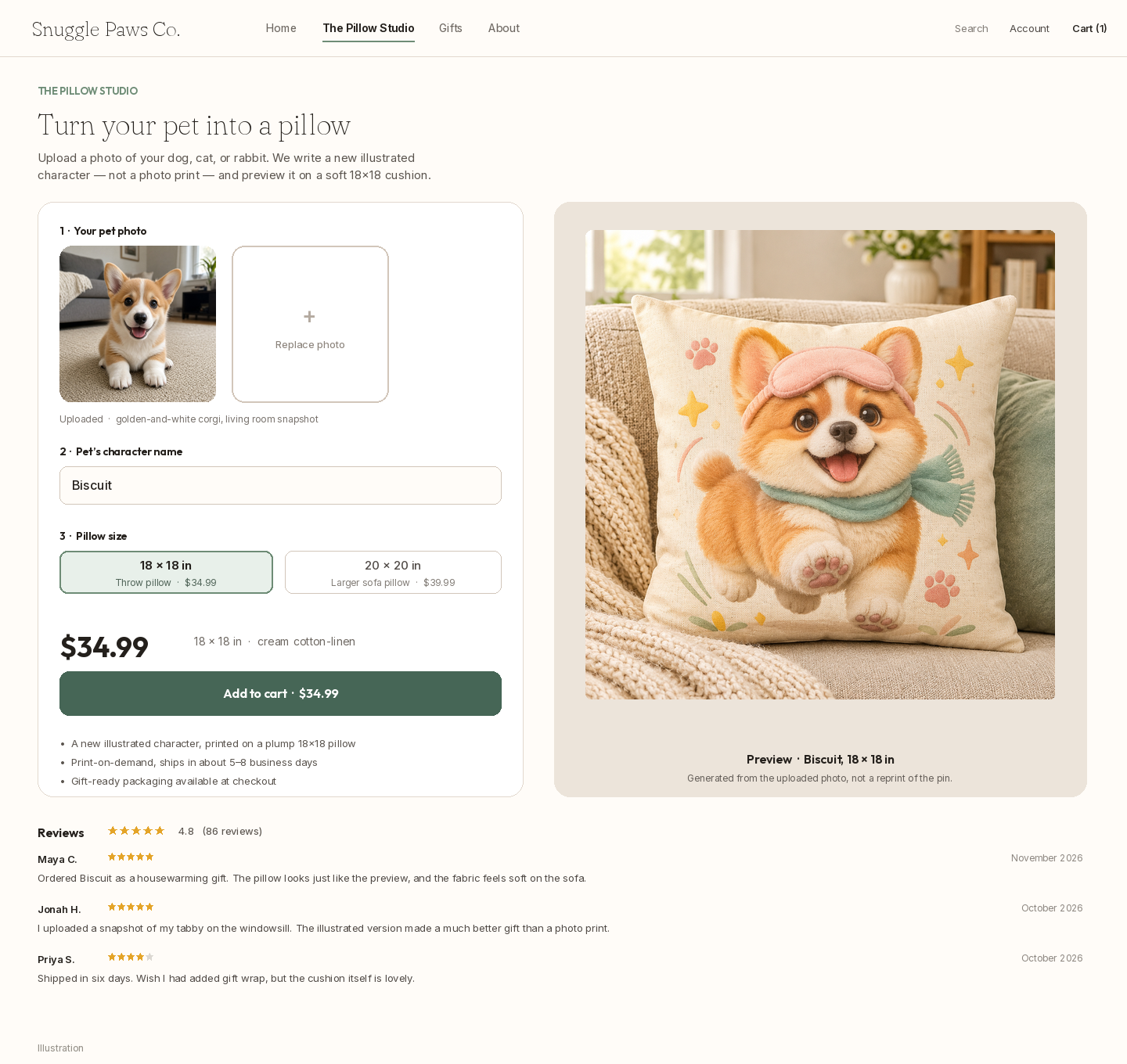
On the storefront, the page is Design your own case. The left column is the work: the upload (here, my-cat.jpg, the cream kitten), a short subject line from the photo, the rewritten case prompt, and the generation status. The right column is the product: the artwork already sitting on an iPhone 16 Pro case, $24.99, print-on-demand, ships in about 5–8 business days.
What you see in admin
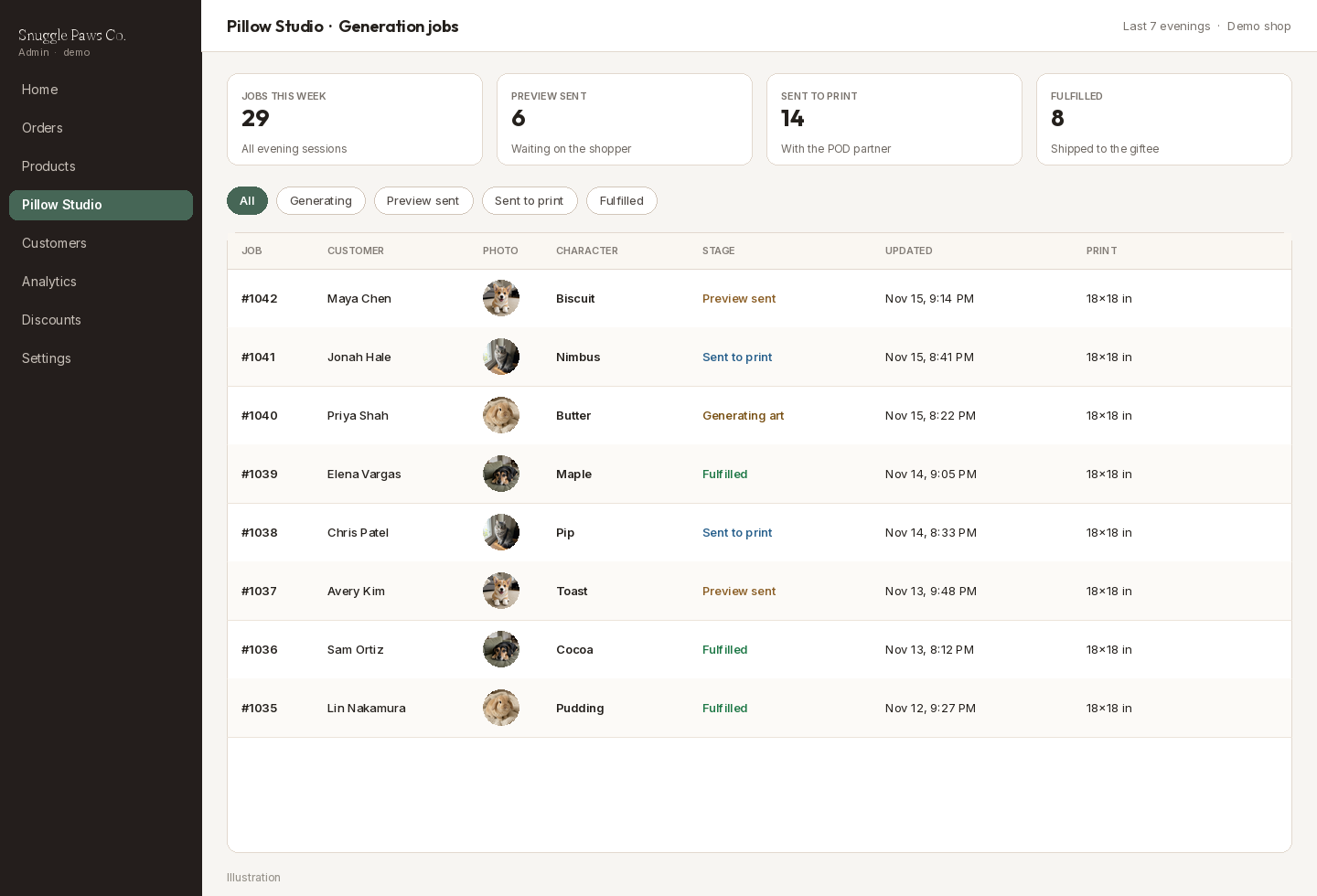
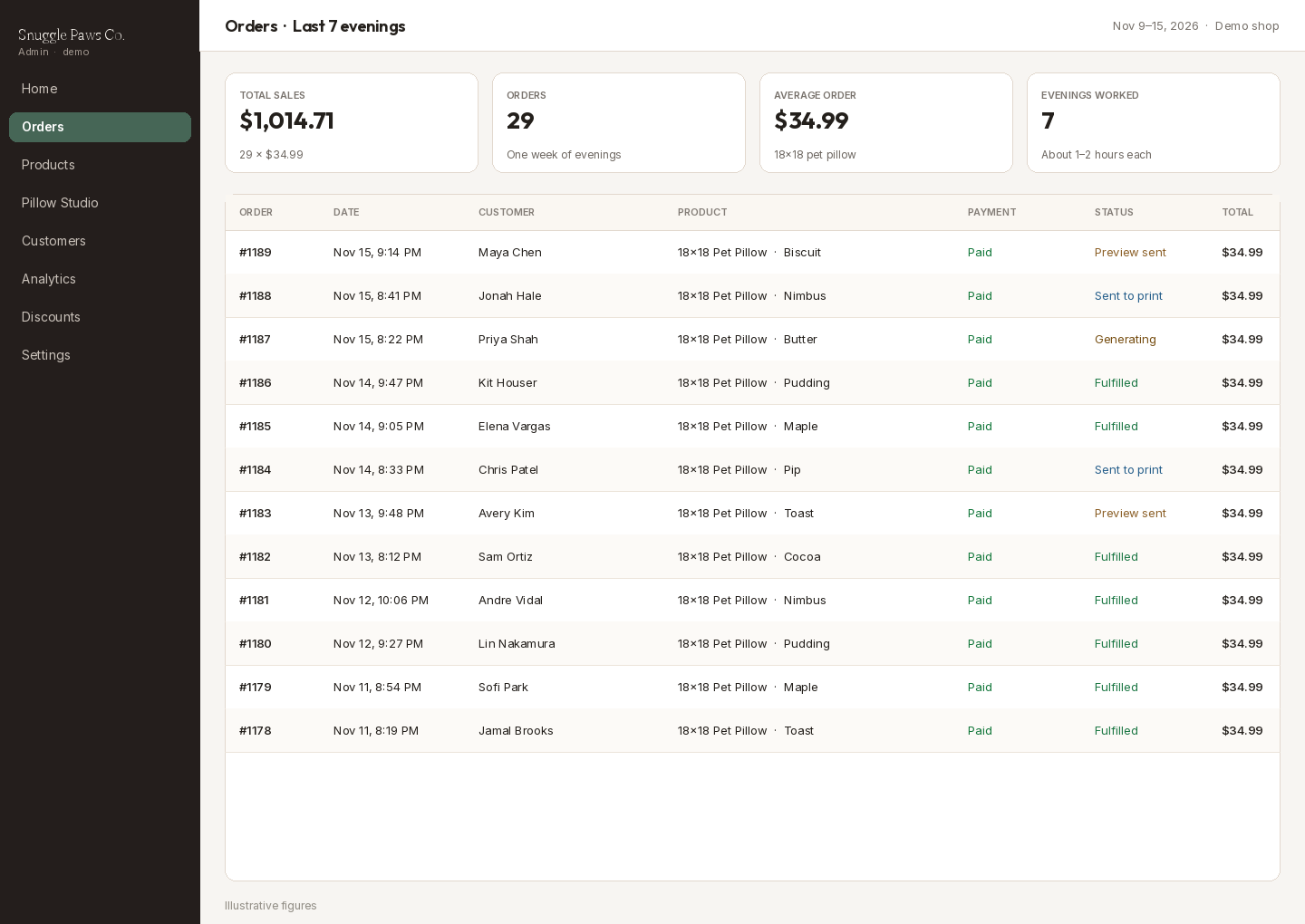
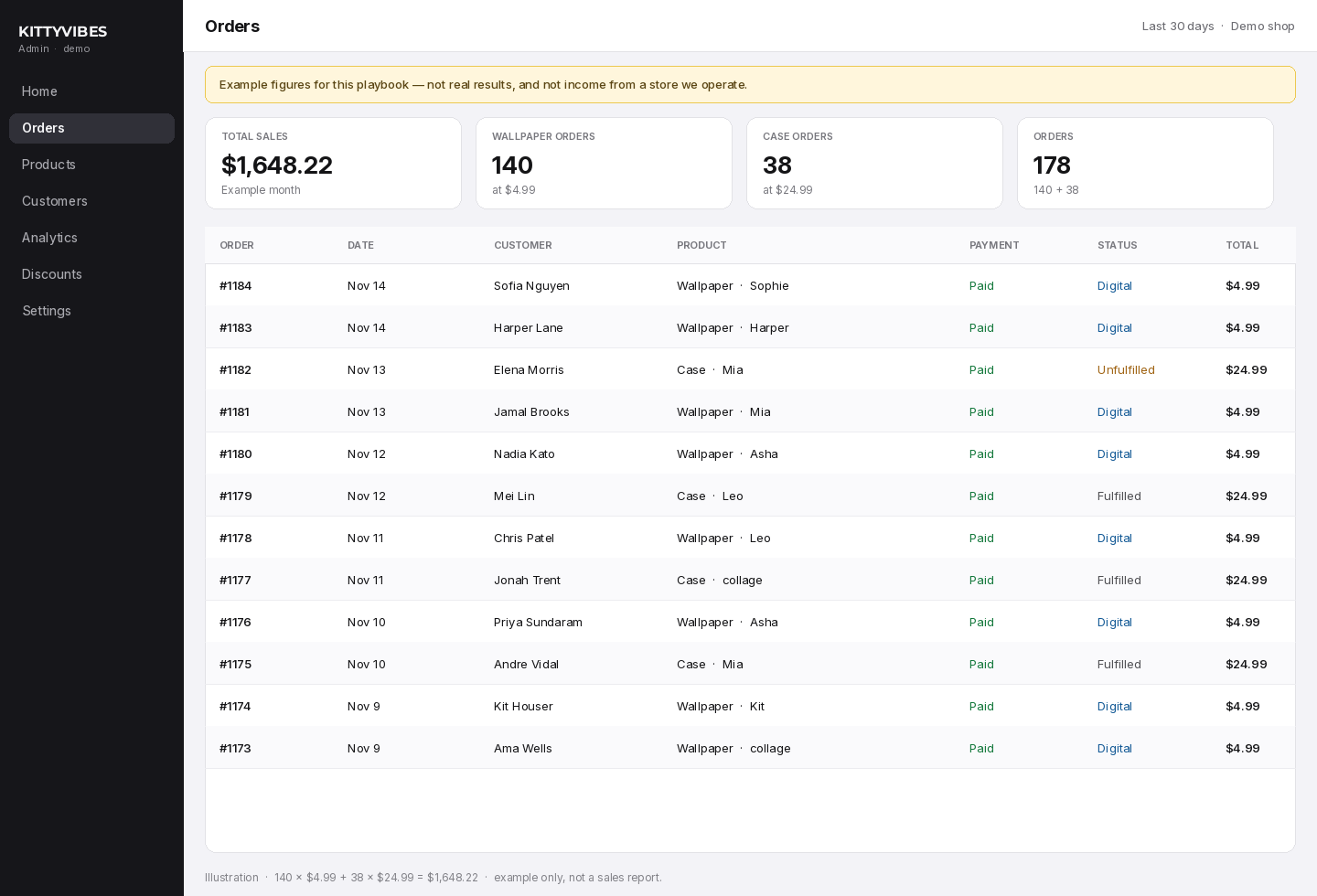
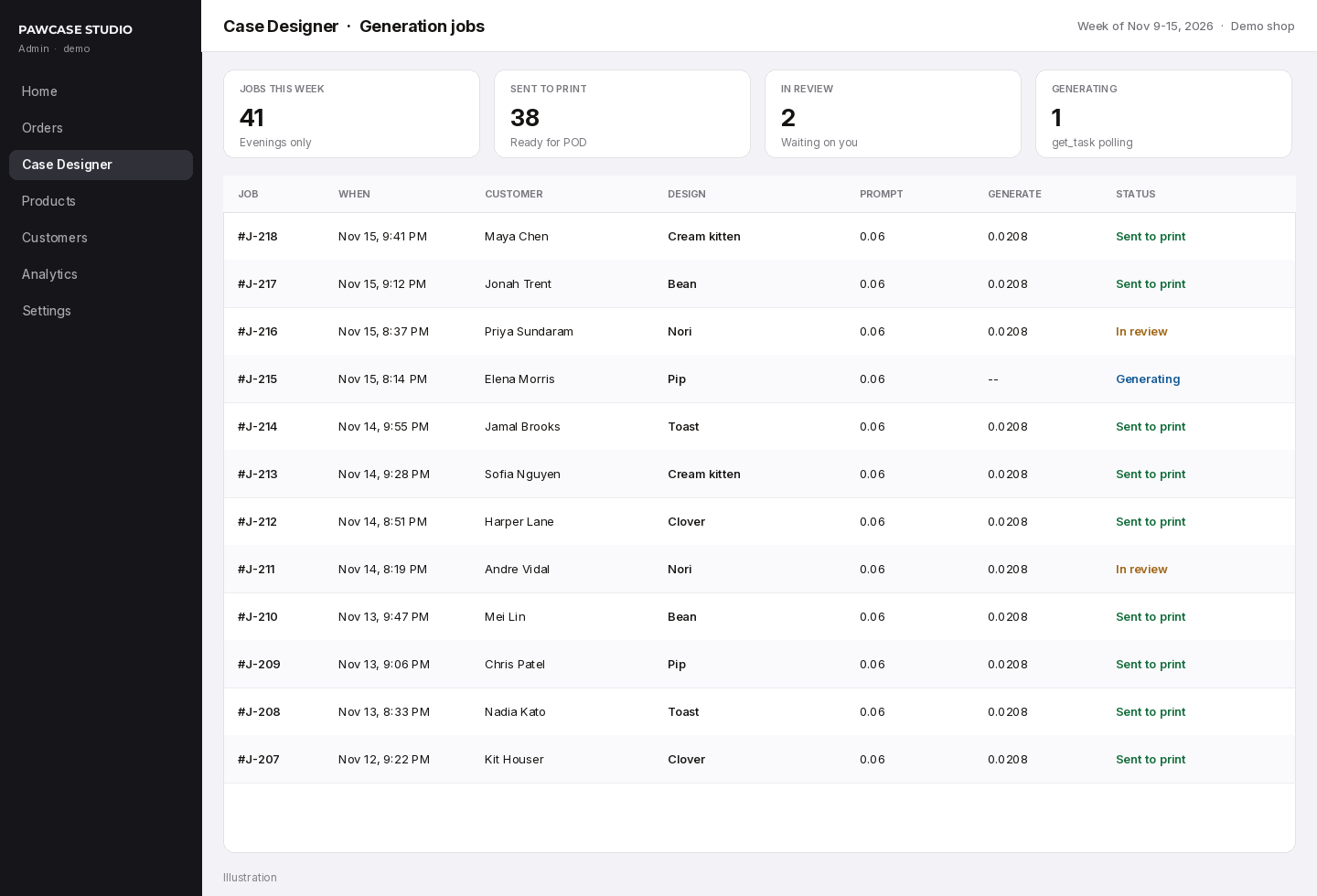
The same evening work shows up as generation jobs inside the Shopify admin: who uploaded, which design came back, what Image to prompt and generate_image each cost, and whether the file has been sent to print. A job that is still polling get_task stays in Generating. One you want to look at before it ships stays in In review.
What the evenings cost
The expensive part of this loop is not the generation. On the Image to prompt demo above, the pin brief cost 0.06 credits. The Studio generation with TT Image 2.5, Adaptive, and 9:16 cost about 0.0208 credits — the same figure the composer showed before we ran task #225830817. Those are the Orauria costs we actually saw, or the same price the composer lists.
What you will feel instead is everything around the file: Shopify fees, print-on-demand and shipping, a minute of QA so the case art is actually new, and the 1–2 evening hours you spend reviewing jobs and answering a shopper who sent a blurry photo. Price the case for that, not for the credit line.
A week of evenings, illustrated
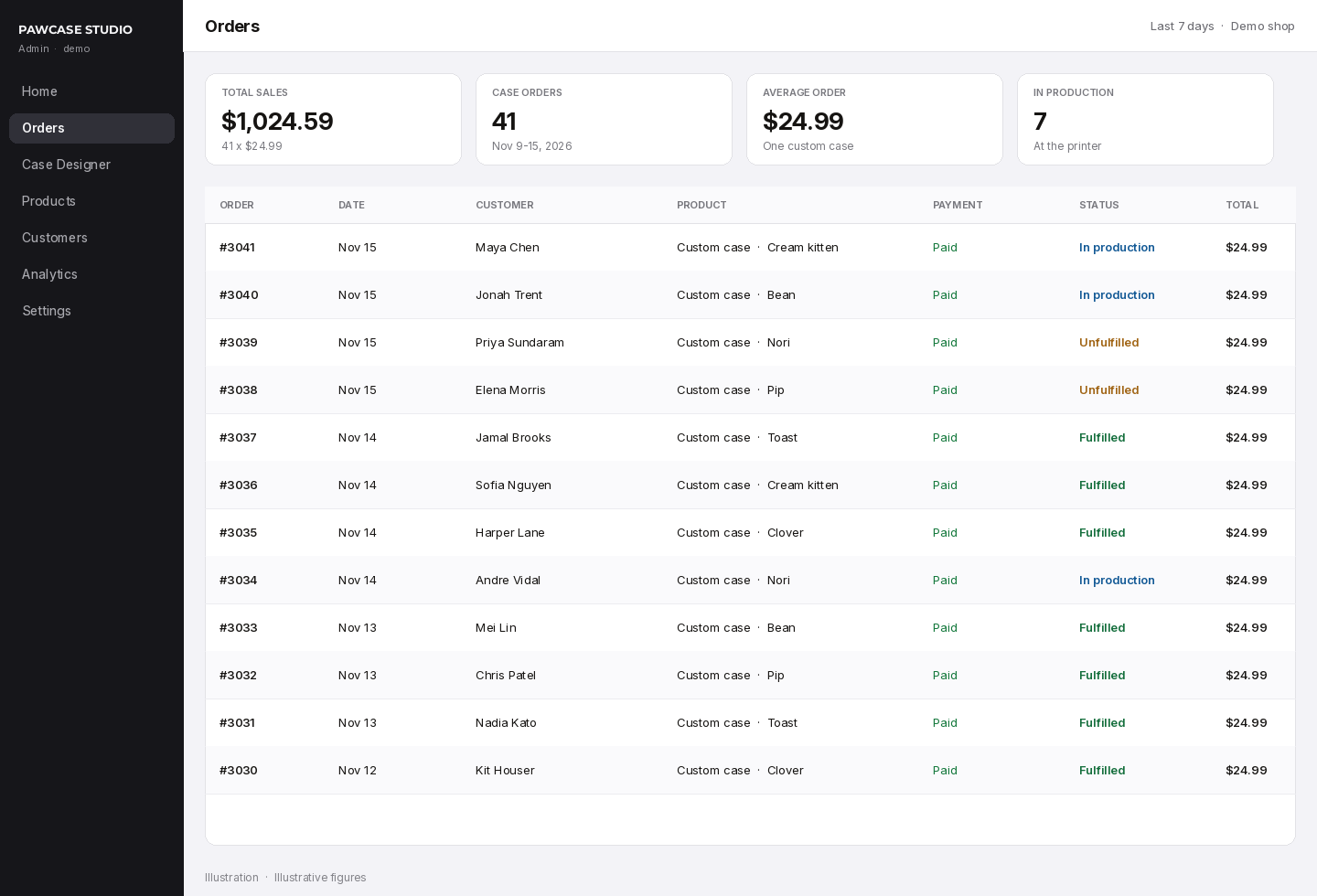
At $24.99 a case, 41 orders add up to $1,024.59. That is one way to picture a week of evenings — about six orders a night, seven nights, mixed between fulfilled, in production, and still unfulfilled. It is a layout of a plausible week for PawCase Studio, not a sales report.
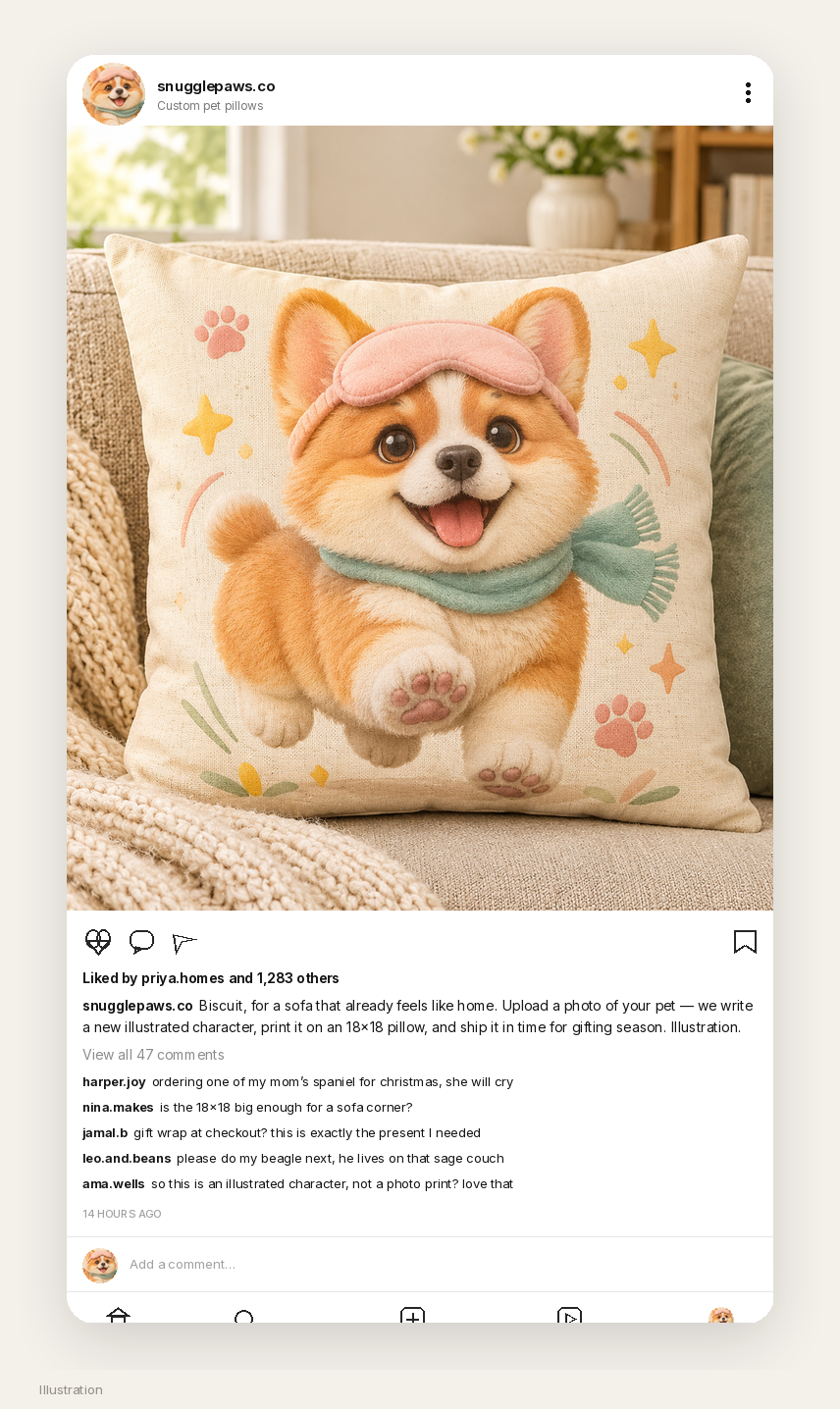
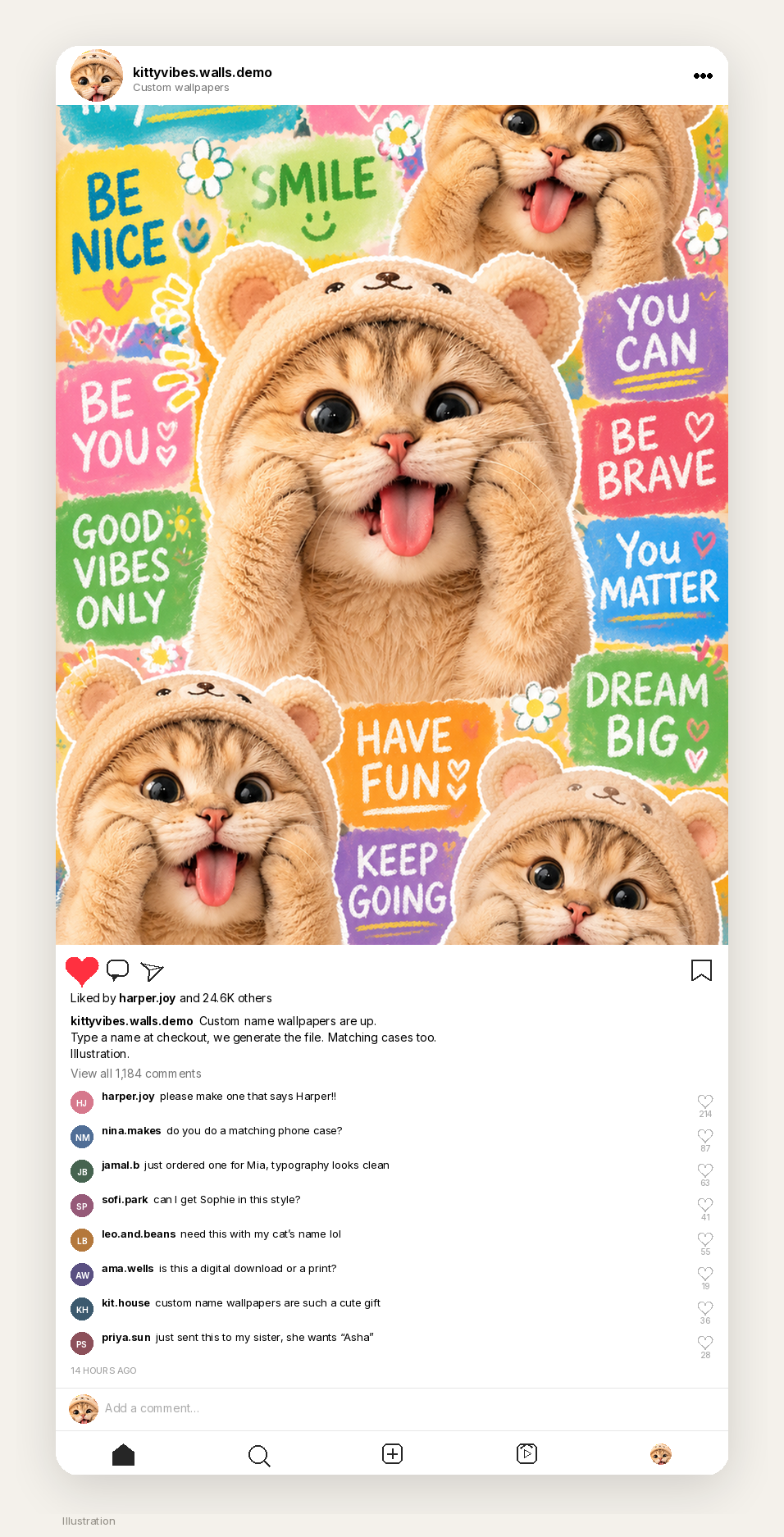
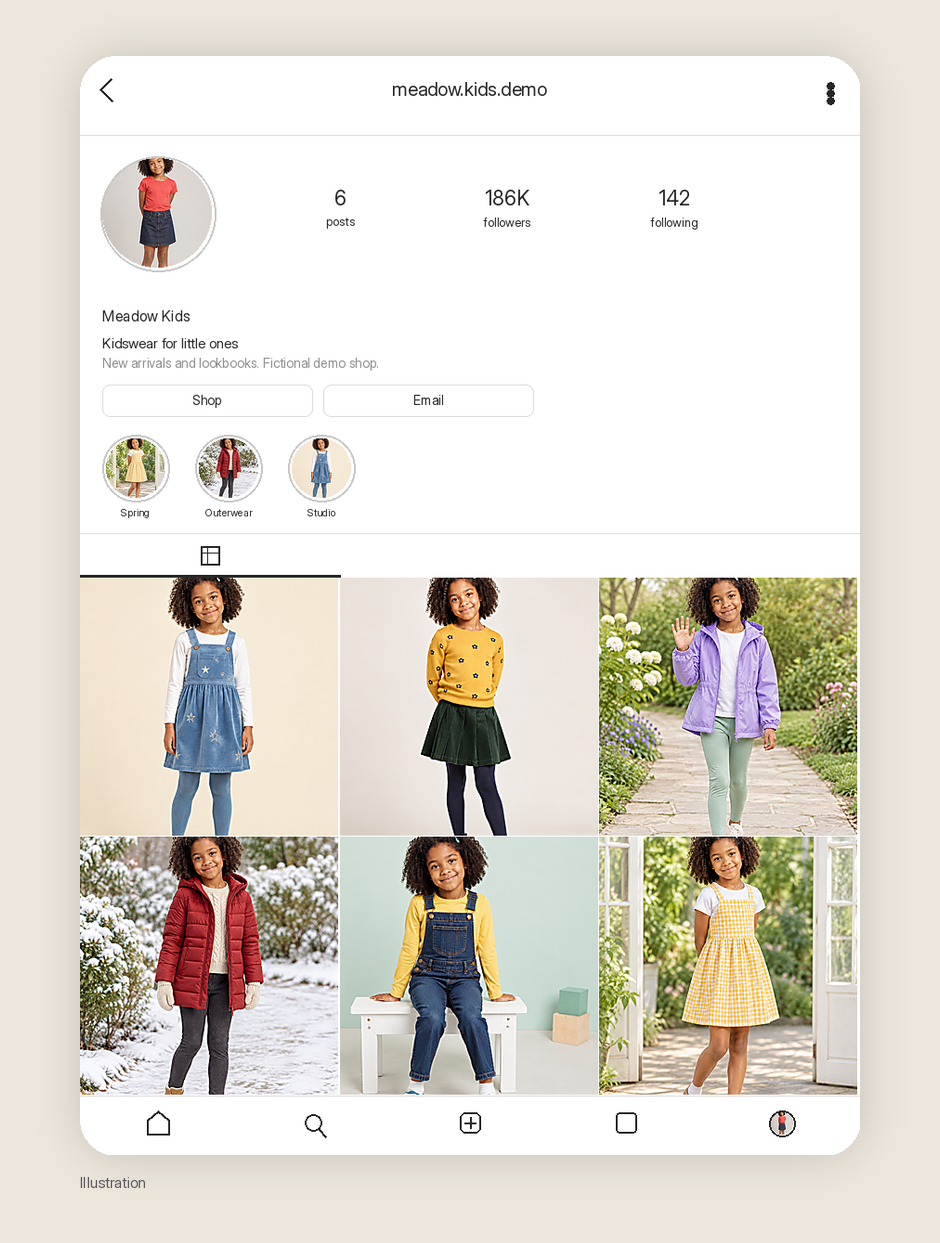
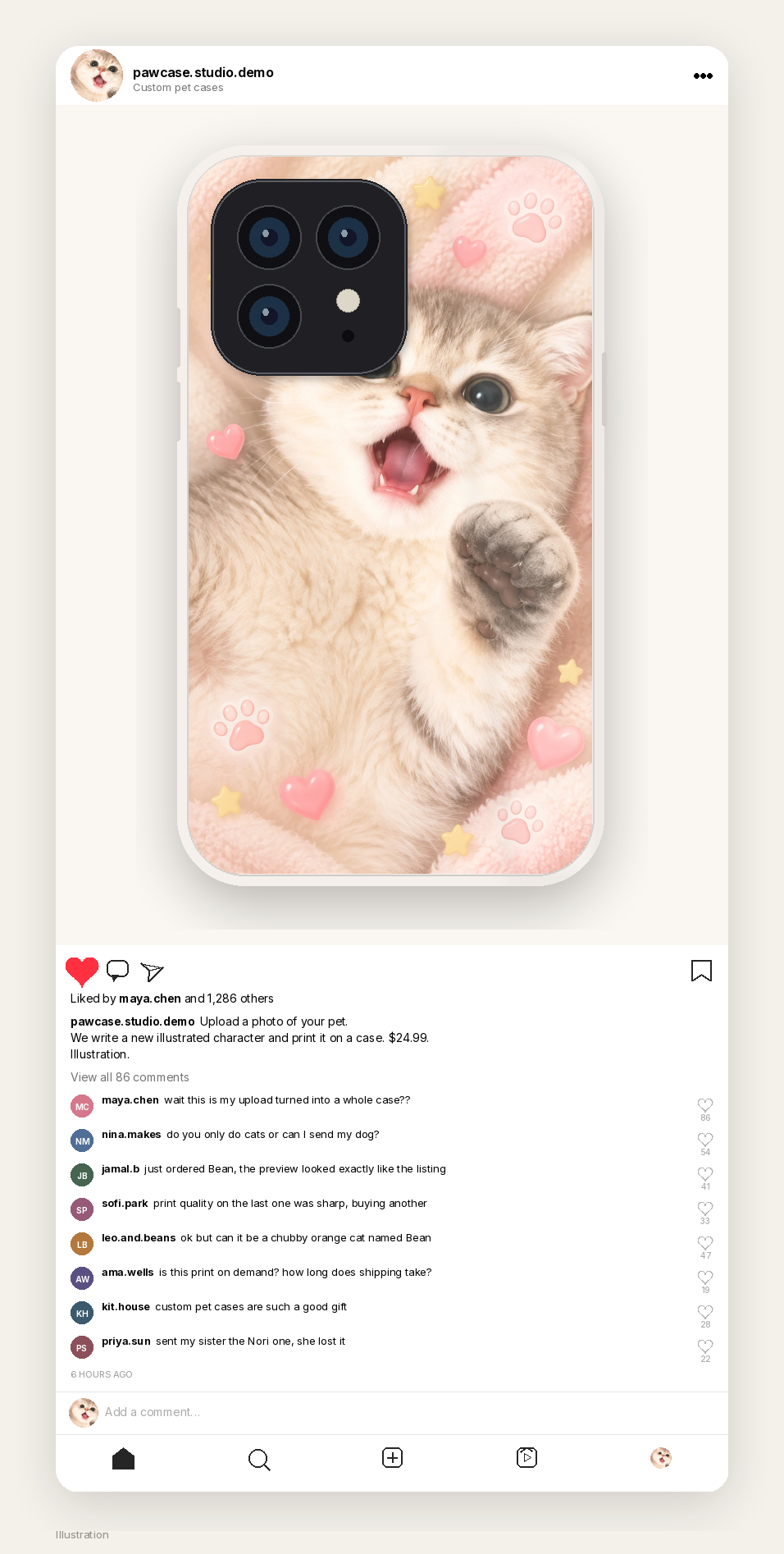
The Instagram post is the other half of the same illustration: the cream-kitten case, a caption that tells people to upload a photo of their pet, and a comments thread asking about dogs, shipping, and a cat named Bean.
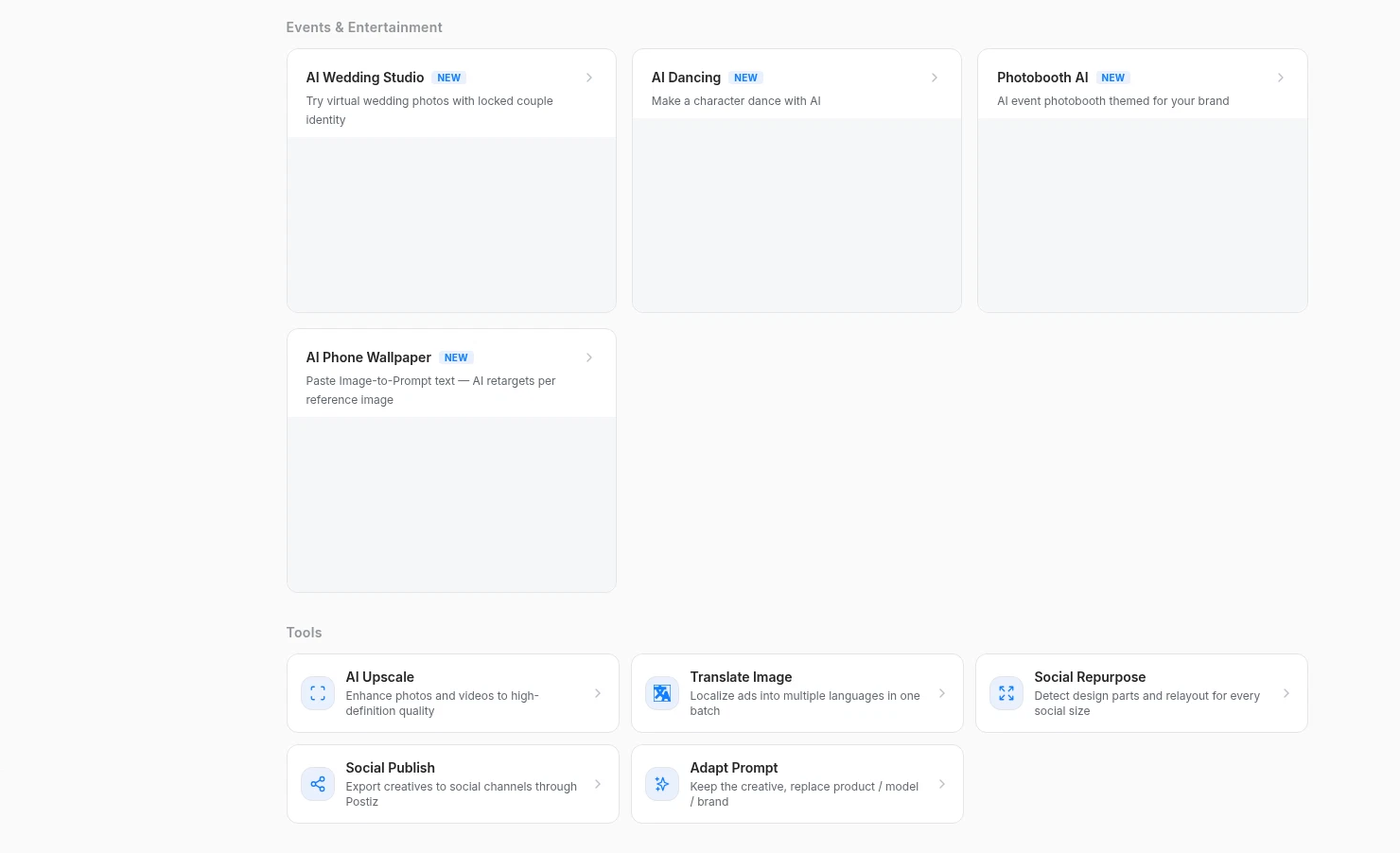
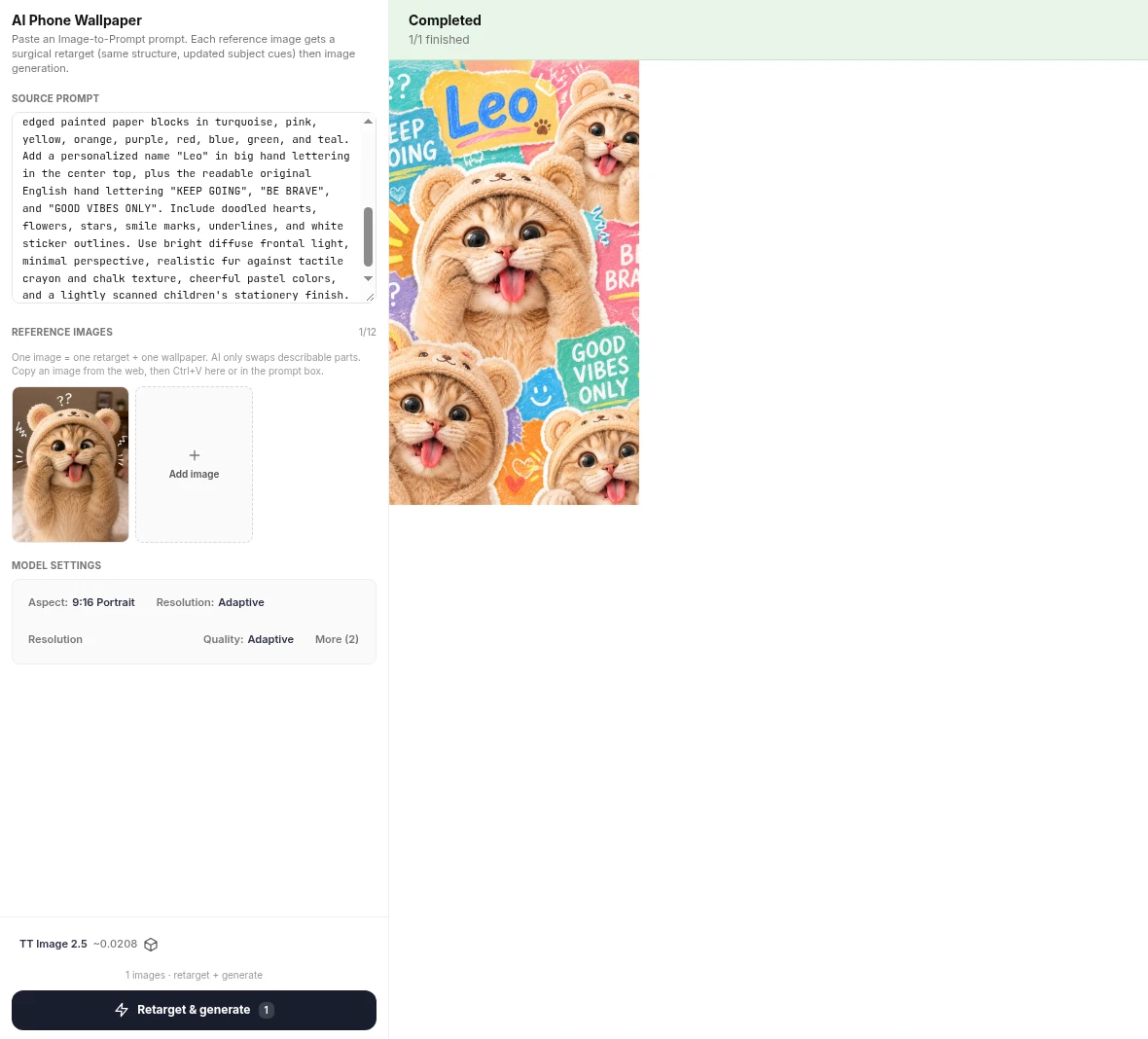
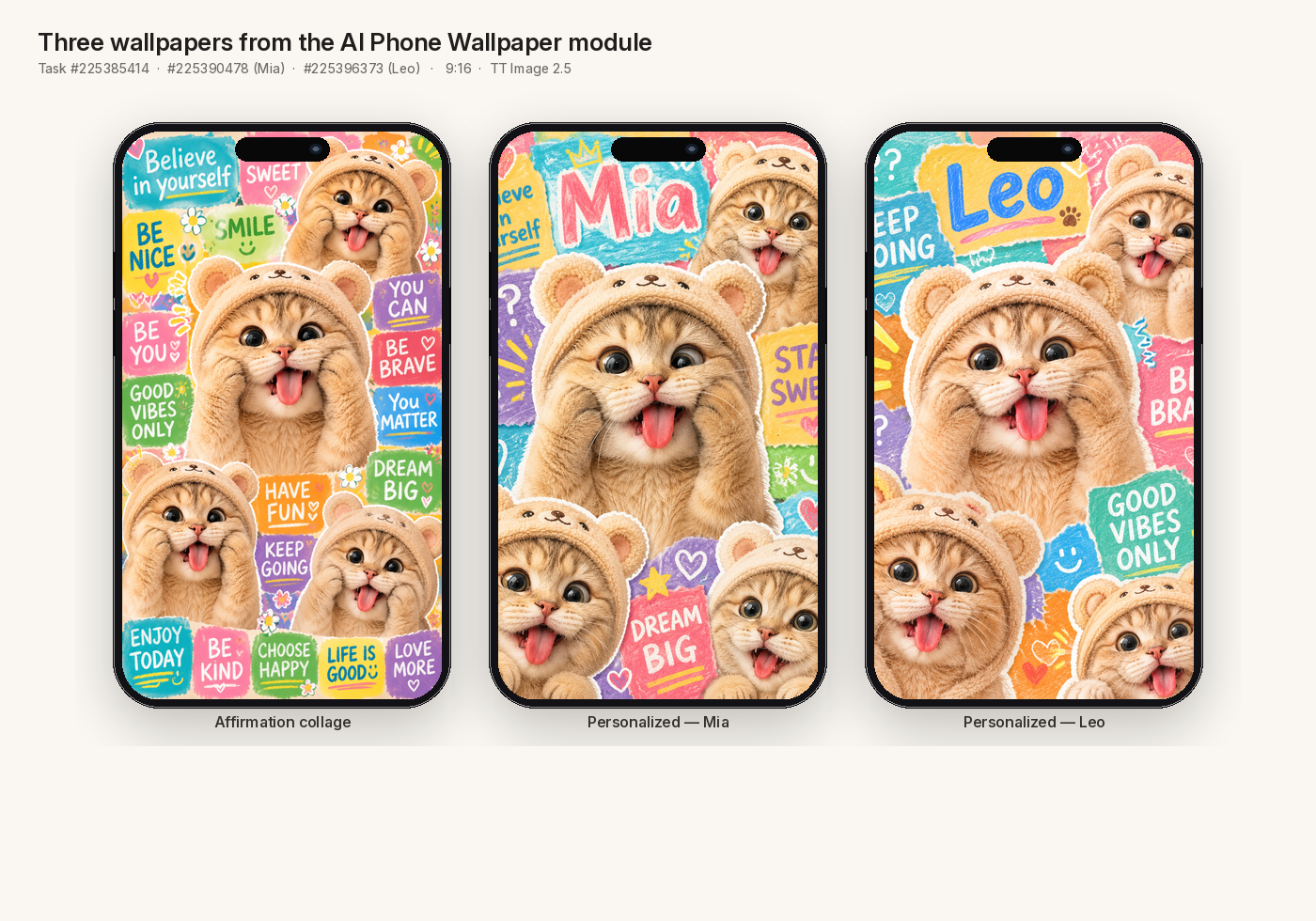
If you would rather sell a named wallpaper file than a printed case, we walked through that loop, including Orauria’s AI Phone Wallpaper module, in How to Build a Personalized Phone Wallpaper Shop on Shopify With Orauria (and Its MCP).
Start here
Install AI Assistant Copilot – Orauria from the Chrome Web Store, pick a pet photo you have the right to use, and run Image to prompt. Rewrite the brief as printable case art, paste it into Orauria Studio with the photo as a reference, and generate a 9:16 you would actually print on a case. Then vibe-code the Shopify route: ORAURIA_IMAGE_TO_PROMPT_URL from the docs, http://orauria.com/api/mcp for generate_image and get_task, and a token you keep in process.env.
Start here: orauria.com, Orauria Studio, and the Chrome Web Store listing for AI Assistant Copilot – Orauria.