Orauria’s blog has spent the last few weeks on Grok Bot: what Grok Bot is, how to run a multi-bot team, and how to teach a Bot a task by showing it once. Many readers asked a follow-up question: is there an open-source version I can run on my own machine, with the AI subscriptions I already pay for? The best-known answer right now is MausBot. This guide explains what MausBot is, how it compares to Grok Bot at the level of ideas, and how to set it up, first on your laptop and then on a small virtual server that never sleeps.
Everything about MausBot below comes from its public website mausbot.com, its documentation at docs.openmausbot.com, and its GitHub repository, all checked on 12 November 2026. Orauria has no partnership with MausBot, xAI, or any hosting provider mentioned here, and no affiliate links. We have not run the full server setup below end to end ourselves; the commands are quoted from the official docs, and the project moves fast (the latest desktop release on the day we checked was v0.1.154), so check the docs before you copy anything. The screens on the laptops in this article are MausBot’s own published screenshots from its website and docs, plus one terminal rendered from the documented commands.
Key takeaways. MausBot is a free, open-source (Apache 2.0) desktop app where you run a team of AI bots in a chat interface. It does not sell you a model: each bot runs on an agent CLI you already have, such as Claude Code, Codex or the Grok CLI, with your own login. It runs on macOS, Windows and Ubuntu, and keeps its data in a folder on your own disk. Bots on a laptop stop when the laptop sleeps, so for always-on routines you either move the MausBot server to a Linux VPS (the docs give a one-command installer for Ubuntu) or pay for the optional MausBot Cloud. Start with one bot, one engine, and one small task.
A laptop that kept falling asleep on its bots
Meet Khoa. He is an example persona, not a client: around thirty, a freelance growth marketer in Da Nang who looks after four small clients. Every Monday he pulls numbers into a report for each one, checks what competitors changed on their pricing pages, and writes follow-up emails to leads who went quiet. He already pays for a Claude subscription and a ChatGPT subscription, and he liked the idea of Grok Bot: a roster of named bots, each with a job, that come back when something needs him.
What held him back was the model question. He wanted his research bot on one model and his writing bot on another, using the accounts he already had. So he installed MausBot on his laptop, connected Claude Code, made a “Monday Report” bot and a “Follow-up” bot, and for a week it felt like a small team. Then he noticed the gap: the routine he scheduled for 7:00 on Monday had not run, because his laptop had been closed in his bag. The MausBot FAQ says this plainly: bots hosted on a computer cannot work while it is asleep, offline or shut down.
The “after” picture is not dramatic. Khoa moves the MausBot server onto a small Ubuntu VPS, signs his engines in there once, pairs his laptop and phone to it, and his bots keep their schedule while his laptop is closed. He still reviews every client email before it goes out. The difference is that the work is waiting for him, instead of him waiting for the work. That is the setup this guide walks through.
What MausBot is, and how to tell whether it is working for you
In its own words, MausBot is “your own team of AI bots, in a chat app. Free, open source, and running on your own machine.” The site calls it “the open source Grok Bot alternative”, and the docs say it has no tie to xAI. It is made by Omkar Satpute and Milind Soni with outside contributors. The GitHub repository was created in August 2026 and showed more than 21,000 stars when we checked; installer files still use the project’s earlier name, OpenMausBot.
The core ideas, as documented:
- Bots as contacts. Each bot has a name, a job, instructions, a working folder and its own chat. You can pin, duplicate, hide or group them like a messaging app. A new install starts with one bot called MausBot that acts as your chief of staff.
- Bring your own brain. Bots run on agent CLIs installed on your computer, using your logins: Claude, Codex, Grok, Cursor, GitHub Copilot, Kimi, Droid, Antigravity, OpenCode, Qwen, Hermes, Pi and others, plus API connections such as OpenRouter or Mistral. Each bot can use a different engine and model.
- Local first. A single local server on 127.0.0.1 runs every agent process, and transcripts, keys and events live in
~/.openmausbot. The FAQ is careful to add that your prompts still go to the model provider you choose. - Optional extras. Connected apps through Composio, a computer for each bot, automations on a schedule or webhook, voice calls with your own OpenAI key, and Android and iOS companion apps shared through the project’s Discord.
How it compares to Grok Bot, conceptually. Both give you a roster of named bots that take on jobs, use apps and computers, run routines, and ask before risky actions. The differences are about who supplies what. Grok Bot is a hosted product from xAI where the model and the cloud computer are provided for you. MausBot is software you run: you pick the engine per bot and pay that provider directly, and you decide where it runs (your laptop, your server, or the paid MausBot Cloud). MausBot also documents a Move from Grok Bot import: you send each Grok Bot Bot a message, it writes out its own instructions, skills, routines and memories, and MausBot reads that file. Chats, files, passwords and app sign-ins do not come over, and imported routines arrive paused.
Who it suits. People who already pay for one or more AI coding agents, are comfortable installing a CLI and signing it in, and want control over models and data. If you have never opened a terminal, the desktop app is still approachable, but the server part of this guide is technical.
How to measure whether it works for you. We are not going to give you productivity numbers; we have none we could verify, and your results depend on your tasks and model. Keep a simple log for two weeks instead: how many tasks each bot finished without you redoing them, how long your review took, how many scheduled runs actually ran, how many approval requests you got and how many you rejected, and what your provider bill or usage meter says. If a bot’s output needs heavy rework every time, its instructions or its model are wrong, not just its schedule.
How MausBot works: engines, the harness, computers and approvals
It helps to picture four layers.
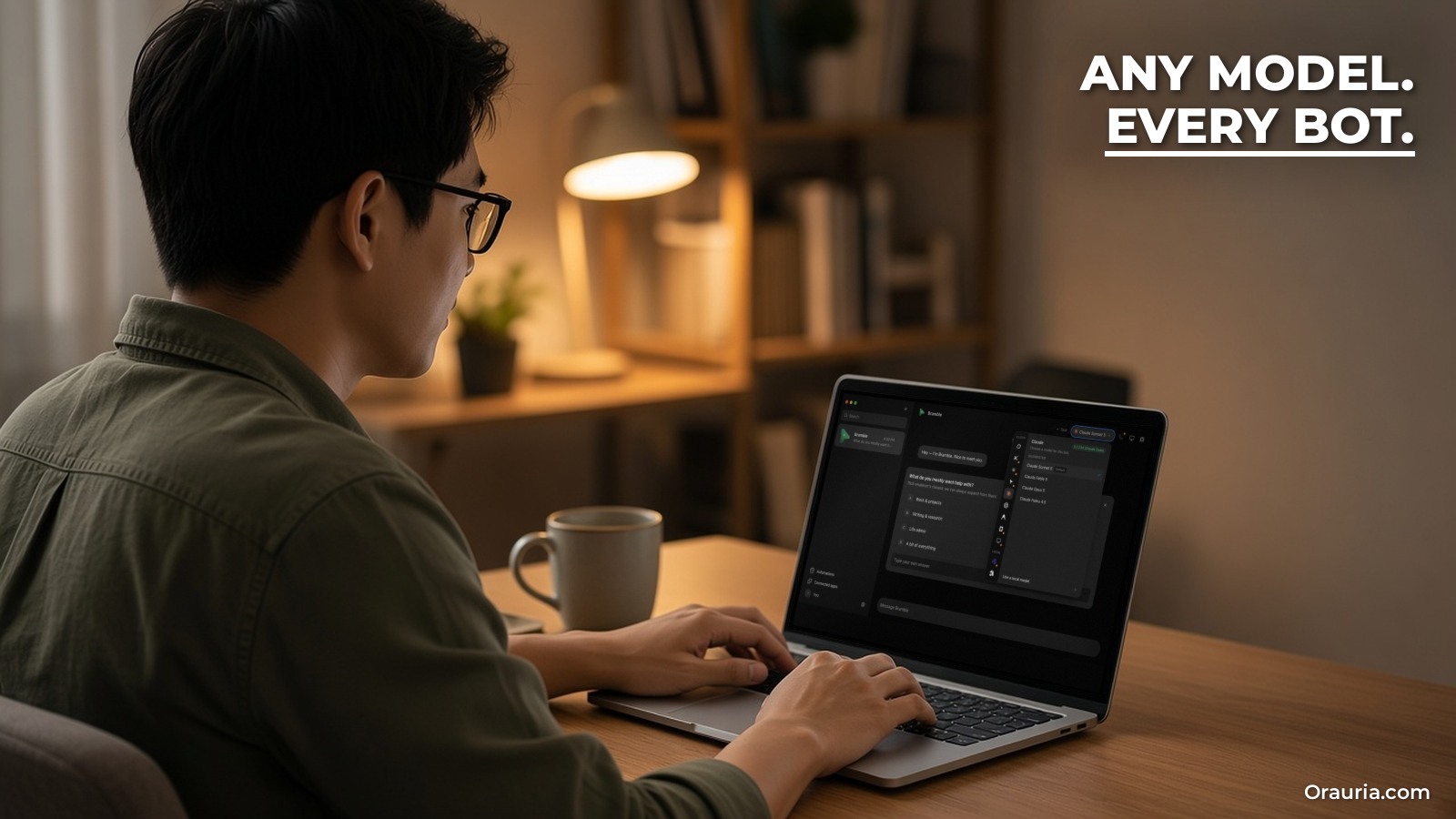
1. The engine (the brain). MausBot does not proxy every message through its own model account. It starts the agent CLI you chose for that bot and lets it run its own loop: read the request, plan, call tools, look at the results, and continue until it has an answer or needs you. The Agent engines page lists each engine and how it signs in. Claude is described as having strong support for tools, approvals, sessions and local computer use; many others connect through ACP, a protocol for talking to coding agents.
2. The harness (the switchboard). One server, listening on 127.0.0.1:8799 by default, owns every agent process and turns each provider’s native output into one event stream that the app shows as chat messages, tool progress, approval cards and results. The docs are firm that this port should never be exposed to the internet directly. Remote access goes through pairing (more on that in the setup section).
3. The computer (the hands). A bot can work with no computer at all, on the computer running MausBot, in a Local VM (a Docker or Podman desktop container on the same machine, 2 CPUs and 4 GiB of memory by default), on a Boat cloud computer (a third-party paid service from boat.dev), or in a hardened container on your own Linux VPS over SSH. You choose per bot. A live screen preview does not give a bot control by itself; local input needs a separate opt-in.
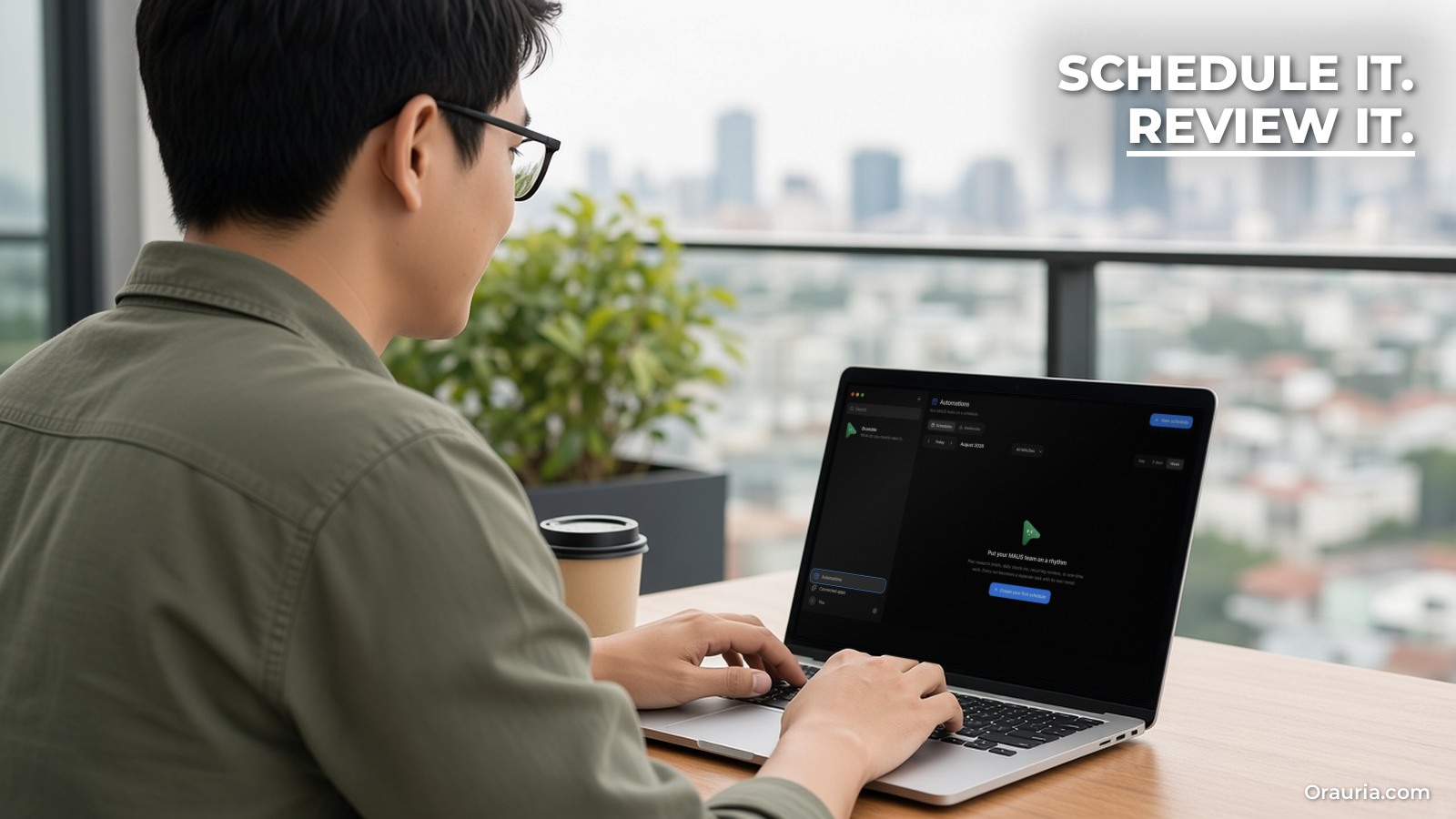
4. Apps, automations and approvals (the rules). Connected apps such as Gmail, Slack, GitHub and Notion come through Composio with OAuth. Automations turn a prompt into recurring work on a schedule, on a webhook, or when something happens in a connected app; the site says Gmail is checked every 15 minutes. Supported actions show approval requests in chat. The FAQ adds an important caveat: approval coverage depends on the engine and tool, so it is not a guarantee that every action will pause. That is why your instructions should still say “draft, do not send” for anything that leaves your business.
Two more pieces matter for planning. Memory and skills: bots keep a memory file and can have skills, which is what the Grok Bot import fills in. Human in the loop: when a bot needs you to sign in to a website, it shows a “Sign in needed” card and lets you take control of its browser instead of asking for a password in chat.
Step-by-step setup: desktop first, then a server that never sleeps
Do the setup in two stages. Get one bot working on your own computer first; only then move it to a server. Debugging an engine login and a server at the same time is no fun.
Stage 1: the desktop app
- Download. From mausbot.com/download: a .dmg for Apple silicon or Intel Macs, a per-user .exe for 64-bit Windows, or a .deb (recommended) or AppImage for x86-64 Ubuntu. On Ubuntu the docs suggest
sudo apt install ./OpenMausBot-amd64.deb. The Windows installer is not code-signed yet, so SmartScreen may warn about an unknown publisher; check that the file came from the official releases repository before you continue. - Connect one engine. Install one agent CLI from its official provider, run it once in a terminal and finish its sign-in, then restart MausBot. The onboarding check, or App settings → Agent engines, shows what is installed and what is missing. If a bot later reports a 401, finish that CLI’s own login again; authentication belongs to the CLI.
- Create a bot. New or share → New bot (Ctrl+N, or ⌘N on a Mac). Give it a name, pick the engine and model, and set a dedicated working folder if the job touches files; the folder becomes its starting context and limits accidental edits elsewhere.
- Send one small task. The docs’ own starter is a good test: ask it to plan two hours tomorrow morning for emails, a project update and meeting prep. Review the answer before you give it anything bigger.
Stage 2: move the MausBot server to a VPS
The Deploy on a VPS guide moves the whole MausBot server and its agents to a Linux machine, so bots keep working while every laptop is closed. It estimates about twenty minutes. Here is the documented path, condensed.
Pick a server. For the one-command installer: a fresh Ubuntu 22.04 or 24.04 server, x86-64, at least 2 CPU cores, 4 GB of memory (8 GB suggested) and 20 GB of free disk, with ports 80 and 443 free. The docs mention Hetzner, DigitalOcean and Lightsail as fine choices, and record a launch check on a Hetzner CX43. Our companion guide compares VPS providers for MausBot, including Asia and Vietnam latency.
Pick a way in. The docs describe three:
- A. Public address, no domain.
npx openmausbot loginonce (an emailed code reserves an address), thennpx openmausbot serve --tunnel, which connects a Cloudflare tunnel. Needs Node 24 or newer. - B. Your own domain, with Docker and Caddy. Point an A record such as
maus.example.comat the server. This is what the one-command installer sets up. - C. Your Tailscale network only.
npx openmausbot serve --tailscale. Nothing is public, which the docs call a very good property for a server that can run tools.
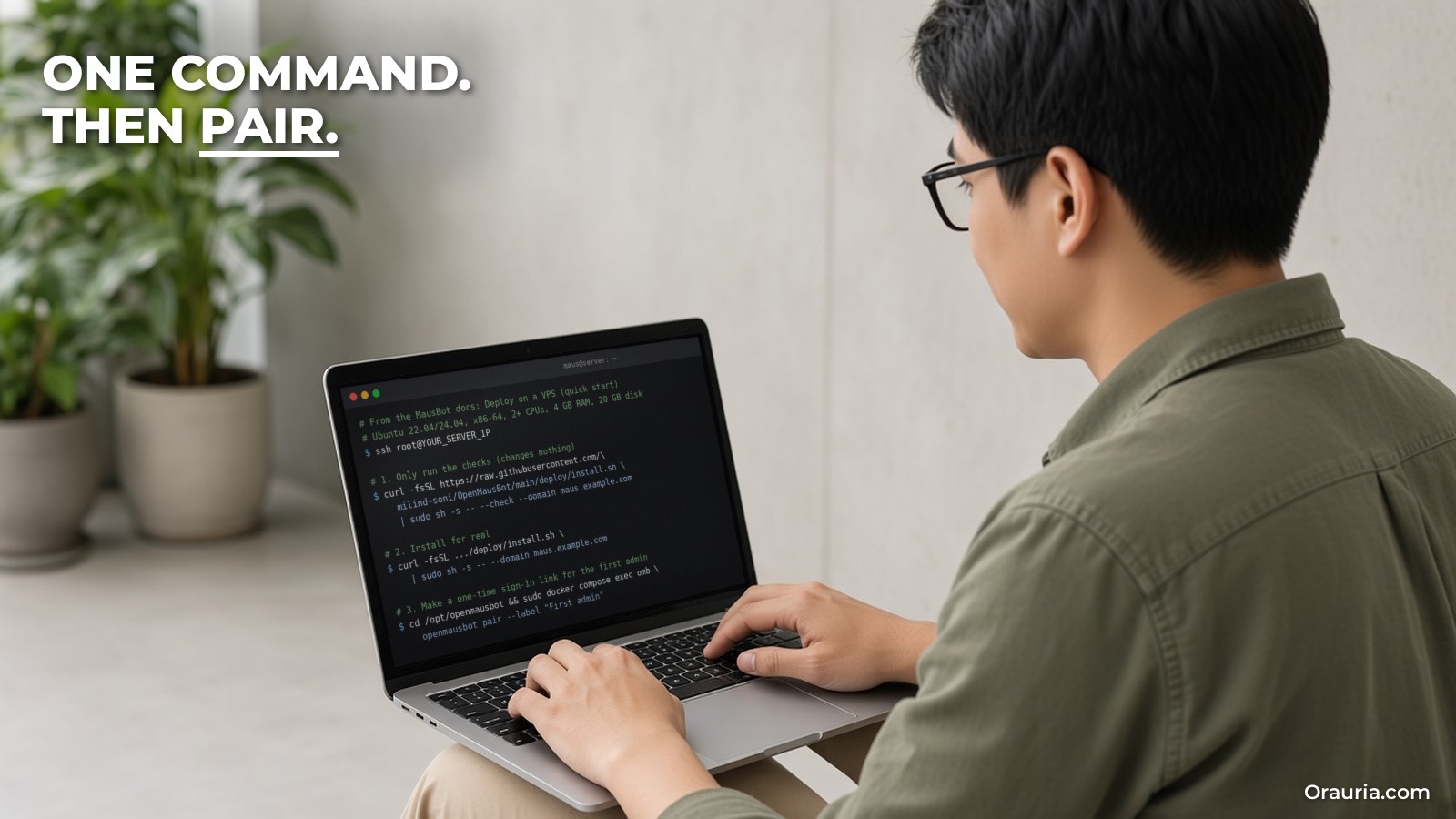
Run the installer (path B on Ubuntu). Check first; the check changes nothing:
curl -fsSL https://raw.githubusercontent.com/milind-soni/OpenMausBot/main/deploy/install.sh | sudo sh -s -- --check --domain maus.example.comThen install:
curl -fsSL https://raw.githubusercontent.com/milind-soni/OpenMausBot/main/deploy/install.sh | sudo sh -s -- --domain maus.example.comThe installer checks the OS, CPU, memory, disk, Docker version, ports, DNS, outbound access and the bots’ sandbox before touching anything, asks before installing Docker, puts everything under /opt/openmausbot, and ends with MausBot answering on your domain over HTTPS. It sends no telemetry, according to the docs. As always with a curl | sh command, read the script first if you are unsure.
Sign in as the first admin. In a terminal the installer prints a one-time link. To make one yourself:
cd /opt/openmausbot && sudo docker compose exec omb openmausbot pair --label "First admin"Open the link, or paste it into the desktop app under + → Connect to a server. Pairing is the login: there is no password. A pairing code works once, for 10 minutes; a paired device stays signed in for 30 days, renewed on use up to 180 days.
Sign the engines in on the server. The server runs the same CLIs as your laptop, signed in once on the server. On path B you run them inside the container, for example docker compose exec omb claude. For Codex on a headless server, the docs use codex login --device-auth.
Optional: give bots a browser. Path B ships Chrome in the image; turn the browser on under Settings → Experimental and per bot. On Ubuntu 24.04 with paths A or C, Chrome may report “No usable sandbox!”; the docs give a narrow AppArmor fix and warn against --no-sandbox.
Keep it updated and backed up. sudo /opt/openmausbot/update.sh copies your data, moves to the stable version, checks health, and rolls back if the new version fails. Apps are built to work with servers that were stable within the last 90 days, so update at least that often. Back up /opt/openmausbot/data with the documented commands and keep the archive private: it contains every chat, key and session.
Pitfalls worth knowing
- Never publish port 8799 yourself or put a proxy in front that rewrites the Host header. Use one of the three ways in.
- Engine logins live in the service user’s home (for example
~/.claudeand~/.codex); keep that home when you rebuild or upgrade. - The one-command installer is x86-64 only. ARM64 images exist for the Docker path by hand, with at least 4 GB of memory.
- Building your own image needs about 6 GB of memory; on smaller servers use the published image.
- Browsers on cloud computers do not open Reddit, per the docs, because Reddit blocks bots browsing from cloud IPs.
- Want only a remote desktop for one bot, while MausBot stays on your laptop? That is a different setup: Your own VPS (BYO), which controls Docker on an x86_64 server over an SSH alias.
Do not want to run a server? MausBot Cloud is the paid hosted option: Starter $15, Pro $49 and Max $99 a month in USD (prices on mausbot.com on 12 November 2026), each with an always-on cloud machine and a monthly allowance of cloud-computer hours. Model usage is not included on any plan; you still bring your own Claude or ChatGPT account or an API key.
From v1 to v3: tightening your first bot
Here is how Khoa’s “Follow-up” bot might evolve. The prompts are examples to adapt, not a tested recipe.
v1: a one-off chat. “Look at these five leads and draft a follow-up for each.” The drafts were fine, but every Monday he pasted the same context again, and the tone drifted between models.
v2: a real bot with a job. He gave the bot a working folder with a leads.csv and a tone.md, and wrote instructions: “You draft follow-ups for leads with no reply in 7 days. Read leads.csv and tone.md. Write each draft into drafts/ with the lead’s name. Never send email. List anything you were unsure about at the end.” He kept the bot on Ask so file changes waited for his approval, chose one model and stuck with it for two weeks, and logged how many drafts he sent with only light edits.
v3: scheduled on the server, with a review step. Once v2 was steady, he moved the bot to the VPS and created an automation for weekday mornings at 8:00. He connected Gmail through Connected apps so the bot could read replies, but kept the rule that it only drafts; he reads and sends. He added a second line to the instructions: “If a lead replied, move them to replied.csv and do not draft.” When he wanted to try another model, he duplicated the bot, switched the engine on the copy, and compared a week of drafts side by side instead of changing the working bot.
What changed between versions was not the model. It was the context the bot could rely on, the boundary on what it may do, and a schedule that does not depend on a laptop being open. If you already have Grok Bot Bots with good instructions and skills, the Move from Grok Bot import is a shortcut to v2; remember to turn each routine off in Grok Bot before you turn it on in MausBot, so it does not run twice.
What to try this week
Install the desktop app and connect one engine you already pay for. Create one bot with a dedicated folder and a narrow job, and give it the morning-plan starter task. Use it daily for a week and keep the log described above. If you find yourself wishing it ran while your laptop was closed, rent a small Ubuntu server, run the installer with --check first, pair your laptop and phone, sign your engine in on the server, and move that one bot. Keep anything that sends email, posts or pays behind your own approval, whatever the approval cards promise.
For the hosting decision, read our VPS provider comparison for MausBot. For ideas on what to give your bots, see the multi-bot team guide, webhook-driven lead triage, and how MCP, cloud computers and tools fit together; the patterns carry over even though those posts use Grok Bot. If you want a team of agents wired into your own systems, with the hosting, approvals and monitoring handled for you, send Orauria a brief and we will help you scope it.
Leave a Reply