This post continues Orauria’s practical Grok Bot series. Earlier posts covered a morning briefing across inbox, calendar and Notion, daily price and stock monitoring, and teaching a Bot a browser task by showing it once. All of those assume you can sit down and type. This one is for people whose hands are usually full. It shows how to talk to a Grok Bot by voice chat, dictation and the iPhone Action Button, let it use a few apps on your phone, and turn what you say into reminders, drafts and a prep list that wait for you to check. The story is an illustrative example, not a client case, and Orauria has no official partnership with xAI or Grok Bot.
What follows about Grok Bot comes from the public docs at docs.x.ai: Message and collaborate (voice chat, dictation and voice memos), Grok Bot for Mobile and Approvals, security, and privacy, checked on November 12, 2026. Some features are iPhone-only, such as Siri shortcuts, the Action Button, Reminders and Home. We have not run this exact workflow end to end; the routine and email steps are described from the docs, not tested. The laptop screens are example compositions built on the Grok Bot app layout, with invented content. Do not use your phone while driving.
Key takeaways. A voice chat is a live spoken conversation with one Bot, on desktop or phone; when it ends, the chat keeps a Voice chat card with the full transcript, and the Bot may follow up with results. Dictation turns speech into text you can check before sending. On iPhone you can start a voice chat with the Action Button or dictate through Siri without opening the app. With your permission, a Bot can add reminders and calendar events or set timers on your phone while Grok Bot is open. Emails and messages still arrive as drafts with Send and Discard.
Flour on her hands, ideas in her head
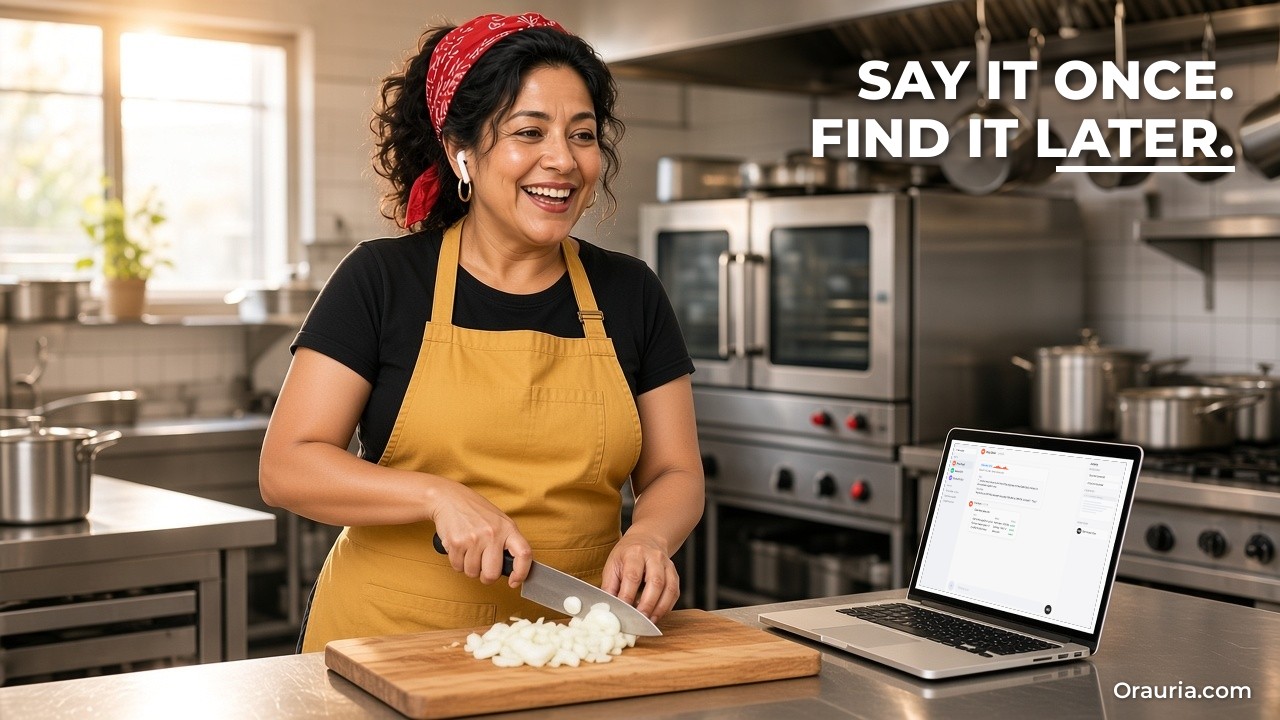
Meet Marisol. She is an example character: a Mexican-American food truck owner in her forties in Austin, running a taco truck with her nephew and one part-time cook. Her days start at the restaurant supply store at six, continue with three hours of prep in a commissary kitchen, and end with a lunch service and an evening event somewhere in the city.
Her best thinking happens with her hands busy. Chopping onions, she remembers that the tortilla supplier raised prices. Rolling dough, she decides to try a new salsa for Friday’s brewery event. Wiping the counter after service, she realises she never confirmed Saturday’s farmers market slot. By the time she is free to type, half of it is gone.
She tried voice notes in her phone’s notes app. They piled up, unlistened. She tried texting herself. The messages got buried under supplier texts and family chats. She tried a paper list taped inside the truck. It got splattered with salsa.
The cost is real. A missed price change eats margin for weeks. A forgotten event confirmation can cost a good Saturday. And the ideas that would make the menu better rarely survive the day.
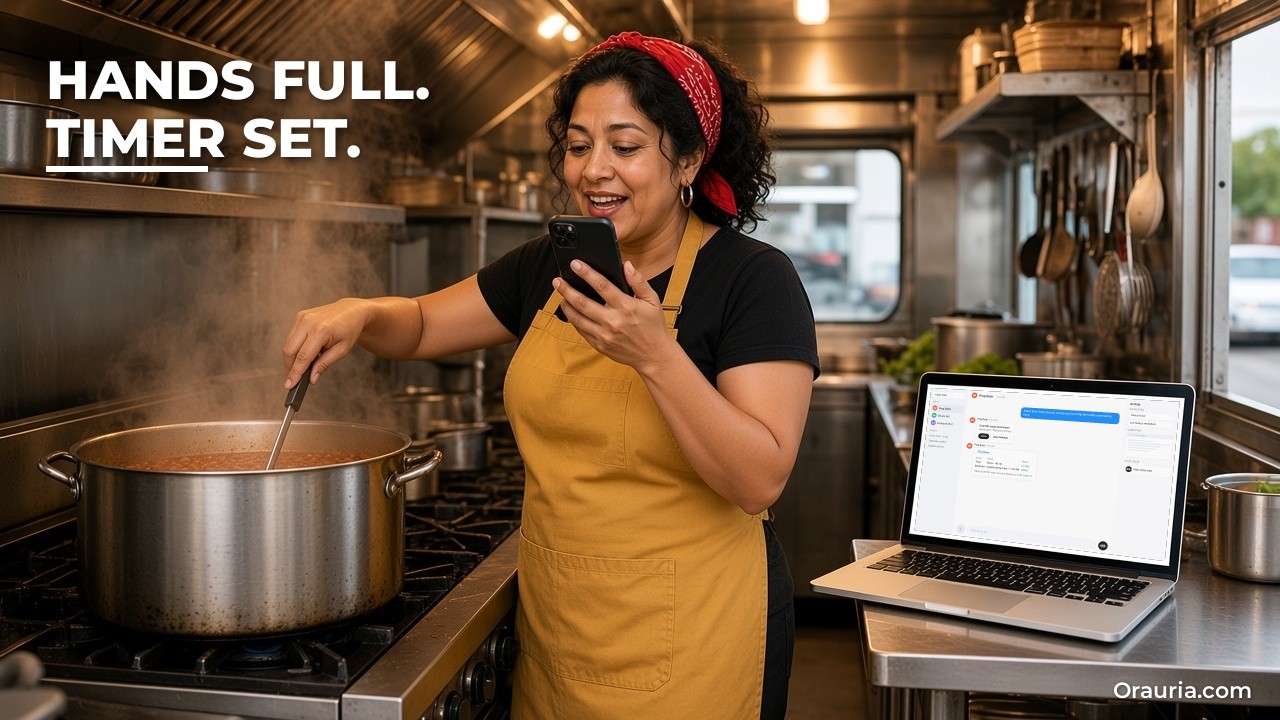
The “after” she wants is not a smarter notes app. It is someone she can talk to while working, who answers out loud, writes things down in the right place, and only bothers her when something needs a decision. She wants to say “remind me to call the tortilla guy at three” and have a reminder appear. She wants to say “draft an email confirming Saturday’s market” and find a draft waiting. She wants to hear tomorrow’s prep list while she drives to the store, without touching the screen.
That is what voice chat, dictation and phone apps in Grok Bot are for. The docs describe a voice chat as “a live spoken conversation with one Bot: the Bot answers out loud and keeps listening until you hang up.”
What effective looks like, and how to measure it
It would be easy to promise “never forget anything again”. We will not, because a voice assistant can mishear a number, miss a word in a noisy kitchen, or put a reminder at the wrong time. What we can describe is what a good result looks like and how to check it.
A voice-first Bot is doing its job when:
- What you say ends up somewhere useful. Reminders, calendar events, drafts and notes, not a pile of recordings.
- It confirms before acting. The Bot repeats back times, amounts and names, and you can correct it out loud.
- You can check later. Each voice chat leaves a card with the transcript, so you can see what was actually said.
- Nothing goes out without you. Emails and messages wait as drafts until you press Send.
- Fewer things slip. Fewer forgotten calls, missed confirmations and lost ideas each week.
To measure it, keep a simple tally for three weeks:
- Things you asked for by voice, and how many landed correctly (right reminder, right time, right draft).
- Misheard items: wrong number, wrong name, wrong day.
- Drafts you sent as-is, edited or discarded.
- Things you forgot that week, compared with a normal week before.
- Times the Bot asked for permission or confirmation, and whether that felt right or annoying.
- Anything the Bot sent, changed or added that it should not have (this column should stay at zero).
The misheard column matters most in a loud kitchen. If numbers keep going wrong, change the habit: ask the Bot to read every number back, and say amounts slowly, digit by digit. If names go wrong, add your suppliers and venues to a skill so the Bot knows the words to expect.
The “forgot” column is the honest test. If you are not forgetting less after three weeks, the problem is usually where things land. A reminder in an app you never open is still a forgotten reminder.

How it works: talking, dictating and letting the Bot use your phone
There are four ways to use your voice, and one way to let the Bot act on your phone.
Voice chat
According to the docs, you open the chat with one Bot, leave the composer empty and choose Start voice chat, the waveform button. The call shows Calling on the phone, then the Bot starts talking. During a call you can Mute, Hang up, or choose Show transcript to read along. In a call with your own Bot, Show settings changes the Voice, the Speed and the Language, and Auto-detect picks the language from what you say. Voice chat works with one Bot at a time, not in group chats.
After the call
When the call ends, the conversation includes a Voice chat card with the call’s length; open it to read the full transcript. If the call left work to do, the Bot may follow up in the chat with next steps or results. This is what makes voice useful for work: the conversation is not lost.
Dictation
Dictation is different. It turns your speech into text in the composer, which you read, edit and send. On iPhone and Android, use Start dictation in the composer. It is better than voice chat when you want to send one precise message, such as a supplier email you want to check word by word.
Siri, Shortcuts and the Action Button on iPhone
Grok Bot adds shortcuts you can run from Siri, Spotlight or the Shortcuts app: List Bots, Send Message, Start Dictation and Start Voice Chat. Start Dictation lets you dictate to a Bot without opening the app, as long as the iPhone is unlocked, with a Live Activity showing progress. On an iPhone with an Action Button, you can set it to Shortcut, then Grok Bot, then Start Voice Chat, and press it to talk; press again to hang up.
Voice memos from the Bot
A Bot can also reply with a voice memo in the conversation. You choose Play voice memo to listen and can expand it to read the transcript. That is useful for a morning summary you want to hear rather than read.
Letting the Bot use your phone’s apps
The docs describe how a Bot can use some apps on your phone when you ask, only in your own chat with a Bot you own. On iPhone and Android: Calendar (read, add, change or delete events; it never invites anyone), Contacts (read only), Location (a position, not an address) and Alarms (an alarm up to 24 hours ahead, or a timer up to 24 hours). On iPhone only: Reminders and Home. The Bot can reach your phone only while Grok Bot is open on it, and most apps need your phone’s permission first, shown as a “Grok Bot needs permission” card.
Approvals still apply
Voice does not skip the rules. If your team sets a limit, each use of a phone app can require Allow once. With Auto Review on, it checks actions and can stop to ask. Emails and Slack messages appear as drafts you can edit, with Send or Discard.
Skills keep the vocabulary straight
A skill holds what the Bot should know about your work: supplier names, menu items, venue names, your usual prep quantities, and rules such as “read back every amount” and “never send email without my approval”. That makes voice requests short and reliable.
When to type instead
Voice is not always the right tool. Type when the request contains a long list of exact numbers, an address you need spelled correctly, or anything private you would not say out loud near customers. Use dictation rather than voice chat when you want to see every word before it goes to the Bot. And use the desktop app for testing routines, which the docs say requires desktop.
Setup: a hands-free Bot in seven steps
Here is how Marisol sets it up, following the docs. First, check that your plan includes Grok Bot on mobile and install the app on your phone.
Step 1: Sign in on your phone with the same account
She signs in to Grok Bot on her iPhone with the same account she uses on her laptop, so her Bot, chats and routines are the same everywhere. She allows notifications for results and approvals.
Step 2: Write a short skill for your vocabulary
On the laptop she asks her Bot, named “Prep Desk”, to save a skill called “Truck day” with her suppliers, venues, menu items and prep quantities, plus three rules: read back every number, put reminders in Reminders and events in Calendar, and keep all emails as drafts.
Pitfall: skipping the skill. Without it, “the tortilla guy” and “the brewery gig” mean nothing to the Bot.
Step 3: Allow the phone apps you need
In Settings, Connect apps, she chooses her iPhone and allows Reminders, Calendar and Alarms. She leaves Contacts, Location and Home off for now.
Pitfall: allowing everything on day one. Start with what you will actually use.
Step 4: Set up the Action Button
In the iPhone’s Settings she chooses Action Button, swipes to Shortcut, and picks Grok Bot, Start Voice Chat, with Prep Desk as the Bot.
Step 5: Try a short voice chat at a quiet moment
Before service she presses the button and says: “Remind me at three to call the tortilla supplier about prices, and add Saturday’s farmers market from eight to two to my calendar.” The Bot reads the times back; she confirms. She checks Reminders and Calendar.
Step 6: Check the Voice chat card
After hanging up, she opens the Voice chat card and reads the transcript to see what the Bot heard. She notes one misheard word.
Pitfall: trusting the first week without checking transcripts. That is where you learn what the Bot mishears.
Step 7: Ask for a draft, not a send
She dictates: “Draft an email to the market organiser confirming Saturday, eight to two, space twelve.” The draft appears with Send and Discard. She reads it at the end of service and sends it herself.

The optimization journey: from v1 to v3
v1: voice for reminders
In the first week Marisol uses voice chat only for reminders and calendar events. That alone changes her days: the thoughts she has while chopping land in the right place. But numbers are sometimes misheard in the noisy kitchen, and she still writes every email herself.
Her lesson: getting thoughts out of her head is the first win. Accuracy comes from habits.
v2: the skill with her rules
She tightens the “Truck day” skill:
- Read back every amount and time, and wait for “yes” before saving.
- Supplier price changes go into a running list with the date, not just a reminder.
- Menu ideas go into an “ideas” note, never straight onto the menu.
- Emails and messages are always drafts; never send without approval.
- If unsure what she said, ask once; if still unsure, write it down with a question mark.
- Use timers for prep (for example, “beans timer forty minutes”), and confirm when set.
Now most requests land correctly the first time, and the transcript catches the rest.
Her lesson: reading back is what makes voice safe for numbers.
v3: a morning voice memo and an evening debrief
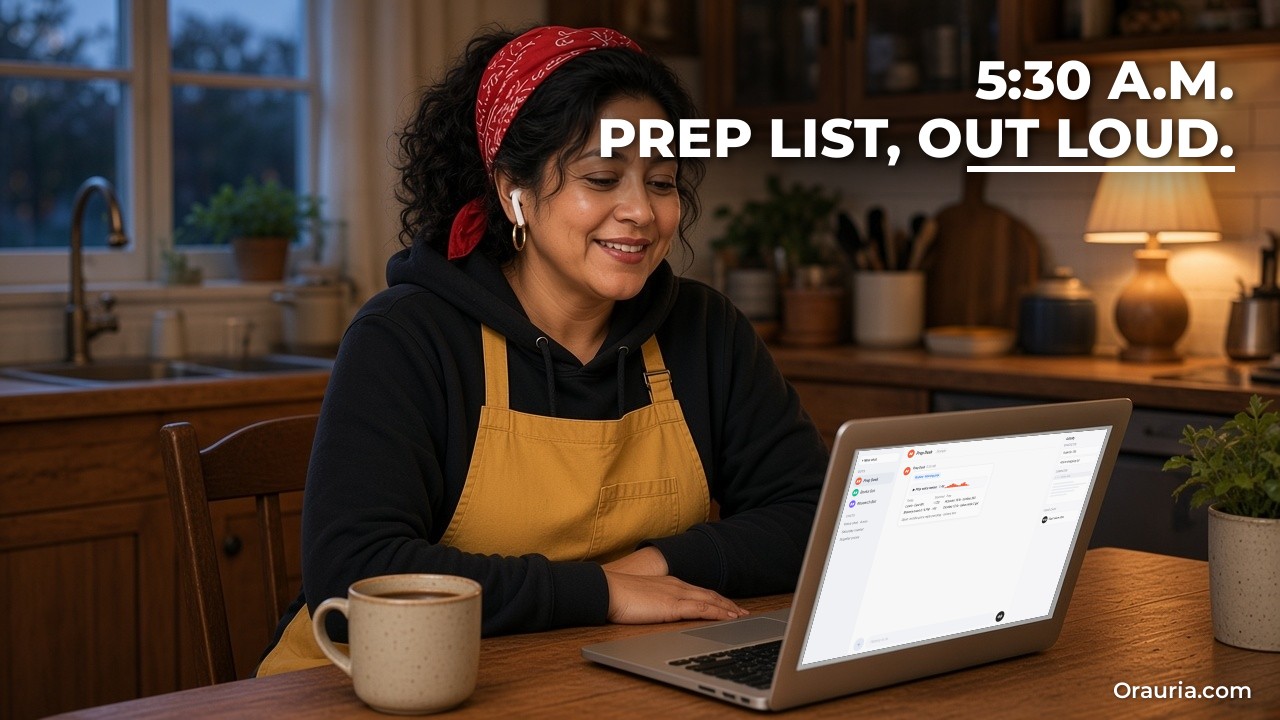
Once voice is reliable, she adds two habits. A morning routine at 5:30 posts a short voice memo: today’s events from her calendar, the prep list scaled to the expected crowd, and open supplier items. She listens on the way to the store. After service, she presses the Action Button for a two-minute debrief: what sold out, what to change, who to call. The Bot turns it into reminders and a short note for the week.
We describe these steps from the docs, not from testing this setup. The routine’s voice memo and the prep list depend on the Bot having the right calendar access and the skill’s quantities, and listening while driving should only ever be hands-free and legal where you are.
Her lesson: the Bot is most useful at the edges of the day, when her hands and eyes are busy.
And the order matters. She did not start with a morning routine. She started with one voice chat and a reminder.
What to try this week
Install Grok Bot on your phone and sign in with the same account you use on desktop. Write a short skill with the names you will say out loud, and rules to read back every number and keep emails as drafts. Allow only the phone apps you need, such as Reminders, Calendar and Alarms. On iPhone, set the Action Button to Start Voice Chat. At a quiet moment, ask for one reminder and one calendar event by voice, confirm the read-back and check they landed. Open the Voice chat card and read the transcript. Dictate one email request and send the draft yourself. Tally what landed, what was misheard and what you still forgot for three weeks. Only then add a morning voice memo routine.
For more on skills and routines, read the morning inbox and calendar briefing, how to teach Grok Bot a browser task by showing it once, and what Grok Bot is and how Orauria uses it. If your business needs voice requests connected to ordering, scheduling or internal tools, send Orauria a brief and we will help you design it.
Leave a Reply