This article continues the practical Grok Bot series on Orauria, which began with 7 Grok Bot Tips to Schedule Posts, Filter Upwork Jobs, and Research Faster and has since covered a research workflow saved as a skill, a weekday competitor price watch, and a morning inbox, calendar, and Notion brief. This one is about a feature the earlier posts only touched: teaching a Bot a browser task by doing it once while it watches, then turning what it learned into a skill and, only later, a routine. The story is an illustrative example, not a client case study, and Orauria has no official partnership with xAI or Grok Bot.
Facts about Grok Bot come from the public documentation at docs.x.ai, mainly the pages on skills and routines, the computer and apps, Vault and secure sign-in, and approvals, security, and privacy, checked on 12 November 2026. The docs say that Teach a task “may be enabled gradually”, so it may not be visible in your account yet. We have not run the exact workflow below end to end inside Grok Bot, and the Slack trigger and email steps in the later versions are described from the docs, not from a test. Screens shown on the laptops in this article are example compositions built on the real Grok Bot app layout, with invented sample content.
Key takeaways. Teach a task records up to ten minutes of what you do on the Bot’s cloud computer and turns it into a draft skill. The draft is a starting point, not a finished automation: you still add decision rules, failure handling, and approval boundaries that one example cannot show. Test the skill on a safe example, run it by hand a few times, and only then attach it to a routine. Keep passwords out of the recording, and keep every order, email, and reply behind your approval.

The Monday supplier portal that nobody wants to open
Meet Linh. She is an example persona: late twenties, owner of a small ceramics studio that sells mugs, bowls, and vases from a shop counter and a simple online store. Every Monday at 8:00 she opens the same wholesale supplier portal. It has no app, no export button that works reliably, and no connector in any tool she uses. She signs in, clicks through to clay bodies, then glazes, then kiln shelves, and writes down three things for each item she uses: stock status, current price, and lead time. Then she compares that list with her own reorder sheet and decides what to order.
It takes about forty minutes on a good day. On a bad day, the portal has moved a menu, a price has changed without notice, or she forgets to check one glaze and discovers the gap two weeks later when a batch of mugs is waiting for it. Nothing about the task is hard. It is just tedious, visual, and easy to get slightly wrong.
Linh had tried describing the task to an AI assistant in words. The result was always a polite guess: “log in to the supplier site, check inventory, compare with your sheet.” Every real detail was missing: which menu, which columns, which items, what counts as “low”. She did not want to write a twenty-step manual for something she could do with her eyes closed.
The “after” feeling she was looking for was simple. On Monday morning, a short list is already waiting: what changed since last week, what is low, and a draft reorder she can approve, edit, or ignore. She still decides. She just does not click through the portal anymore.
That is the kind of task Grok Bot’s Teach a task feature is built for. According to the docs, Bots work from a persistent cloud computer with a browser, command line, and filesystem, and they can use sites that have no connector. Teach a task lets you demonstrate a browser workflow instead of describing every step.

What effectiveness looks like, and how to measure your own
It is tempting to say that teaching a Bot “saves forty minutes a week”. We will not say that, because we have not measured it for you, and the number depends on your portal, your list, and how much review you still do. What we can describe is what a good result looks like and how you can measure it yourself.
A taught skill is effective when four things are true:
- It reads the right things. Every item on your list is checked, and the values match what you would see if you opened the portal yourself.
- It reports, it does not act. The output is a summary and a draft. No order is placed, no email is sent, and no setting is changed without your OK.
- It fails loudly. If the portal is down, the layout changed, or a login expired, the Bot says so instead of reusing last week’s numbers.
- It gets cheaper to review. After a few runs you trust the format, and checking it takes a few minutes instead of the full manual pass.
To measure that, keep a small sheet of your own for the first four to six runs. Useful columns:
- Date of the run, and whether it started on time.
- Items checked vs. items on your list.
- Values you spot-checked by hand, and how many were wrong.
- Minutes you spent reviewing the result.
- Minutes the old manual pass used to take (estimate it honestly once, before you start).
- Failures: did it stop and report, or did it guess?
- Actions taken without approval (this should always be zero).
If after a month the spot-check errors are zero, review time is clearly lower than the manual pass, and the approval column is still empty, the skill is working. If not, the numbers tell you which part to fix: reading, reporting, or failure handling. Do not publish these numbers as a promise to anyone else. They are yours, for one portal, on one schedule.
One more measure matters: usage. The docs note that every routine run spends usage, and that frequent schedules or broad triggers can use a lot of it. A weekly run on one portal is light. A run every two hours across ten portals is not. Check your plan before you scale up.

How Teach a task works: skills, routines, and you in the loop
Before you record anything, it helps to know the moving parts. Grok Bot uses two building blocks, as the docs describe them: a skill is a reusable set of instructions for how to do a task, and a routine tells one Bot when to run a workflow, either on a schedule or when something happens, such as a Slack message, an email to the Bot’s own address, a webhook call, or an event from GitHub, Linear, Sentry, or PagerDuty.
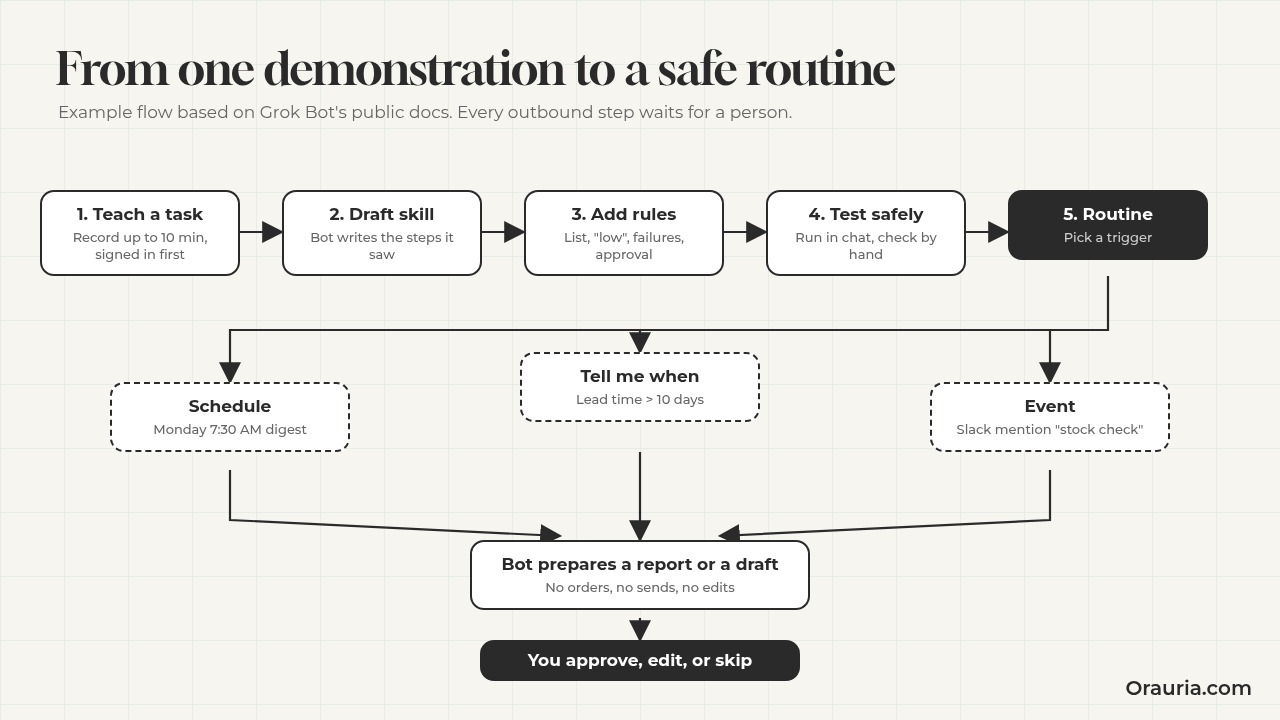
The recommended order is explicit in the docs: start with a one-time task, make it reliable, save the method as a skill, and only then automate it. Teach a task is a shortcut into the second step. Instead of writing the skill from scratch, you show it.
The agent loop on a cloud computer
When a Bot runs a browser task, it works in a loop: look at the screen, decide the next step, act (click, type, scroll, read), then check the result. It does this on its own computer in the cloud, not on your laptop. The docs say work continues while your laptop is closed, and that files, sign-ins, and browser sessions persist between tasks. You can open the computer preview in the right-hand panel of a conversation to watch clicks, typing, and navigation as they happen.
What the recording captures
According to the docs, Teach a task records visible computer interaction for up to ten minutes. It does not record microphone audio, so narration is not part of the input; your typed description before you start is. When you stop, the Bot creates a skill from what it saw. That skill is a draft. The docs are clear that you should add decision rules, failure handling, and approval boundaries that may not be obvious from one example.
What a good skill contains
The docs list six things a useful skill states: when to use it, required inputs and access, the sequence of work, how to validate the result, what to return, and what requires approval. A demonstration gives the Bot the sequence very well. The other five usually need your words.
Memory, logins, and secrets
The Bot remembers your preferences and keeps sign-ins on its computer, so it does not start over each time. For the login itself, the docs describe an order: a login saved in Vault first, then a connected password manager such as 1Password, then a Secure Form that fills the page without the Bot seeing the value. If a site needs single sign-on, a passkey, a CAPTCHA, or a QR code, the Bot hands you the computer: you take over, finish only that step, and tell it to continue. The docs also warn directly: do not type secrets into a demonstration.
Human in the loop
Grok Bot has an Auto Review step that checks actions before they run. When one needs your OK, an approval card appears in chat with the proposed action and its inputs. The docs also say email from a routine waits as a draft until you press Send. For a reorder task, that is the boundary you want: the Bot prepares, you approve.
Different routine shapes from the same skill
Once a skill exists, it can sit inside different kinds of routines: a scheduled digest, a “tell me when” monitor that only speaks when a condition is met, an event-triggered reply flow that starts from a Slack mention, or a multi-step job that ends in a draft for approval. The images in this article show one example screen for each of those shapes. The skill stays the same; the trigger and the boundary change.

Setup: teaching your first task, step by step
Here is the sequence Linh follows, based on the steps in the docs. If Teach a task is not visible in your account yet, the docs suggest a fallback: do the task once with the Bot in chat, then ask it to create a skill from written instructions and the completed task.
Step 1: Prepare the login before you record
Linh saves the supplier login in Vault first (Settings, Vault, Add, Login). That way the password never appears on screen during the demonstration. If the portal uses a code sent by email, the docs say a Bot can read it from a connected Gmail or Outlook account or from its own inbox. She signs in once through the Bot’s browser so the session is ready.
Pitfall: recording the sign-in itself. Even if the password field is masked, a typed username, a pasted code, or a visible account page can end up in what the Bot learns. Start the recording after you are signed in.
Step 2: Open a one-to-one conversation and the computer view
Teach a task starts from a one-to-one Bot conversation with its computer view open. Linh uses a Bot she named “Studio Ops” so all supplier work stays in one place.
Step 3: Choose Teach a task and describe the result
Before demonstrating, she types what she is about to show and what the result should be. Something like: “I’m going to check stock, price, and lead time for the glazes and clay bodies I use on the supplier portal. The result should be a table of those items with the three values, and a note on anything that changed or is low.”
Pitfall: describing the clicks instead of the result. The recording already shows the clicks. The description should say what “done” looks like.
Step 4: Perform the workflow once, slowly
She does the task as she normally would, but slower, and on a smaller list: three glazes and one clay body. She opens each product page fully, so stock, price, and lead time are visible on screen, and avoids side trips to unrelated pages. The ten-minute limit is a good forcing function: if the task does not fit, it is probably two skills.
Pitfall: doing it “your way” with shortcuts the Bot cannot see, such as a bookmark bar that is not on its browser or a mental rule like “skip the one with the red badge”. If a rule matters, say it in the description or add it later.
Step 5: Stop and review the draft skill
When she stops the recording, the Bot creates a skill. She reads it line by line. The sequence is right. What is missing is everything she knows but never did on screen: the full list of twelve items, what “low” means for her (fewer than two weeks of use at her current pace), and what to do if a product page is missing.
Step 6: Test on a safe example
The docs say to test a learned skill on a safe example before scheduling it. Linh asks the Bot to run the skill once in chat on the same four items, while she watches the computer view. She compares every value with the portal. Only after that does she expand to the full list.
Pitfall: testing with write actions turned on. A test run performs real work. If your workflow could add items to a cart or submit a form, keep that step out of the skill until the read-only part is trusted.
Step 7: Attach it to a routine, with a boundary
When the skill is reliable, she asks the Bot that owns it to create a routine, in plain words: “Every Monday at 7:30 AM, run the Supplier stock check skill. Post the table in this conversation with changes since last week. Do not place orders or contact the supplier. If the portal is unavailable or the layout changed, report the failure instead of using old data.” The docs suggest confirming the owning Bot, the schedule and time zone, the input, the expected result, the approval boundary, and what happens when a source is missing. Schedules use the time zone in Settings, under Bot, Timezone.
Pitfall: expecting the routine to run immediately. The docs note that a new routine waits for its next scheduled time. Use Test on the routine if it is offered, or ask the Bot to do one run in chat.

The optimization journey: from v1 to v3
The first version of a taught skill is rarely the one you keep. Here is how Linh’s skill changes over a few weeks, as an illustrative path.
v1: The recording as it came out
The draft skill from the demonstration does the sequence: open the portal, go to glazes, open each item, read stock, price, and lead time, put them in a table. It covers the four items she demonstrated. The output is a plain table. There is no idea of “low”, no comparison with last week, and no instruction for failures. When she runs it on the full list, it handles the twelve items fine, but one product has been renamed by the supplier and the Bot reports it as “not found” with no suggestion.
What she learns: the sequence was the easy part. The judgment was missing.
v2: Rules, memory, and failure handling
She edits the skill in chat, adding:
- The full item list, stored in a small file on the Bot’s computer that she can update.
- Her definition of low: fewer than two weeks of use, with her weekly use per item listed.
- A comparison with last week’s table, saved as a file after each run, with changes highlighted.
- Failure rules: if a page is missing, search the portal by item code and report the closest match without assuming it is the same product. If the portal does not load or the layout looks different, stop and report.
- An explicit boundary: never add to cart, never submit a form, never message the supplier.
Now the Monday output reads like a short brief: three items low, one price increase, one lead time that doubled, and one renamed product to confirm. She attaches it to the weekly routine described above.
What she learns: a skill gets good when it encodes the decisions, not just the clicks.
v3: From report to draft, and from schedule to signal
After four clean Mondays, she makes two changes. First, the routine now ends by preparing a draft reorder email to the supplier listing the low items and quantities. It stays a draft: the docs say email from a routine waits until you press Send, and she adds her own rule that the Bot shows her the draft and the source table side by side. Second, she adds a small “tell me when” check mid-week: if the lead time on her main clay body goes above ten days, the Bot posts one message in the conversation, and stays quiet otherwise.
She also tries an event trigger. Her studio assistant can mention the Bot in a Slack channel with “stock check” to run the skill on demand, and the Bot prepares the answer as a draft reply for approval rather than posting it directly. We describe this from the docs (Slack triggers can start a routine when the Bot or a phrase is mentioned in a channel); we have not tested this exact setup, and the docs note that a Slack trigger needs Slack connected on the account that owns the Bot.
What she learns: the same skill can serve different shapes of automation. The trigger decides when it runs; the boundary decides what it may do. Her rule for every shape stays the same: it prepares, she approves.
Notice what she did not do: she did not start with v3. The draft email and the Slack trigger only came after the read-only version was boring and reliable. That order is what makes the later versions safe to trust.
What to try this week
Pick one browser task you repeat every week on a site with no connector, and that only reads information: a supplier portal, a marketplace dashboard, a booking page, a government form status check. Save the login in Vault and sign in once before you record. Open a one-to-one conversation with your Bot, open the computer view, and look for Teach a task. Describe the result in one or two sentences, then demonstrate the task once on a small sample, in under ten minutes. Read the draft skill and add what one example could not show: the full list, your definition of “important”, what to do on failure, and a written rule that nothing is sent, ordered, or changed without your approval. Run it in chat a few times and compare every value by hand. Track runs, errors, review minutes, and approvals in a sheet you own. Only then attach it to a routine, and only then consider a draft email, a “tell me when” check, or a Slack trigger.
If you want to see how other people in this series used skills and routines, read the research workflow skill, the competitor price watch routine, and the overview of what Grok Bot is and how Orauria extends it. If your workflow needs more than a taught skill, such as a custom connector, an MCP server for an internal system, or a Bot built around your approval rules, send Orauria a brief and we will help you design it.
Leave a Reply