Most people who work on the web keep an AI chatbot open in another tab. They copy a paragraph, switch tabs, paste it, write a prompt, wait, copy the answer, switch back, and paste again. Orauria AI Assistant is a Chrome extension that removes most of those trips. It opens an AI side panel next to whatever page you are reading, so you can chat, rewrite a selection, ask about the page, snip part of the screen, generate an image or a video, and keep notes without leaving the tab. This guide walks through what it actually does, who it suits, how to set it up, and how to get better answers from it over a few weeks.
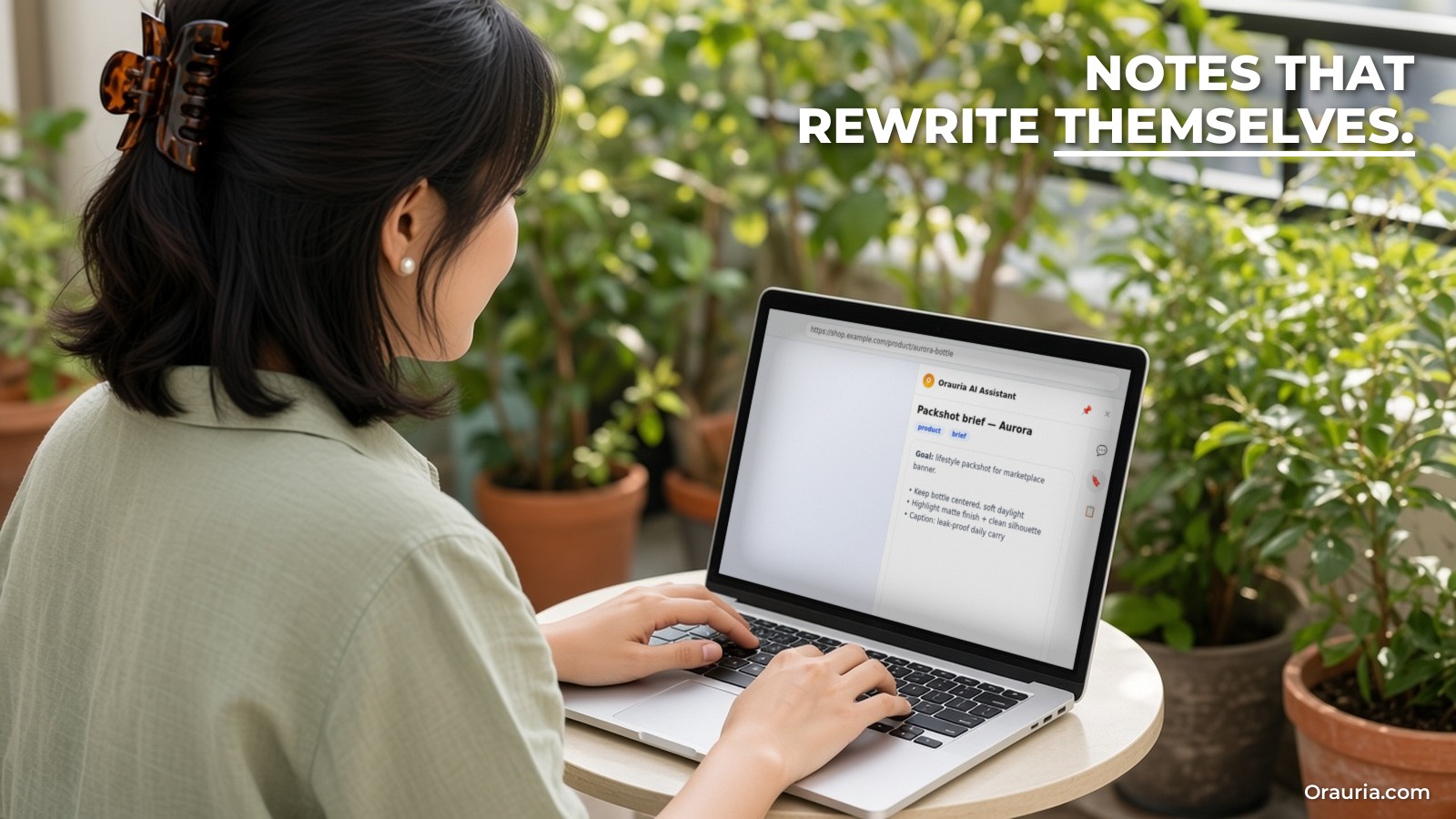
Everything below about the extension comes from three public sources, checked on November 12, 2026: the Orauria AI Assistant product page, the Chrome Web Store listing (version 0.4.4, updated October 22, 2026) and the extension privacy policy. The story is an illustrative example, not a customer case study. The laptop screens in the photos are real screenshots from the store listing, placed onto the photos; the sample page in them is a demo product page.
Key takeaways. Orauria AI Assistant is a side panel for Chrome that also installs on Microsoft Edge from the same store listing. You sign in with Google to your Orauria account, and AI usage is billed as credits from your Orauria wallet, the same wallet used by Orauria Studio. It offers multi-model chat (the product page names GPT, Claude and Gemini), right-click Ask, Rewrite, Translate and Summarize on selected text, an optional Page toggle that attaches the page URL, title and description, screen snips, image and video generation, rich notes with AI rewrite, and a Clipboard History stored on your device. The store listing also describes bilingual video subtitles and an optional New Tab daily brief that is off by default.

Twelve tabs and one product launch
Meet Mai. She is an example character: a Vietnamese woman in her early thirties who runs a small online linen clothing shop from a studio in Hanoi. She sells through her own site and two marketplaces, writes her own product descriptions in Vietnamese and English, answers customers in chat, and checks what similar shops are doing before every new collection.
On a launch week, her browser looks like this: three marketplace seller dashboards, a supplier’s fabric page, two competitor product pages, a Google Doc with draft descriptions, her email, a translation tool, a chatbot tab, and an image tool for banner ideas. Twelve tabs, and the chatbot sits in the middle of all of them. Every time she wants help, she copies text out of one tab into the chatbot and back again. When she asks the chatbot about a competitor page, she has to paste the whole page or describe it, because the chatbot cannot see where she is.
The before feeling is not that AI is useless. It is that using AI costs a context switch every time, so she uses it less than she could. Small jobs, like tightening one sentence or translating one customer message, do not feel worth the trip.
The after picture, which this guide works toward, is simple. The assistant lives in a panel on the right side of the browser. On a competitor page, she turns on Page context and asks what the page promises. On her own draft, she highlights a sentence and picks Rewrite from the right-click menu. When a customer writes in English, she highlights the message and picks Translate. Her notes and the snippets she copied during research stay in the same panel. The chatbot tab is gone, and most small jobs take one click instead of six.
What a better week looks like, and how to measure it
It is tempting to promise numbers like “save ten hours a week”. We will not, because we have no measured data for your work, and neither does any honest vendor. What you can do is measure your own week before and after, with three simple checks.
1. Count the round trips
For one normal day, keep a tally every time you copy something into an AI tab and copy the answer back. That number is your baseline. After a week with the side panel, count again. The goal is not zero; some jobs still belong in a full chat window. The goal is that small jobs, such as one sentence, one message or one paragraph, stop needing a separate tab.
2. Track the jobs you used to skip
Write down the small tasks you usually do not bother asking AI for: translating a short customer message, checking the tone of a reply, summarizing a long supplier email, turning a product page into three bullet points. If the panel is working, some of those move from “skip” to “done in a click”. This is often the bigger win than speed.
3. Watch your credit spend
Because the extension bills your Orauria wallet, you can see what your usage costs. Orauria credits are top-ups, not a subscription. On the pricing page on November 12, 2026, packages ran from $5 to $100, with bonus credits on larger packages, and each generation shows an estimate before you submit it. Note what one ordinary week costs you, then decide whether it is worth it. We do not list per-action prices here because the extension pages do not publish them; models differ in cost and the price can change.
Keep the three numbers in a note. After two or three weeks you will know, from your own data, whether the panel earns its place in your browser.
How the side panel works
Orauria AI Assistant is built as a Chrome side panel (the product page calls it “Side panel · MV3”, meaning it uses Chrome’s current extension platform). It opens beside the page and stays there while you scroll, switch tabs or read. Here is what each part does, in plain terms.
Chat with a choice of models
The main view is a chat. Replies stream in as they are written, and you can keep several conversations. The product page says you can chat with GPT, Claude and Gemini, and the model picker loads the list from Orauria’s APIs, with fallbacks if the list fails. In the store screenshots the model chip reads gpt-4o, and there are two tabs, Chat and Agent (marked New). Conversation history is stored on your device, in the browser’s IndexedDB storage, according to the store listing.
Selection actions
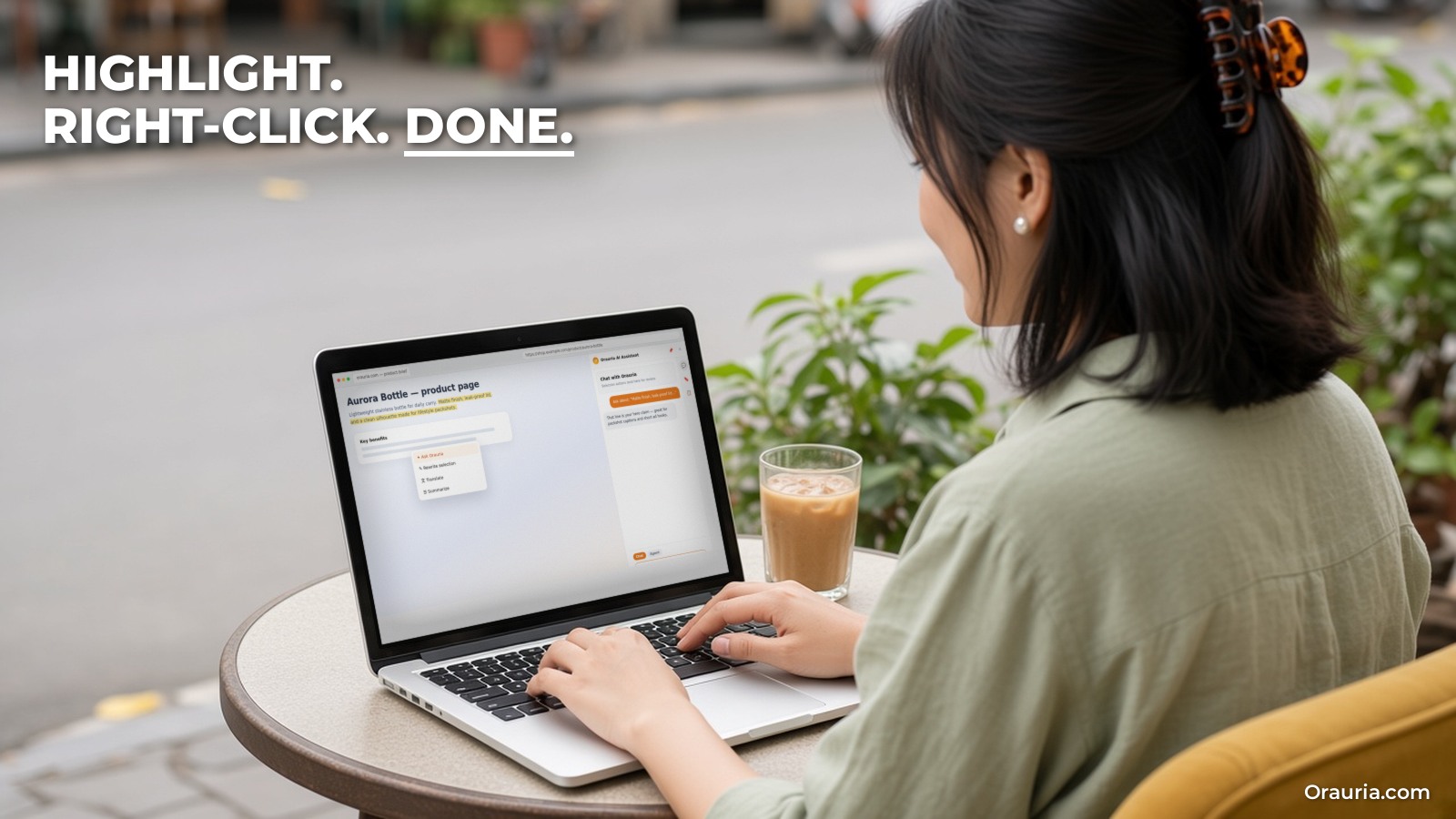
Highlight any text on a website, right-click, and you get four actions: Ask, Rewrite, Translate and Summarize. The result appears in the side panel. This is the feature most people use first, because it fits into what they already do: read something, want help with that exact piece.
Page context and page tools
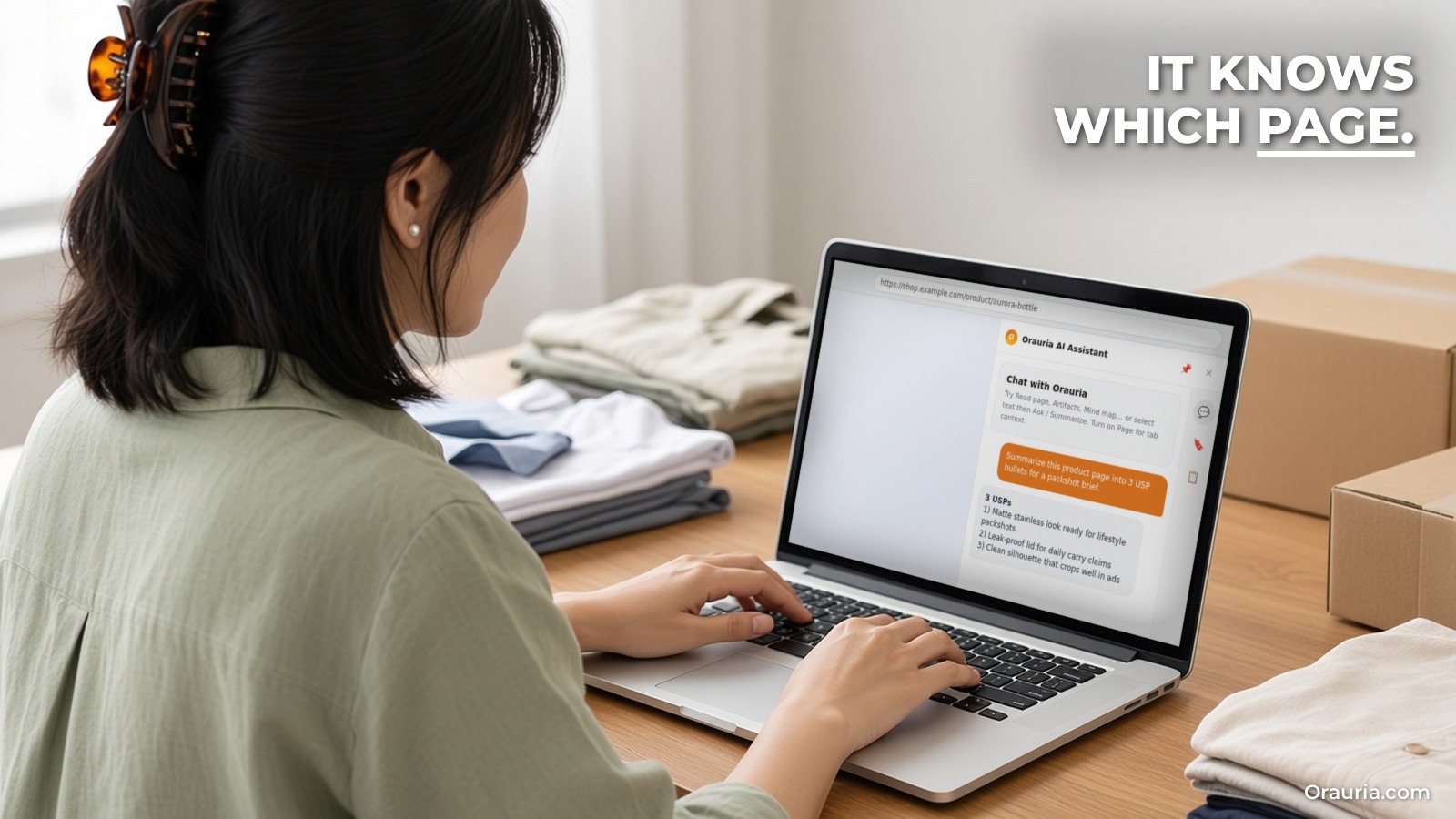
A toggle labelled Page attaches the current page’s URL, title and description to your question, so the answer knows where you are. The store listing also mentions tools for the active tab, such as summarizing the page and extracting structured insights, with results shown in chat for you to review. The chat screenshot shows quick buttons for Search, Read page and Ask selection.
Snips, images and video
You can capture a region of the page and send it to chat as an image when you need help with something visual, or attach an image directly. Separately, you can generate images and videos from the panel; those jobs are billed to your Orauria credits.
Notes and Clipboard History
The panel has a rich-text notes editor where you can ask AI to rewrite a whole note or only the part you selected. Clipboard History saves text you copy so you can find and reuse it later. Both are stored locally. One thing to know before you switch Clipboard History on: according to the privacy policy, it can record text you copy in other apps too, while Chrome is running, so do not use it for passwords or other secrets.
Where your data goes
The privacy policy is specific. Chats, notes, clipboard items and settings stay on your device by default. When you send a chat message or run a selection action, the request goes directly to a chat API at api.lk888.ai. Sign-in, credits, the model list, and image or video jobs go to orauria.com. Page context is only attached if you turn on the Page toggle. If your work involves confidential client data, read the policy before you start and set a rule for what you will and will not send.
Setting it up in five minutes
The setup has four steps. A detailed walkthrough with screenshots and troubleshooting has its own guide in this series; here is the short version.
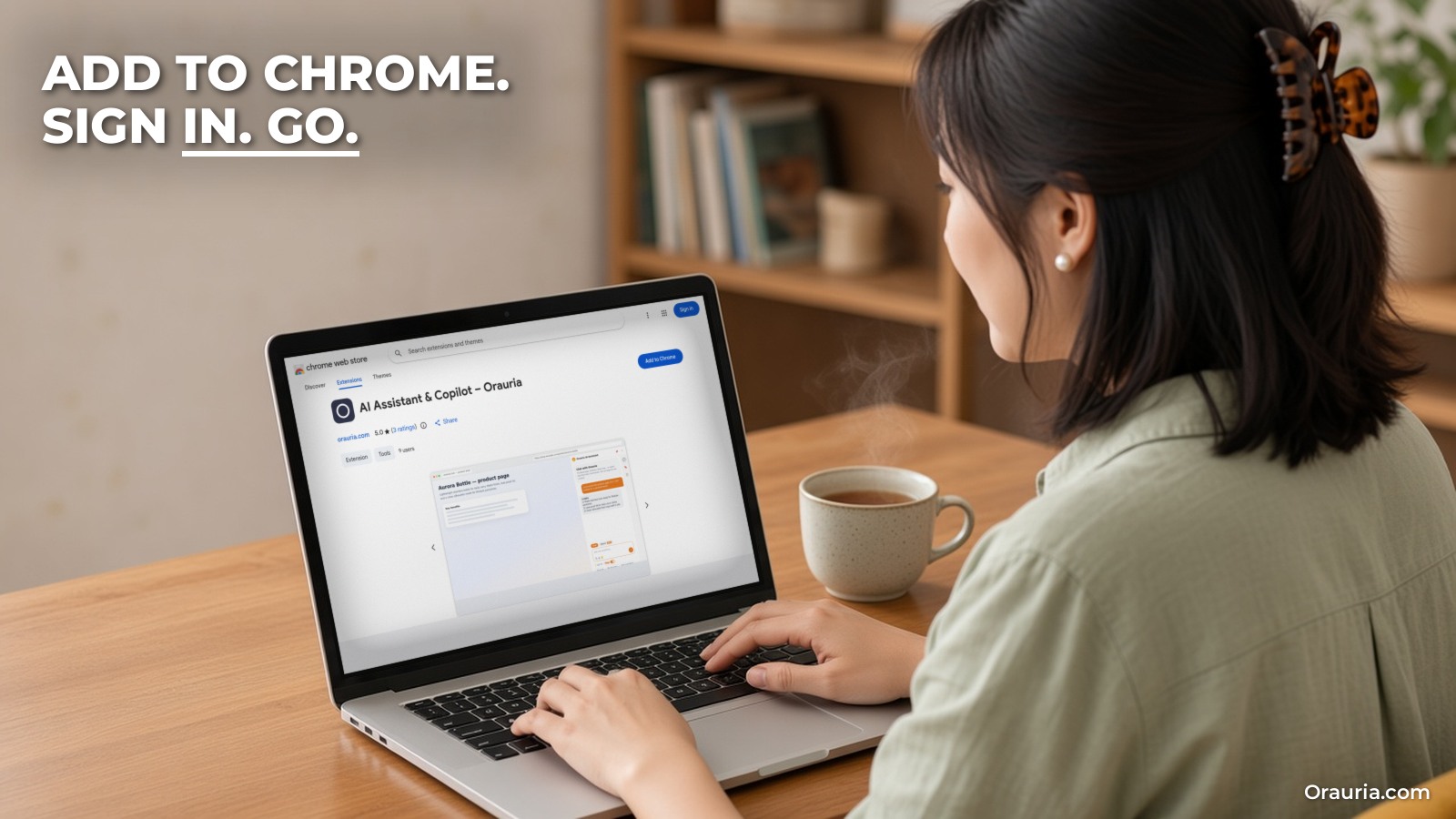
- Install from the Chrome Web Store. Open the official listing (it appears under the name “AI Assistant & Copilot – Orauria”) and click Add to Chrome. On Microsoft Edge, open the same listing and click Get. Chrome shows the permissions the extension asks for; read them before you confirm.
- Pin the icon. Click the puzzle-piece Extensions icon in the toolbar and pin Orauria AI Assistant so the panel is one click away.
- Sign in with Google. Open the side panel and choose Continue with Google. This connects to your Orauria account and syncs your credit balance. If you already use Orauria Studio, it is the same account and the same wallet.
- Try one thing on a real page. Highlight a paragraph on any site, right-click, and choose Summarize. If the result appears in the panel, you are set.
Common pitfalls
- “401” errors. The product page says a 401 means you need to sign in again. Open the panel and continue with Google.
- “402” errors. A 402 means you are out of credits; the product page sends you to Pricing to top up.
- Answers ignore the page. Check that the Page toggle is on. Without it, the model only sees what you type or select.
- Too much in Clipboard History. If you copy passwords or one-time codes, clear those items or keep Clipboard History off on that machine.
- Wrong account. Your session is stored in that browser. On a shared or work computer, sign out from the panel when you are done; the privacy policy says signing out clears the local session.
From v1 to v3: how Mai’s prompts improved
Having the panel is step one. Getting answers you can use without heavy editing takes a few rounds. Here is how Mai’s use evolved over three weeks, as an example of the pattern.
v1: generic asks
In week one, Mai used the panel the way she used her chatbot tab. On a competitor’s product page she asked, “Summarize this page.” The answer was accurate but bland: a paragraph that repeated the product description. She also used Rewrite on her own drafts with no instructions, and the rewrites came back in a generic marketing voice that did not sound like her shop.
v2: page context plus a clear output
In week two she turned on the Page toggle and asked for a specific shape of answer: “From this product page, list the three main claims the seller makes, the price, and anything about fabric or care. Use bullet points.” Now the answer was something she could compare across three competitor pages. For her own descriptions, she stopped using bare Rewrite and instead highlighted a paragraph, chose Ask, and wrote, “Rewrite this in a calm, warm voice, under 60 words, keep the fabric details exact.”
v3: a saved brief in Notes
In week three she wrote a short brand brief in the panel’s Notes: who her customers are, the words she likes (soft, breathable, everyday), the words she avoids (luxury, premium), and her standard product description structure. Before writing a new description, she copied the brief from Notes or Clipboard History into the chat with the product details. She also kept a small checklist note for competitor research, so every page got the same questions. The descriptions now needed one light edit instead of a rewrite.
What changed was not the tool. It was that every request carried the context the model needs: where she is, what shape of answer she wants, and what her brand sounds like. That is the habit worth copying. Always read the output before you use it; AI answers can be wrong, and claims about fabric or care should be checked against your own product facts.
What to try this week
- Install the extension from the Chrome Web Store, pin it, and sign in with Google.
- Tally your AI round trips for one normal day before you start, so you have a baseline.
- Use right-click Summarize or Translate on three real pieces of text you would usually skip.
- On one competitor or supplier page, turn on Page and ask for a fixed list of facts in bullets.
- Write a five-line brief in Notes for your most common writing task, and paste it in front of your next request.
- Read the privacy policy once and decide whether Clipboard History stays on.
The extension is one part of Orauria. If you sell products online, the same account and credits work in Orauria Studio; see what Orauria is and how the AI product image generator works. If your team needs something the panel does not do, such as a custom AI tool wired into your own systems, Orauria builds those too: see AI outsourcing. To start, open the Orauria AI Assistant page.
Leave a Reply