Tag: Pinterest

  • How to Build a Virtual Influencer Channel from One Trending Pin

    How to Build a Virtual Influencer Channel from One Trending Pin

    A lot of “build a million-view channel” advice starts at the posting calendar. That is the wrong end of the problem. If the person on camera is not yours, you do not have a channel. You have a mood board with a publish button.

    This is a playbook for the other starting point: find a pin that is already traveling, turn it into a detailed prompt, invent a virtual influencer who can come back tomorrow, and generate the first still in Orauria Studio. A million views is the ambition of a consistent character, not a result we are reporting here. We generated one frame. The rest of the grid is work you still have to do.

    The reference under this walkthrough is a pin by constructo.LJ — a polished mirror selfie on a cream bouclé ottoman, blush champagne dress, a tall geometric wall sculpture catching a warm halo. It is a useful study in pose, light, and set design. It is not a person you get to clone.

    The playbook at a glance

    1. Install the Chrome extension.
    2. Find a pin whose composition is doing real work — light, set, pose — not just a pretty face.
    3. Run Image to prompt and copy the result.
    4. Invent the character: a name, a beat, a voice, and a face that is not the person in the pin.
    5. Lock that character in Studio, generate the first still, and treat it as frame one of a grid, not a finished channel.

    First, install the extension

    Image to prompt only works after you install the Chrome extension AI Assistant Copilot – Orauria. Get it from the Chrome Web Store before you start hunting for a reference. Once it is on, the right-click menu on Pinterest will be waiting for you.

    Find a pin that’s already traveling

    You are not looking for a photograph to reproduce. You are looking for a system: a pose that reads in a 4:5 crop, a room that can host more than one outfit, light you can return to. The constructo.LJ pin is a good example of that kind of structure. Credit the author, then leave her likeness behind.
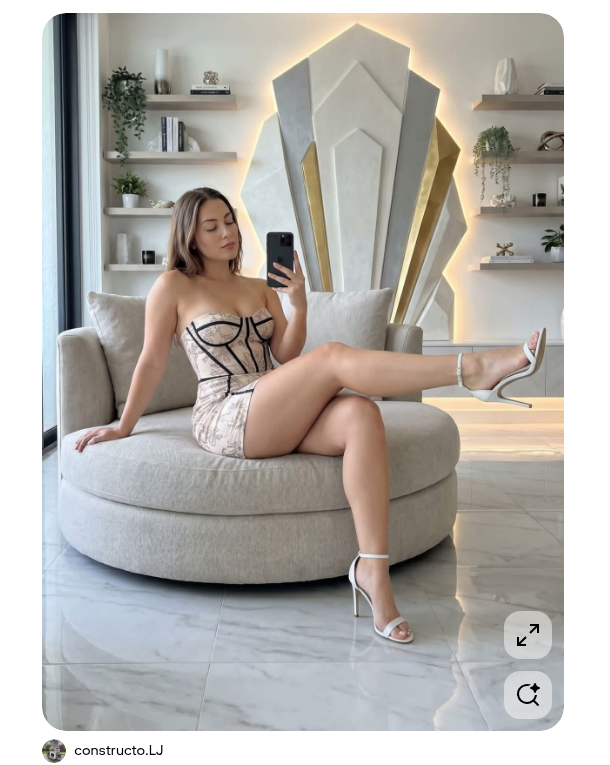
    A Pinterest pin by constructo.LJ: a woman in a blush champagne mini dress sits sideways on a large cream ottoman, taking a mirror selfie in a contemporary living room with a tall geometric wall sculpture.
    The reference pin, by constructo.LJ. Study the pose, the set, and the light. Do not treat the person in the frame as a character you can ship.

    On Pinterest, right-click the image, open AI Assistant Copilot – Orauria, and choose Image to prompt.
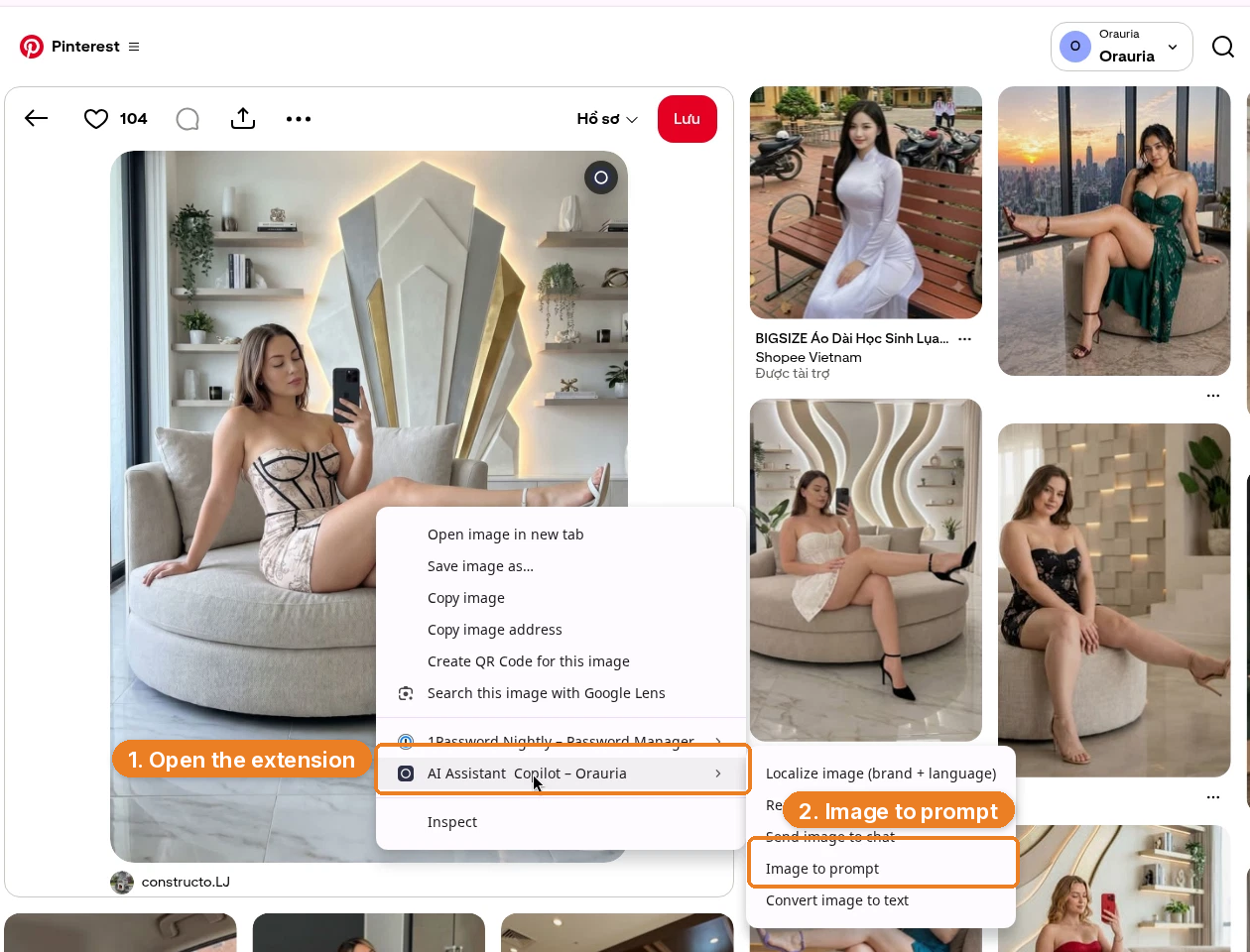
    Right-click menu on the Pinterest pin, with AI Assistant Copilot – Orauria and Image to prompt highlighted.
    Right-click the pin, open the extension, then click Image to prompt.

    The panel analyzes the picture — you will see Analyze image and a short “Preparing image…” state — then returns a detailed prompt with a Copy button.
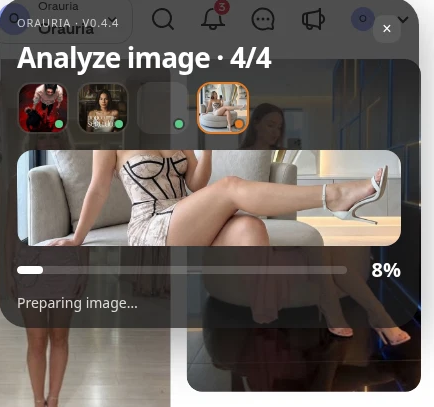
    The Orauria extension panel analyzing the pin, showing Analyze image and a progress bar.
    The extension reads the image before it writes the prompt. Give it a moment.
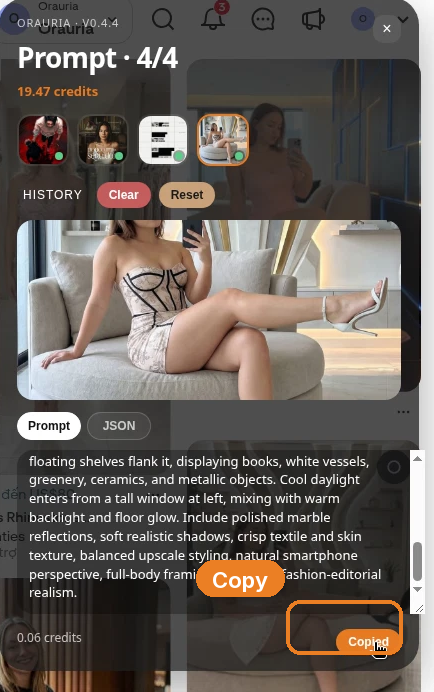
    The Prompt panel showing the generated description of the ottoman selfie, with the Copy button highlighted.
    Copy the prompt, then rewrite it until the person in it is someone you invented.

    This is the prompt we got back, almost in full. It is a solid production brief. It is also still a description of the woman in someone else’s pin.

    Photorealistic vertical 4:5 mirror-selfie photograph of one light-skinned adult woman, ethnicity not clearly identifiable, with shoulder-length light brown hair, seated sideways on a large rounded cream bouclé ottoman in a luxurious contemporary living room. She holds a black smartphone in her right hand near her face and looks down calmly, while her left hand rests on the seat. Her pose is elongated and relaxed: one bare leg crosses horizontally across the ottoman toward the right edge, and the other leg descends toward the marble floor. She wears a fitted pale blush champagne mini dress with a delicate floral print, structured corset construction, dramatic black piping and seam lines, plus white ankle-strap stiletto sandals. Behind her, center a very tall symmetrical geometric wall sculpture made from layered angular white and silver panels with narrow gold side inserts, surrounded by a soft warm LED halo. Minimal floating shelves flank it, displaying books, white vessels, greenery, ceramics, and metallic objects. Cool daylight enters from a tall window at left, mixing with warm backlight and floor glow. Include polished marble reflections, soft realistic shadows, crisp textile and skin texture, balanced upscale styling, natural smartphone perspective, full-body framing, and clean fashion-editorial realism.

    Keep the room. Keep the 4:5 crop, the marble, the haloed sculpture, the way the pose fills the frame. Change the person. If a first generation still feels close to the reference — and in this demo, the wardrobe and the set stayed very close — push further: hair, face shape, age range, styling, even the phone-in-the-mirror beat, until you would not tag the original pin if you saw the two images side by side.

    Invent the character, then lock her in Studio

    A virtual influencer is not “the prompt, again, on Tuesday.” She is a person you can describe when she is off-camera: a name, a city, a kind of room she keeps returning to, a way of captioning a still. Do that work in writing before you generate anything you might post.

    Then open Orauria Studio:

    • Studio, Canvas, History, Avatar & Character, Skills
    • Under Media type, choose Image, then Single
    • In the composer, set Aspect ratio, Resolution, and Quality to Adaptive, and use the TT Image 2.5 model
    • Generate with the send button, or Ctrl+Enter

    The important control for this playbook is Avatar & Character. In this demo we attached an existing character, Seated Presenter Half-body – Woman 09, so the same face can come back in later stills. That is the difference between a one-off pretty picture and the first post in a grid.
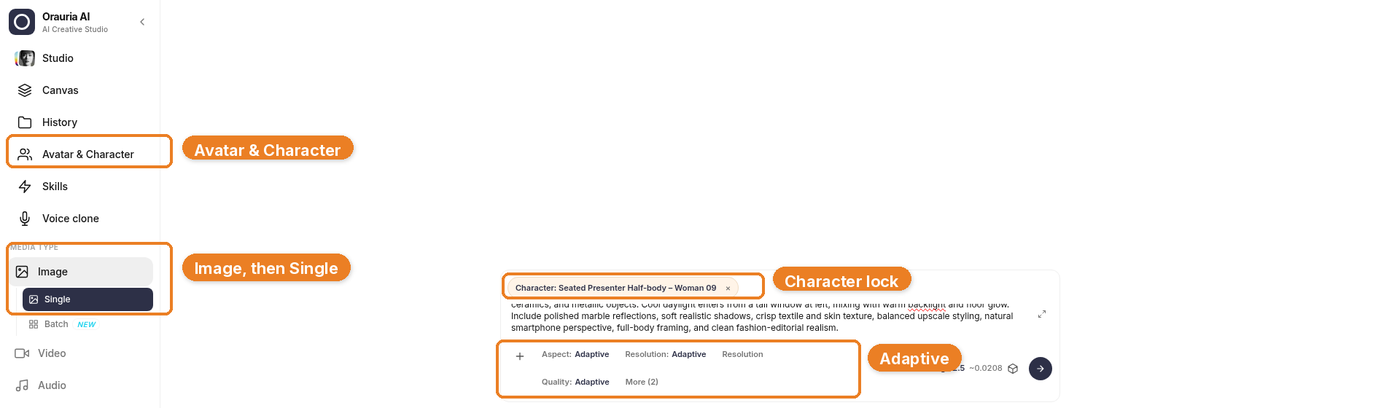
    Orauria Studio with Avatar & Character, Image then Single, the character chip, and Adaptive settings highlighted.
    Paste the rewritten prompt, attach your character, and leave Aspect ratio, Resolution, and Quality on Adaptive. The sidebar should be on Image, then Single.

    Generation takes a few seconds; the result then appears in the chat. Stay on TT Image 2.5 and let it finish.

    The still that came back kept the ottoman, the sculpture, the dress, and the mirror-selfie geometry. That is useful: it means the prompt understood the system. It is also a warning. A consistent virtual KOL still has to be a person you invented, not a polished reprint of the pin. If the first frame is too close, do not post it. Tighten the character description and generate again.
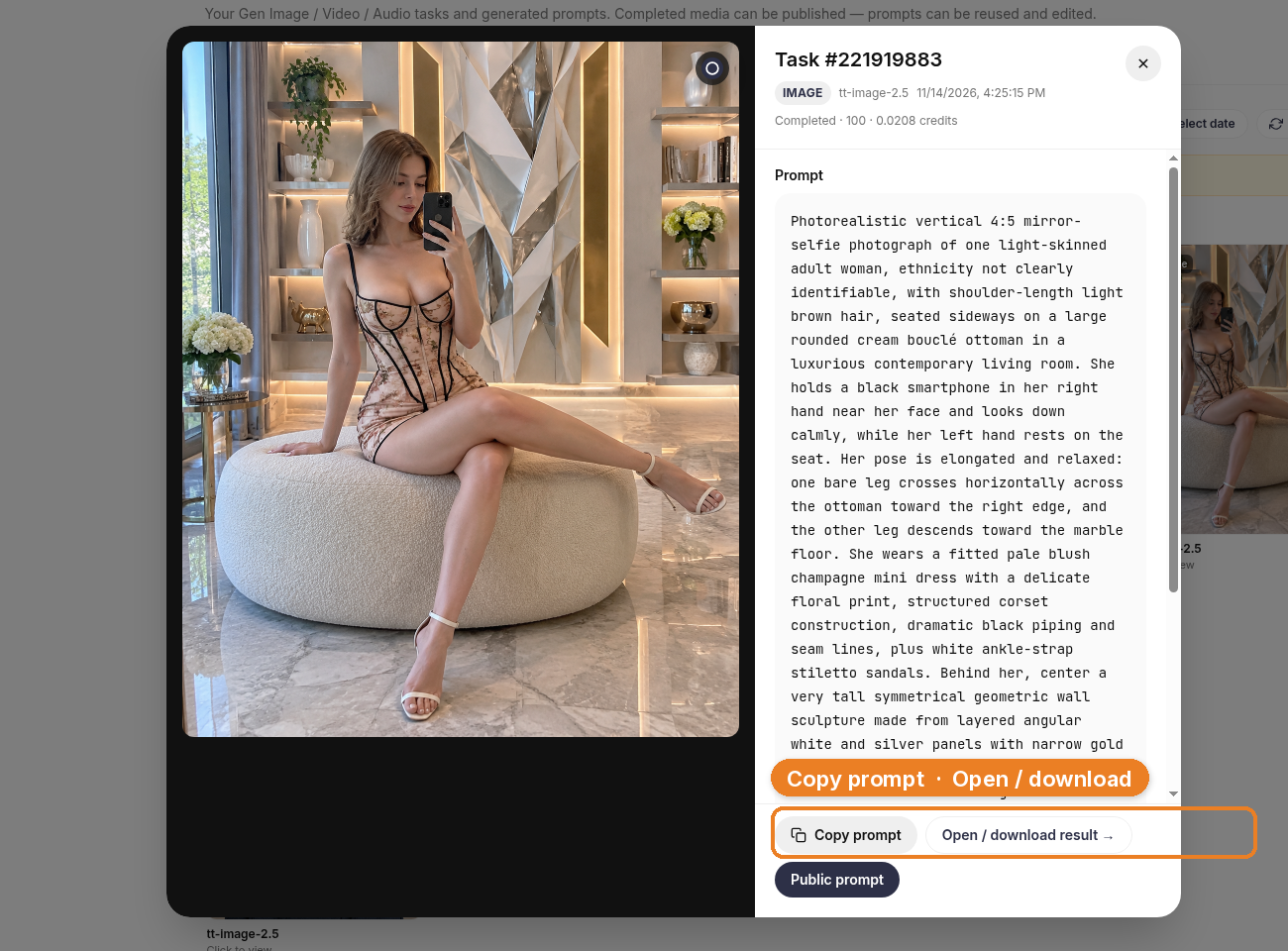
    The generated still in Studio History under TT Image 2.5: a woman in a floral corset mini dress seated on a cream ottoman in the same kind of contemporary living room, with Copy prompt and Open / download result visible.
    Frame one, in Studio. The set held. The character lock is how you ask her to come back; it is not a license to ship a lookalike.

    What this looks like on a channel

    The layout below is a full Instagram-style interface, so you can see the shape of a popular post. The likes, comments, and follower counts are fictional — they are not results from this channel, and this is not a live post. The small Illustration label is there for the same reason.
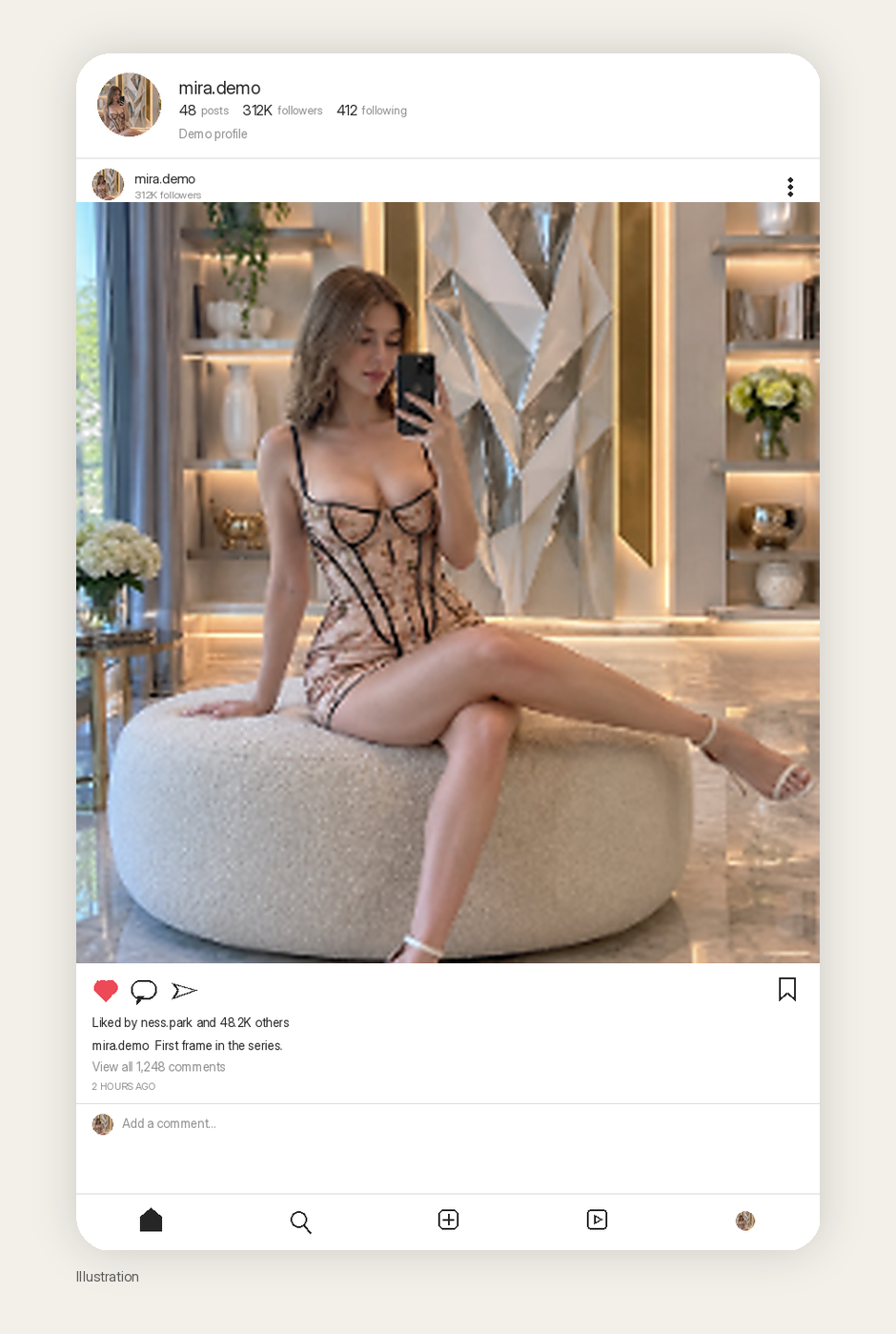
    Illustration of a realistic Instagram-style post using the generated still, with fictional high engagement and a small Illustration label.
    Illustration. A realistic Instagram-style post of the first still. The likes, comments, and follower counts are fictional, not results from this channel.

    The more honest picture of a virtual-influencer channel is a grid with room to grow. One real still, and empty cells standing in for the outfits, rooms, and captions you have not made yet.
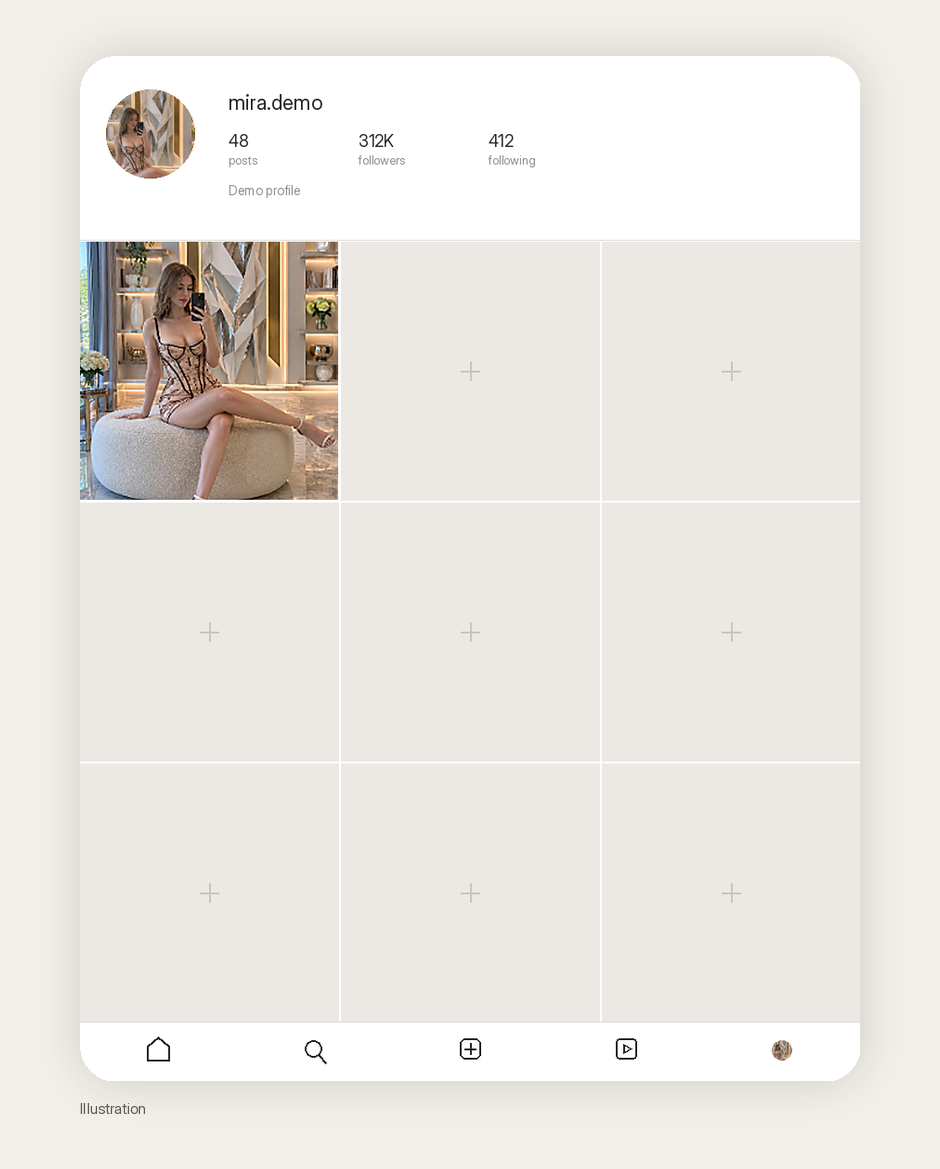
    Illustration of a realistic Instagram-style profile grid with the generated still in the first cell, fictional follower counts, and empty placeholder cells. Caption: Illustration.
    Illustration. A consistent-character grid starts with one frame you would stand behind. The follower count is fictional. The empty cells are the actual work.

    If you want a channel that can grow toward serious reach, the character has to survive a second room, a second outfit, and a second caption voice. That is the job Avatar & Character is for. Image to prompt gives you the first brief. It does not give you the next eight stills by magic, and it does not give you a million views.

    What to make second

    The first still is a test, not a launch. Before you schedule anything, decide what “the same person, tomorrow” looks like on paper.

    Stay in the room once. Change the dress, or the time of day, or whether she is on the phone. Then move her to a second location that still feels like her life — a kitchen counter, a car park at dusk, a doorway — and keep the face, the age, the hair, and the way she holds herself. That is what the Avatar & Character lock is for. If the second frame looks like a sister instead of the same woman, the lock is not tight enough, or the prompt is arguing with it.

    Write captions in one voice, too. A virtual influencer who sounds like three interns on rotation will not hold a grid together, even if the face does. You do not need a novel. You need a person who would plausibly say the same kind of thing next week.

    Do not generate forty near-duplicates and call it a month of content. Cull hard. The empty cells in the mockup are not a failure of the demo. They are the actual queue.

    What this playbook is not

    It is not a case study of an account we grew. It is not permission to copy a real person’s face, even when the pin is flattering and the pose is perfect. And it is not a promise that locking a character in Studio will make the first frame look wildly different from the reference — you still have to write that difference in.

    Credit constructo.LJ for the pin that taught the structure. Then go invent someone else.

    Start here

    You only need one good pin and one honest rewrite to start. Install AI Assistant Copilot – Orauria from the Chrome Web Store, run Image to prompt on a composition you actually want to live in for a month, invent the person who belongs in that room, and lock her in Studio before you generate a second frame.

    Start here: orauria.com, and the Chrome Web Store listing for AI Assistant Copilot – Orauria.
  • How to Turn Any Image on Pinterest or X Into a Detailed AI Prompt

    How to Turn Any Image on Pinterest or X Into a Detailed AI Prompt

    You know the feeling. You stop scrolling. A typographic proof sheet, a fashion-editorial cover, a layout with a grid so clean it hurts a little — and your first thought is not “nice.” It is “how did they do that?”

    The second thought, if you work with AI images at all, is usually less glamorous: you open a prompt box and type something like “minimal poster, professional, high quality.” The result comes back polite, generic, and nothing like the thing that made you stop.

    That gap is not a talent problem. It is a vocabulary problem. The skill is learning to read an image the way a designer would — composition, typography, lighting, restraint — and then turning that reading into a prompt you can actually run. The Orauria browser extension, AI Assistant Copilot – Orauria, has a feature that does the first half of that work for you: Image to prompt. You point it at almost any image you see on Pinterest or X, get a detailed prompt back, and then take that prompt into Orauria to generate your own version.

    This is a walkthrough of that skill, based on two real demos: a Pinterest pin by lais maratch, and an X post from @abduzeedo sharing the Matter Cine Week identity by Akronim Design Bureau.

    Why reverse-engineering a prompt is a real design skill

    Designers have always studied other designers. You look at a poster and notice the grid before you notice the headline. You look at a portrait and clock the color of the light, the crop, the type sitting on top of the body. That kind of looking is already a skill. Image-to-prompt just asks you to make it explicit.

    A weak prompt describes a vibe. A strong one describes a system:

    • Composition. Is it a 4:5 vertical cover or a 3:2 landscape proof sheet? Is there generous empty space, or is the subject centered and tight?
    • Typography. Condensed uppercase wordmarks, stacked bold pairs, oversized ivory serifs, monospaced annotations — these are not interchangeable “nice fonts.”
    • Lighting and color. Warm frontal cinematic light is a different world from flat, shadowless, neutral studio light.
    • What is not in the picture. “No shadows, no perspective, no extra imagery” is often the sentence that keeps a result from falling apart.

    Once you can see those decisions, you can steal the thinking without copying the work. That is the point of this workflow. The extension writes a first draft of the brief. You bring the judgment.

    First, install the extension

    Image to prompt only works after you install the Chrome extension AI Assistant Copilot – Orauria. Get it from the Chrome Web Store, then come back to the pin or the post. Once it is on, the right-click menu on Pinterest and the Prompt quick action on X will be waiting for you.
    How to do it on Pinterest

    Pinterest is the easy path, because the extension hooks into the right-click menu on the image itself.

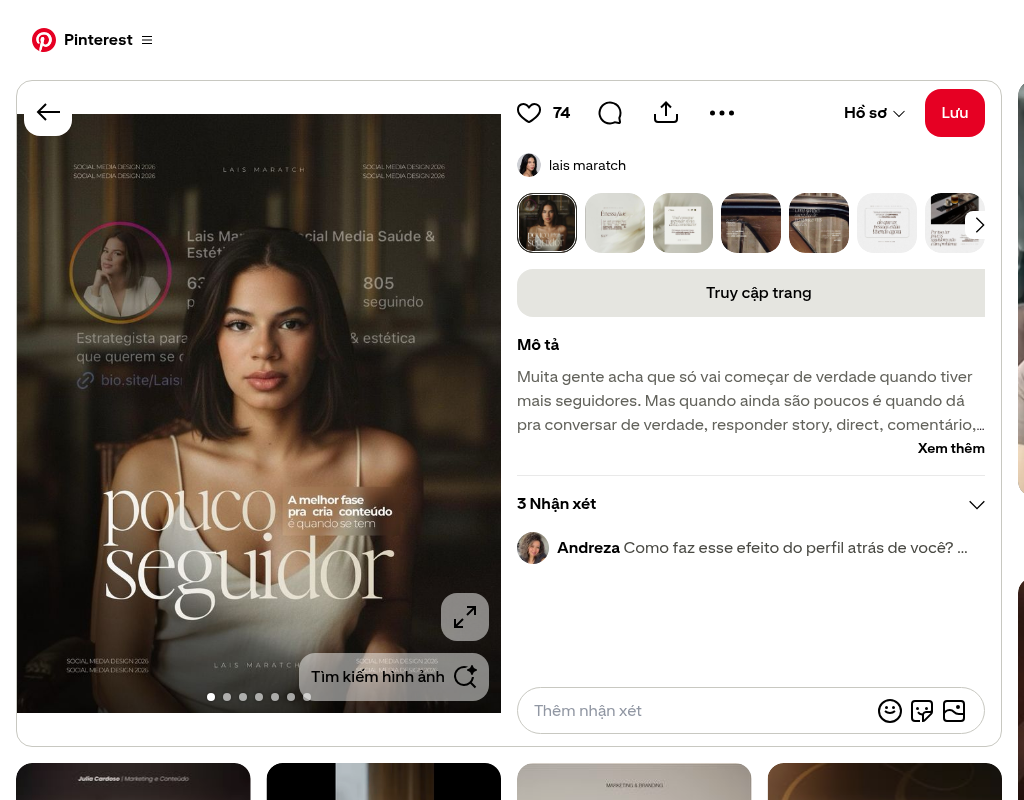
    For this demo, we used an editorial social-media cover by lais maratch: a calm, direct portrait, oversized serif type reading “pouco seguidor,” and a translucent social-profile layer in the background. You can look at the original pin here: pinterest.com/pin/897201557046198997.

    A Pinterest pin by lais maratch: an editorial 4:5 social cover with a young woman, oversized ivory serif typography reading “pouco seguidor,” and a soft social-profile overlay.
    The demo pin, by lais maratch. This is the kind of image that is easy to admire and hard to describe from scratch.

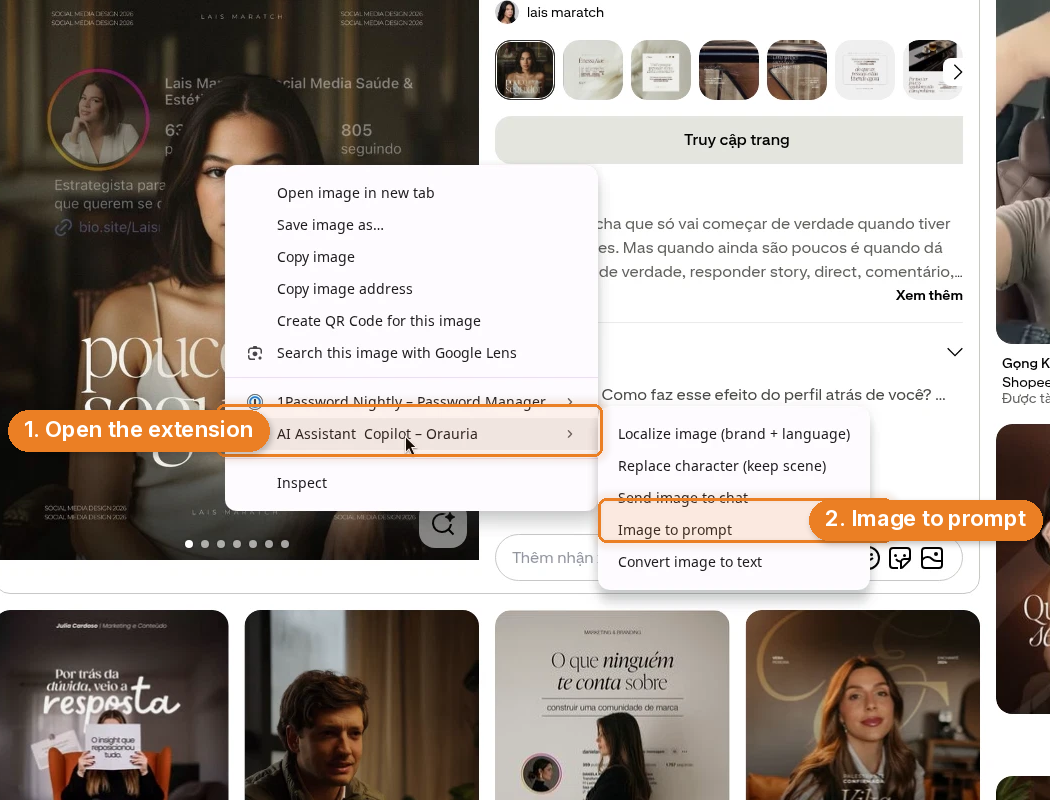
    Step 1. Right-click the image.

    Step 2. In the context menu, open AI Assistant Copilot – Orauria, then choose Image to prompt.

    Right-click menu on the Pinterest image, with AI Assistant Copilot – Orauria highlighted and the Image to prompt item highlighted in the submenu.
    Right-click the image, open the Orauria extension, then click Image to prompt.

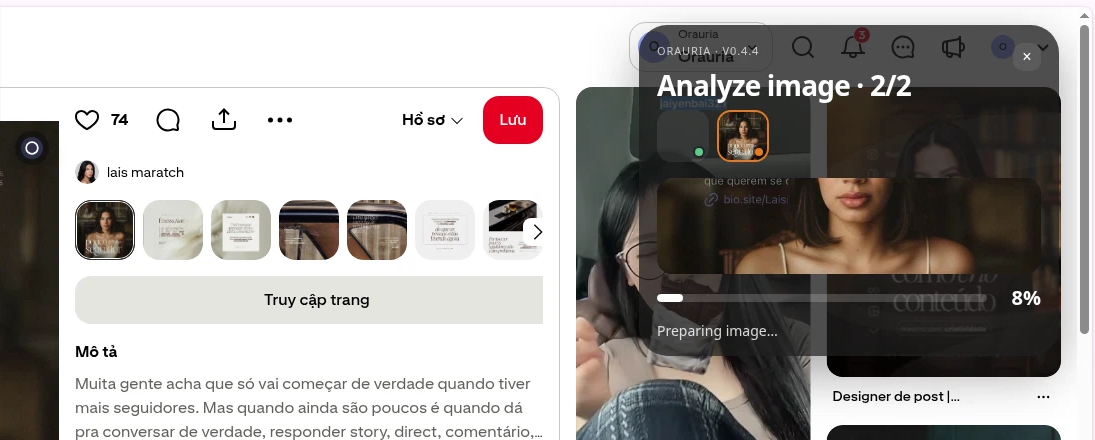
    Step 3. A panel opens and starts analyzing the image. You will see a status like “Analyze image” and “Preparing image…” while it works.

    The Orauria panel on Pinterest showing “Analyze image” and “Preparing image…” as it studies the pin.
    The panel reads the image first. Give it a moment.

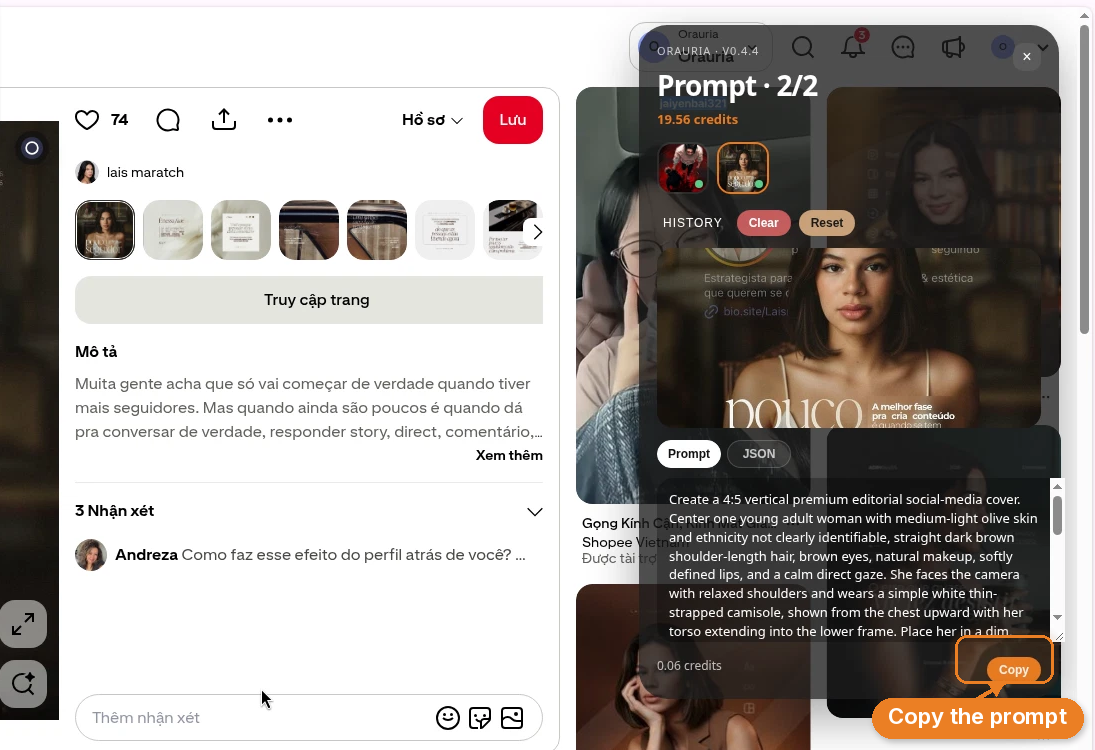
    Step 4. When it is done, the same panel returns a detailed prompt, with a Copy button at the bottom. Click Copy, and you have a brief you can paste, edit, and run.

    The Orauria prompt panel on Pinterest, showing the generated prompt and an orange Copy button at the bottom of the panel.
    The result is a full written brief, not a handful of tags. Copy it, then make it yours before you generate.

    Here is the prompt it wrote for the lais maratch pin, quoted in full:

    Create a 4:5 vertical premium editorial social-media cover. Center one young adult woman with medium-light olive skin and ethnicity not clearly identifiable, straight dark brown shoulder-length hair, brown eyes, natural makeup, softly defined lips, and a calm direct gaze. She faces the camera with relaxed shoulders and wears a simple white thin-strapped camisole, shown from the chest upward with her torso extending into the lower frame. Place her in a dim, warm, softly blurred interior containing vague wood, shelving, and furniture shapes. Layer a translucent social-profile interface behind her: a circular female profile portrait at upper left, faint follower and bio fragments, a link symbol, repeated small text “SOCIAL MEDIA DESIGN 2026” near the corners, and spaced lettering “LAIS MARATCH” centered at the top and bottom. Overlay enormous elegant ivory-white high-contrast serif lettering across the lower torso reading “pouco seguidor”. Beside the upper portion of the title, add compact bold white Portuguese copy reading “A melhor fase pra criar conteúdo é quando se tem”. Use warm frontal cinematic lighting, soft facial shadows, dark brown-black surroundings, subtle amber highlights, shallow depth of field, realistic skin texture, restrained contrast, sophisticated fashion-magazine typography, and carefully balanced graphic layering.

    That is already more useful than “editorial portrait with typography.” In a moment we will look at why. First, the slightly trickier path: X.

    How to do it on X

    X is the same skill with a different click. The platform blocks the extension’s right-click item, so you cannot follow the Pinterest path exactly. Instead, use the extension’s image-tools bar that appears on the image, and click the Prompt quick action.

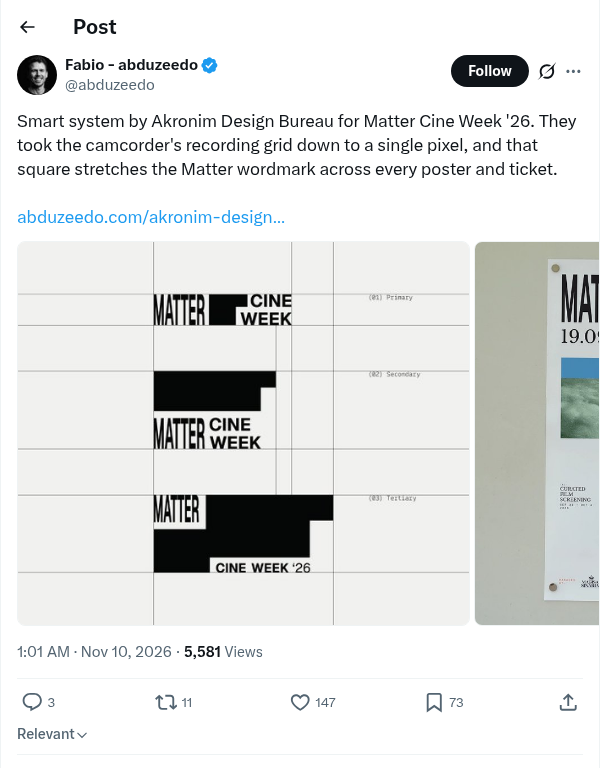
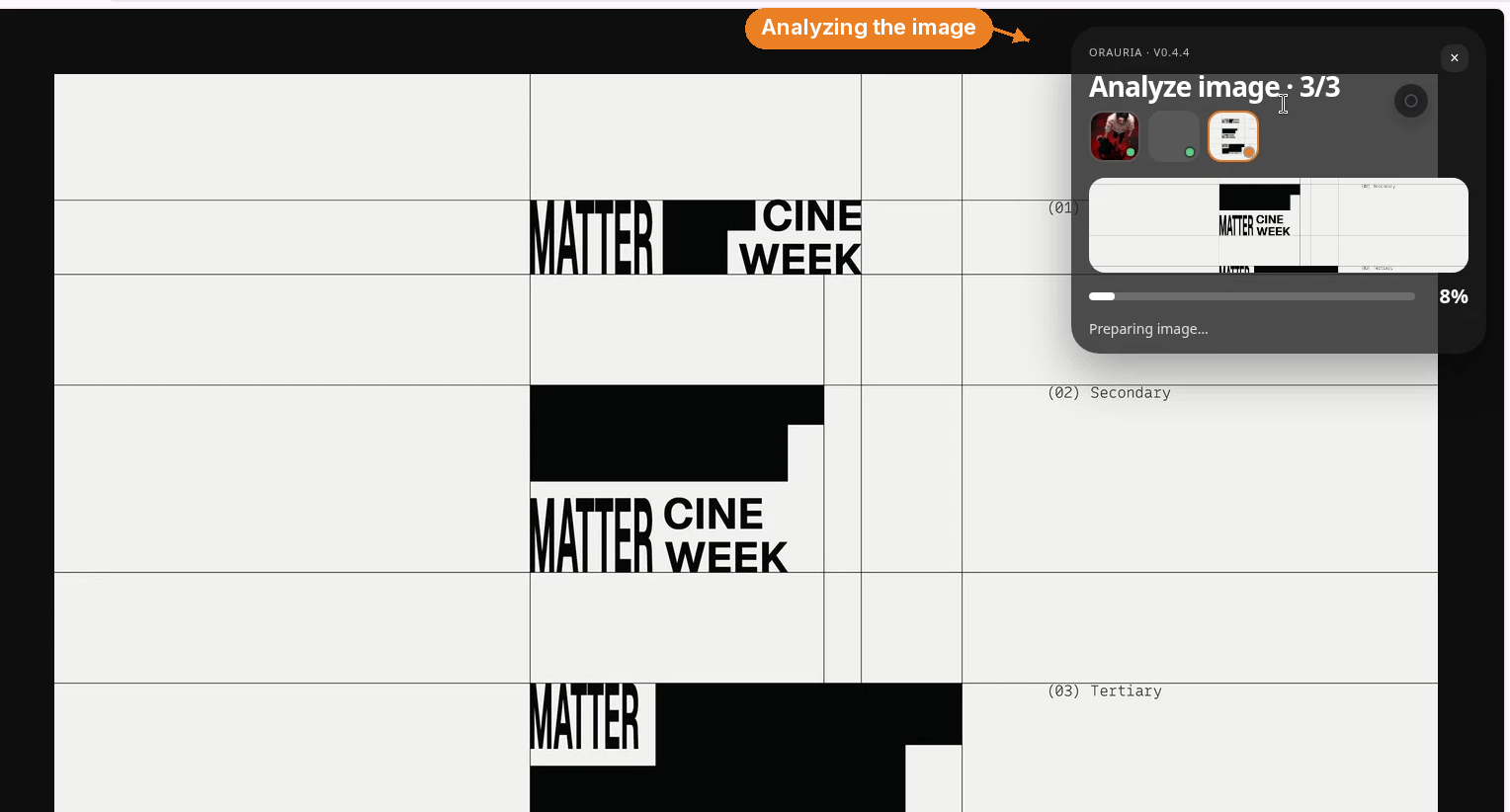
    The demo post is from @abduzeedo, sharing a typographic identity system by Akronim Design Bureau for Matter Cine Week. Three black-and-white wordmark studies sit on a pale modular grid, labeled primary, secondary, and tertiary. The original post is here: x.com/abduzeedo/status/2119852848003567830.

    An X post from @abduzeedo sharing the Matter Cine Week ’26 identity by Akronim Design Bureau, with a black-and-white typographic proof sheet on a modular grid.
    The demo post: @abduzeedo sharing work by Akronim Design Bureau. A grid this precise is exactly the kind of image a vague prompt will flatten.

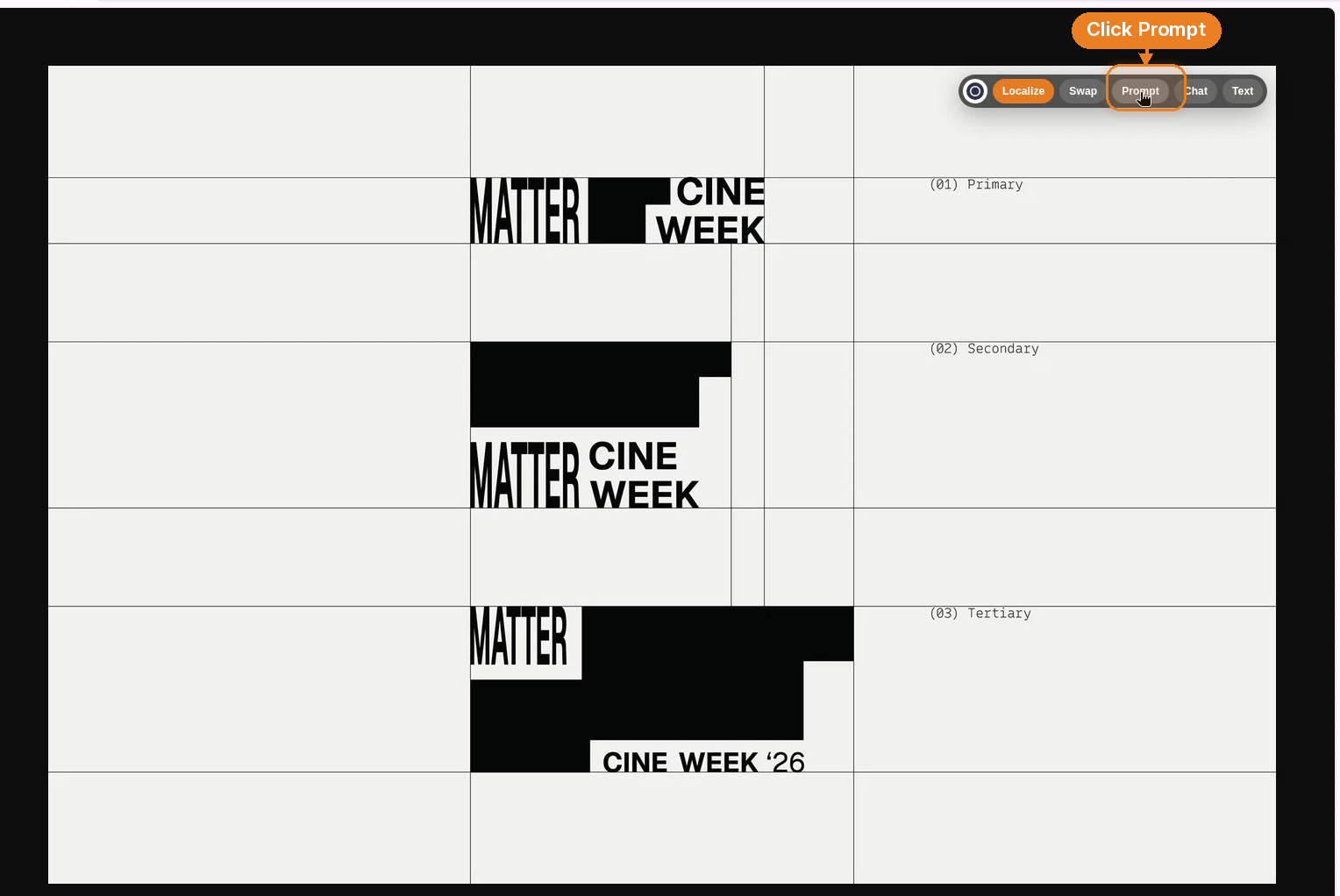
    Step 1. Open the image so you can see it clearly. The extension’s image-tools bar appears on the image itself — a small row of actions along the top.

    Step 2. Click Prompt.

    The Matter Cine Week proof sheet opened large, with the Orauria image-tools bar on the image and the Prompt action highlighted.
    On X, skip the right-click menu. Use the Prompt quick action on the image.

    Step 3. The familiar analyze panel appears and reads the image.

    The Orauria analyze panel over the Matter Cine Week proof sheet, showing “Analyze image” and “Preparing image…”
    Same idea as Pinterest: the extension studies the image before it writes a word.

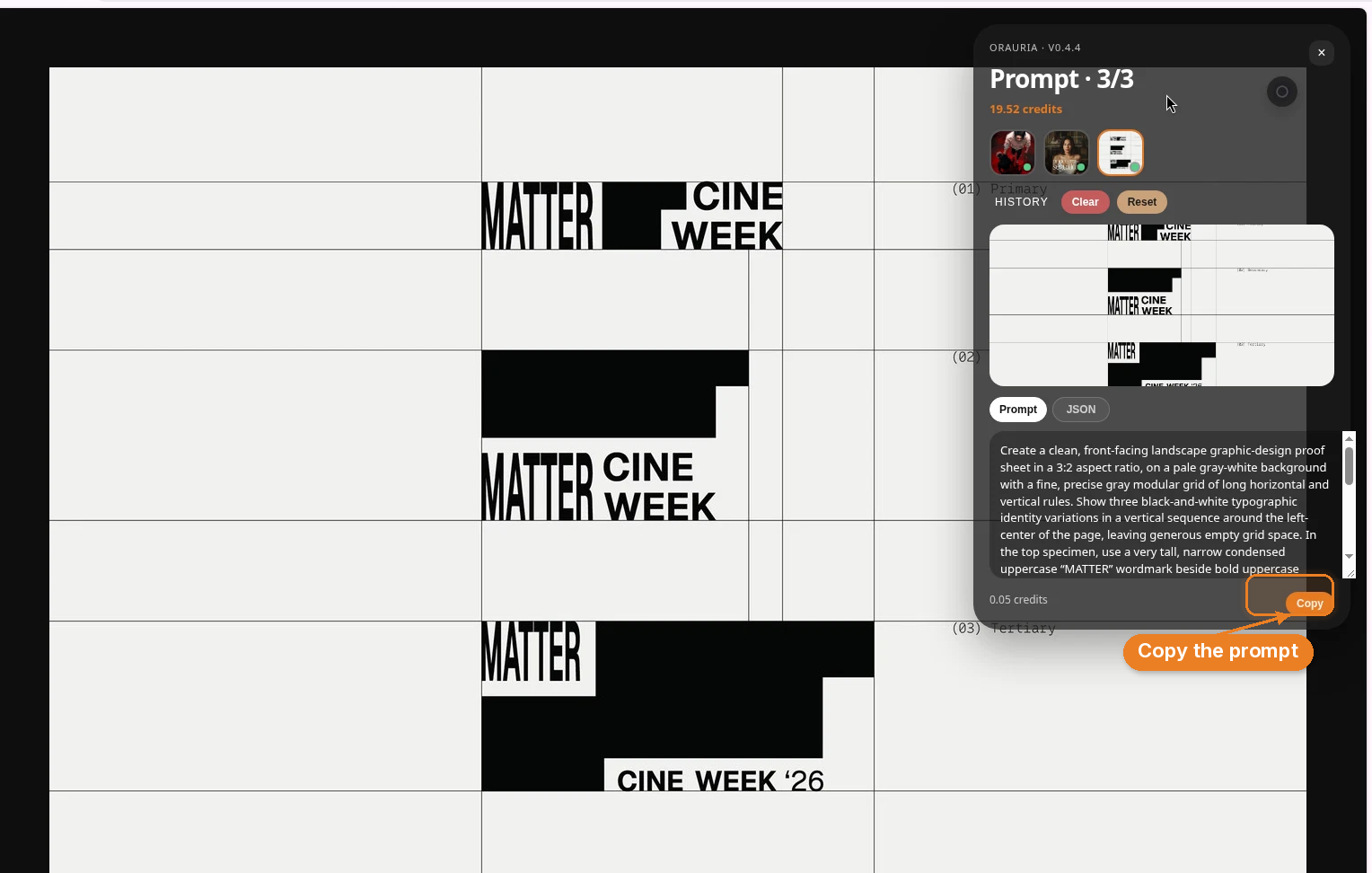
    Step 4. It returns a detailed prompt with a Copy button. Copy it, then take it into Orauria.

    The Orauria prompt panel over the Matter Cine Week image, with the generated prompt visible and the Copy button highlighted.
    Copy the prompt, then edit the brand, the type, and the palette before you generate anything.

    Here is the prompt it wrote for the Matter Cine Week proof sheet, quoted in full:

    Create a clean, front-facing landscape graphic-design proof sheet in a 3:2 aspect ratio, on a pale gray-white background with a fine, precise gray modular grid of long horizontal and vertical rules. Show three black-and-white typographic identity variations in a vertical sequence around the left-center of the page, leaving generous empty grid space. In the top specimen, use a very tall, narrow condensed uppercase “MATTER” wordmark beside bold uppercase “CINE” over “WEEK”, arranged with strong black rectangular fields and white cutouts; let the top treatment feel partially cropped by its grid cell. In the middle specimen, place a wide black rectangle above a condensed “MATTER” at left and stacked bold “CINE / WEEK” to its right. In the bottom specimen, use a large black horizontal field, a small white label at its upper-left edge containing “MATTER”, and a white label near the lower right reading “CINE WEEK ’26”. Put small monospaced annotations in the right column, exactly “(01) Primary”, “(02) Secondary”, and “(03) Tertiary”, aligned with the three studies. Maintain sharp vector-like edges, careful baseline and grid alignment, flat neutral lighting, no shadows, no perspective, no extra imagery, and a restrained Swiss-influenced editorial identity-system aesthetic.

    If you have ever tried to prompt “a minimal logo presentation” and gotten a fake mockup on a wooden desk, this is the difference. The brief names the format, the grid, each specimen, the annotations, and — just as important — everything that should stay out of the frame.

    What makes a prompt like this actually good

    The two results look nothing like each other, which is a feature. One is a warm, cinematic social cover. The other is a flat, typographic identity sheet. What they share is specificity. A few patterns are worth stealing for your own writing, even when you never touch the extension.

    Start with the format, not the mood. “4:5 vertical premium editorial social-media cover.” “Clean, front-facing landscape graphic-design proof sheet in a 3:2 aspect ratio.” Aspect ratio and use-case do more work than adjectives like “beautiful” or “professional.”

    Describe the structure as if you were art-directing a photoshoot or a layout. The Pinterest prompt places the subject (chest-up, torso into the lower frame, relaxed shoulders, calm direct gaze), then the room (dim, warm, softly blurred, vague wood and shelving), then the graphic layers (profile interface, corner type, oversized title). The X prompt builds a page: pale ground, modular grid, three studies in a vertical sequence, generous empty space, annotations in the right column. You can follow both with your finger.

    Get typographic on purpose. “Enormous elegant ivory-white high-contrast serif lettering” is a different instruction from “big text.” “Very tall, narrow condensed uppercase ‘MATTER’ beside bold uppercase ‘CINE’ over ‘WEEK’” is a different instruction from “bold logo.” If type is doing the heavy lifting in the original, the prompt has to say how.

    Name the light, then name the limits. Warm frontal cinematic lighting, soft facial shadows, subtle amber highlights, shallow depth of field — that is a portrait. Flat neutral lighting, no shadows, no perspective, no extra imagery, sharp vector-like edges — that is a proof sheet. The “no” list is not pessimism. It is how you keep a typographic grid from growing a drop shadow and a potted plant.

    Use aesthetic language that points at a tradition, not a trend word. “Sophisticated fashion-magazine typography” and “a restrained Swiss-influenced editorial identity-system aesthetic” are still interpretations, but they are sharper than “minimal” or “editorial.” They give the model a family of decisions to stay inside.

    Read those two prompts next to the original images and you will start to see the mapping: every clause is doing a job. That mapping is the skill you are practicing, whether the extension writes the first draft or you do.

    A few rules so this stays a craft, not a copy machine

    Use it to learn, not to clone. The win is not an identical picture. The win is being able to see, and then describe, why the original works. If you generate a frame-by-frame replica of someone else’s cover or identity system and publish it as your own, you have skipped the part that makes this worthwhile.

    Credit the people who made the work worth studying. This article exists because lais maratch made a cover with a point of view, and because Akronim Design Bureau built a tight identity system that @abduzeedo was generous enough to share. Link the pin. Link the post. Name the designer. If you post your own version, say what you were studying.

    Change the things that make it yours before you hit generate. This is the practical step. Swap the subject. Swap the brand name. Swap the language on the cover. Swap the palette. Keep the structure you just learned — the grid, the crop, the type hierarchy, the light — and let the content belong to you. “MATTER / CINE WEEK” can become your studio’s title treatment. “pouco seguidor” can become a line in your own voice, in your own language.

    Then paste the edited prompt into Orauria and generate from that.

    Try it on the next image that makes you stop scrolling

    You do not need a special kind of project to practice this. The next time a pin or an X post makes you pause, run Image to prompt on it. Read the result the way you would read a design crit. Keep the sentences that feel true, rewrite the ones that do not, change the subject and the brand, and generate your own version in Orauria.

    The extension will get you from “I like this” to a brief. The designer’s job — your job — is everything that happens after Copy.

    Ready when you are: install the extension from the Chrome Web Store, then start at orauria.com.