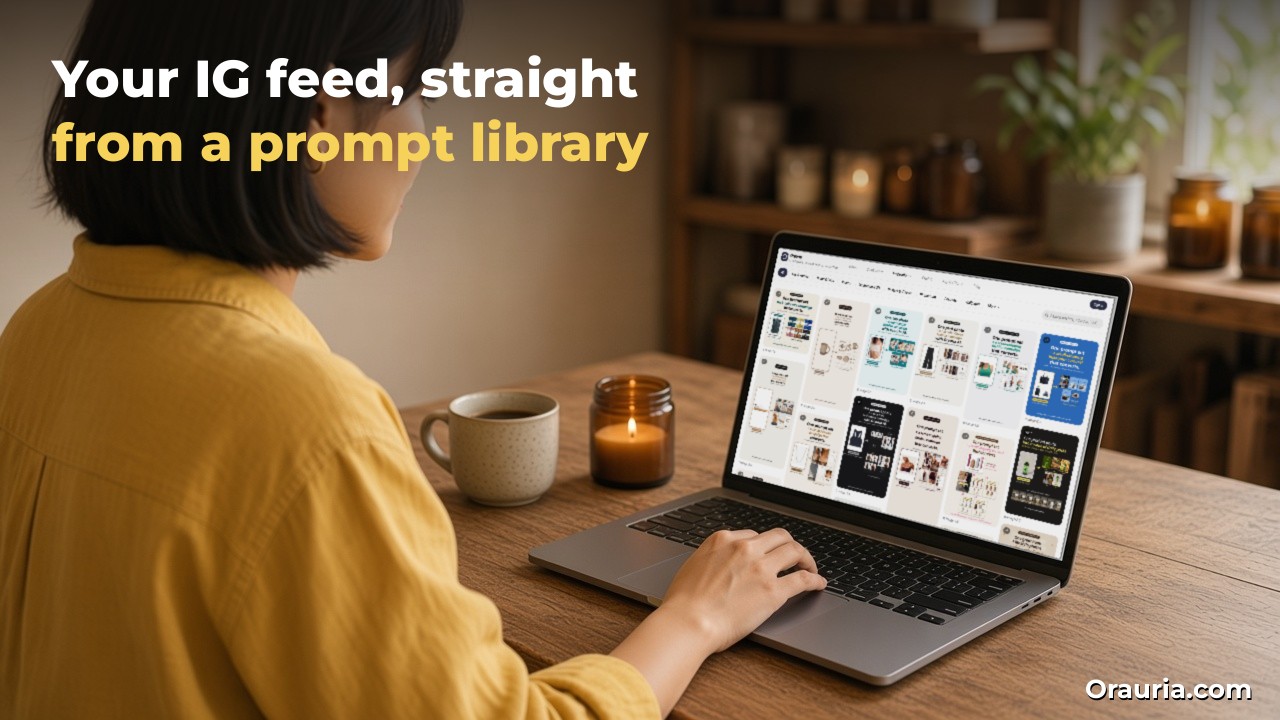
This post continues Orauria’s practical Grok Bot series. Earlier posts explained what Grok Bot is and how Orauria extends it, the MCP and cloud computer architecture, and turning one blog post into social posts. This one is narrower and more hands-on: how to take a ready-made prompt from the Orauria prompt gallery, hand it to a Grok Bot that has the Orauria MCP connected, and get finished Instagram images back in the chat. The story below is an illustrative example, not a client case, and Orauria has no official partnership with xAI or Grok Bot.
What we say about Grok Bot comes from the public docs at docs.x.ai: Use the computer and apps, checked on November 13, 2026. What we say about the gallery and the MCP comes from orauria.com/gallery and orauria.com/mcp on the same day. What we tested: in a Grok Bot that already had the Orauria MCP connected, we called list_models, get_wallet, generate_image and get_task, using a filled-in prompt from the gallery’s “daily posts” set, and got back a finished 3:4 slide (shown in the last image of this post). What we did not test end to end: re-adding the connector from scratch through the Add a custom connector form, and attaching a product photo as a reference image through the MCP. Those steps are described from the docs and flagged where they appear. The laptop screens in the photos show real screenshots of orauria.com, not the Grok Bot app.
Key takeaways. The gallery is a library of tested prompt sets, many of them built for Instagram carousels, each with a “Copy prompt” button and fill-in fields in [square brackets]. The Orauria MCP gives an agent six tools: generate_image, generate_video, chat, list_models, get_wallet and get_task. Connect it once in Grok Bot, paste a gallery prompt with your brand details, and the Bot generates, polls and hands you the image. You still review every slide and you still press Post on Instagram yourself.
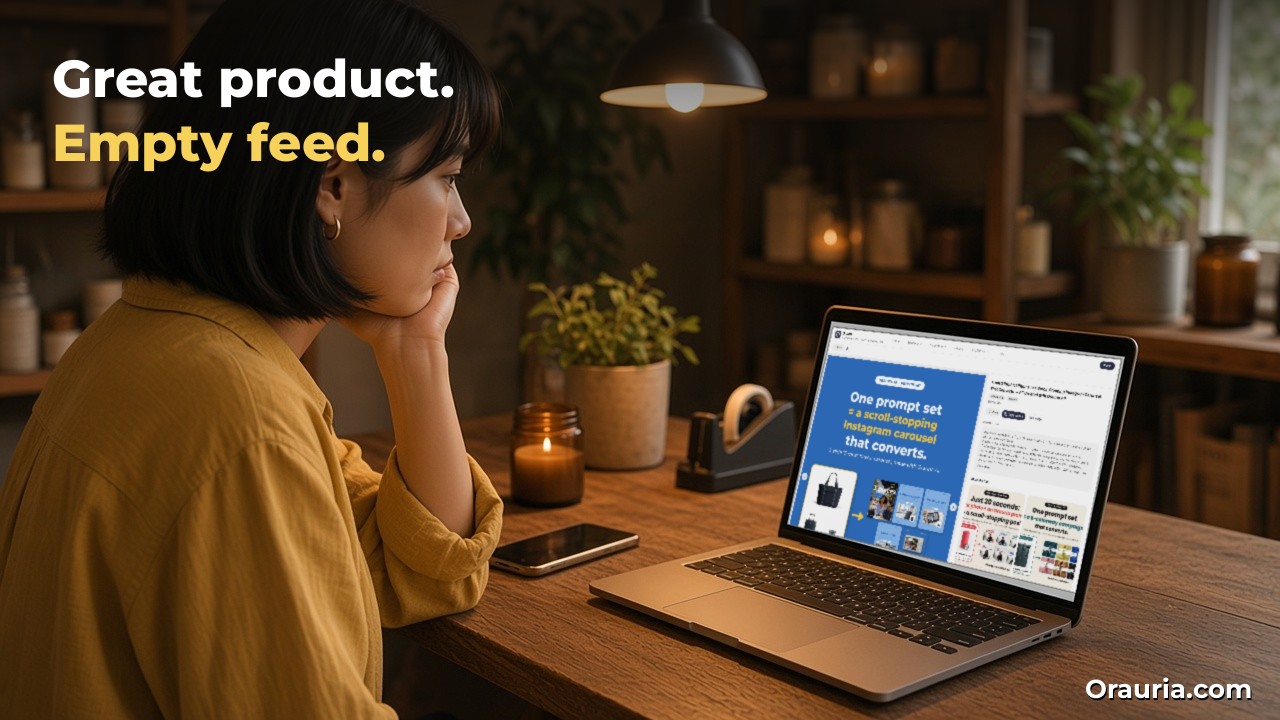
A good product and an empty feed
Meet Linh. She is an example character: a candle maker in her late twenties who runs a two-person shop in Hội An. She pours soy candles into amber jars, sells a few at the counter to tourists and most of them through Instagram direct messages. Her product photos are honest phone shots on the workbench. Her feed has gaps of two or three weeks.
She knows what good Instagram looks like. She saves carousels from bigger brands: a bold hook on slide one, a clean product shot, a lifestyle scene, a “how to use it” slide, a call to action. What she cannot do is make them. Design tools give her a blank canvas. Image generators give her a blank text box. Every evening she starts from nothing, writes a vague prompt like “candle on a table, aesthetic”, gets something that looks like a stock photo of someone else’s candle, and gives up.
The problem was never the product. It was the starting point. Linh did not need more creativity at 10 pm. She needed a prompt someone had already engineered for a carousel, with the places for her product clearly marked, and a way to run it without opening five tabs.
That is exactly the gap between a prompt library and an agent. The Orauria gallery gives her the engineered starting point. A Grok Bot with the Orauria MCP connected gives her the hands to run it, check it and run it again.
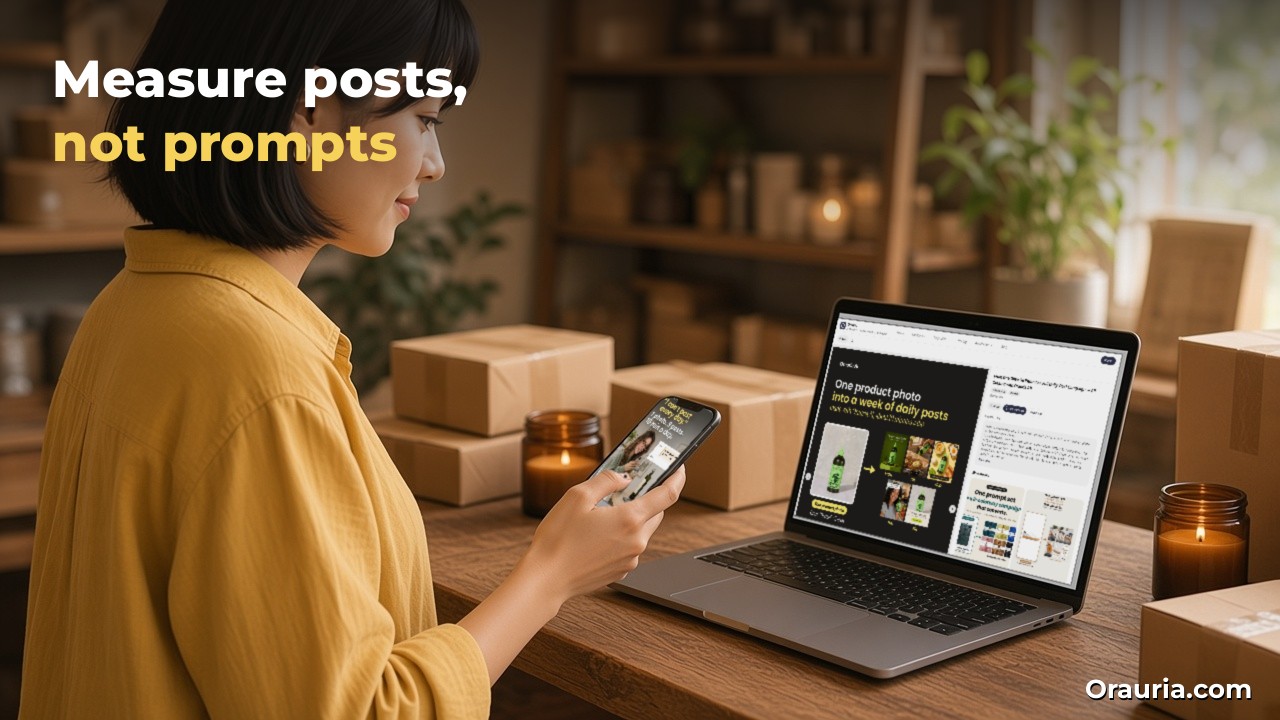
What effective looks like, and how to measure it
We are not going to promise follower numbers or engagement rates. We have no data on Linh, because Linh is an example, and your account is not hers. What we can do is show what “working” looks like and how you can measure it on your own account.
Effective, in this workflow, means three things. First, you can go from “I need a post” to a finished, on-brand set of slides in one sitting, without starting from a blank prompt. Second, the slides look like they belong to one campaign: same palette, same typography, same product. Third, you, not the Bot, decide what goes live.
Measure the workflow, not the prompt. Keep a simple sheet for three weeks with these columns:
- Time to a postable set: minutes from opening the gallery to having slides you would actually post.
- Keep rate: of the images the Bot generated, how many you kept without edits, kept with a fix, or threw away.
- Retries per slide: how many times you asked the Bot to regenerate before a slide was right. Text errors and a redrawn product are the usual reasons.
- Credits per kept slide: the Orauria MCP bills your Orauria wallet at Studio prices, so check
get_walletbefore and after a session and divide by the slides you kept. - Posting rhythm: how many days you posted per week, before and after.
- Your own Instagram Insights: saves, shares and profile visits per post, compared with your older posts. Look at the trend over weeks, not one post.
If time to a postable set drops and your posting rhythm rises while the keep rate stays decent, the workflow is doing its job. If you spend more time fixing slides than you used to spend making them, simplify: fewer slides per set, a simpler prompt set, or Studio for the fiddly ones.
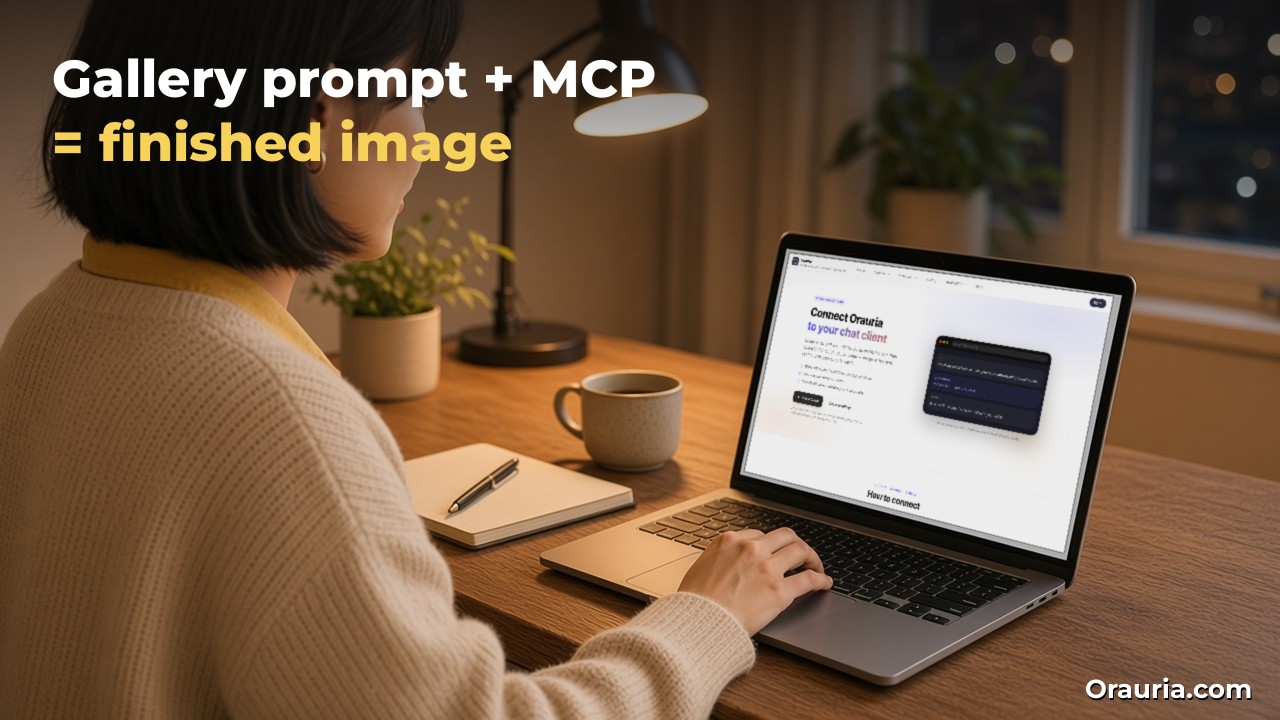
How it works: a prompt library, an MCP connector and an agent loop
Three pieces fit together here. It helps to know what each one does before you set anything up.
The gallery: engineered prompt sets
The gallery (also available in Vietnamese, Chinese, Korean and Japanese) is a browsable library. You can filter by categories such as Ads & Product, Brand & Logo, Videos, Illustration & 3D, Posters & Visuals, Photoshoot, Portraits, Wallpaper and Product Marketing, search prompts by keyword, and page through results 10, 20 or 50 at a time. On November 13, 2026, a keyword search for “instagram” returned 36 matching prompts.
Many recent entries are full sets rather than single images, with titles like “From 3 Product Photos to a Scroll-Stopping Instagram Carousel That Converts” or “From One Olive Oil Photo to a Full Daily-Post Campaign”. Open one and you see every image in the set, the model it was made with (often tt-image-2.5), the number of media, and buttons for Share, Copy prompt and Gen Image. You can also save sets you like.
The important part is how the prompts are written. Each one starts with “Replace everything in [ ] with your product info; attach your product photo as the reference image.” Then every brand-specific detail is a field with an example, such as [TOOL NAME: e.g. Orauria AI], [HEADLINE LINE 1: e.g. One product photo] or [PRODUCT NAME CAPS: e.g. "DRIZZLE" EXTRA VIRGIN OLIVE OIL]. The layout, typography, colors, lighting and composition are already fixed. Product prompts also include an instruction to keep the product exactly as in the reference photo instead of redrawing it. You only change what is yours.
The Orauria MCP: six tools billed to your wallet
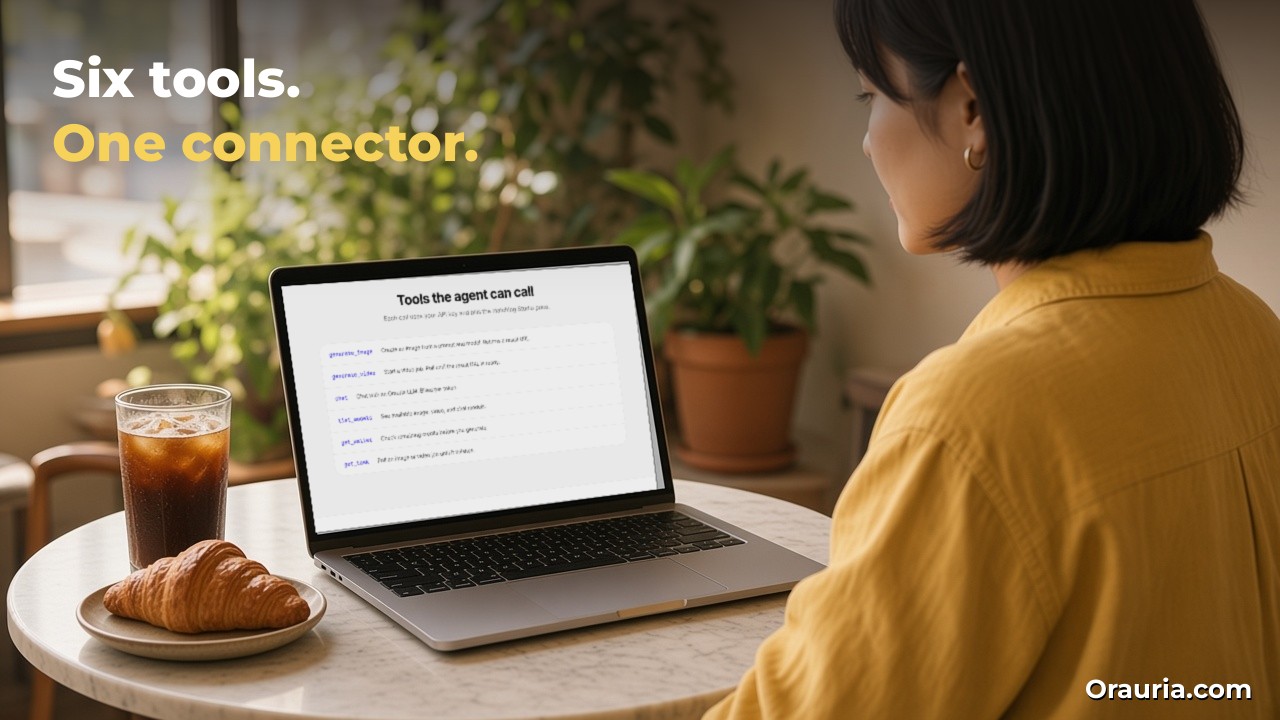
MCP (Model Context Protocol) is the standard way an AI agent calls outside tools. According to orauria.com/mcp, the Orauria MCP server lives at the site’s /api/mcp path, authenticates with an sk- API key you create under Profile → API keys, and exposes six tools:
generate_image: create an image from a prompt and a model; returns a task.generate_video: start a video job.chat: talk to an Orauria language model, billed per token.list_models: see the available image, video and chat models.get_wallet: check remaining credits before you generate.get_task: poll an image or video job until it is final and has a result URL.
The page says usage is billed to your Orauria wallet at the same prices as Studio, and that a call fails with an error if your credit is too low. The page shows setup for Cursor, Claude and Codex. It does not mention Grok Bot, which is why the Grok Bot steps below come from Grok Bot’s own docs.
Grok Bot: the agent loop around the tools
A Grok Bot is an agent with its own cloud computer, connected apps and memory. When you ask for an image, it does not just forward your text. It reads your request, picks the tool, calls generate_image, waits, calls get_task until the job is final, downloads the result, and can look at it before it shows you. If a headline is misspelled, it can regenerate. That loop is what turns “paste prompt, wait, refresh, download” into one request.
Two more Grok Bot features matter here. A skill is a saved set of instructions, so your brand fields and rules do not have to be retyped every time. A routine runs on a schedule, which you might use later for a weekly batch. And through all of it, the human stays in the loop: the Bot generates and proposes, and you choose what to post.
Setup: from the gallery to your first slide in seven steps
Here is the path Linh follows. Steps 2 and 3 are described from the docs; we tested steps 4 to 7 with a connector that was already in place.
- Create an Orauria account and an API key. Sign in at orauria.com, open Profile → API keys, create a key and copy the
sk-…value. It is shown only once. Make sure your wallet has credit. - Add the Orauria MCP to Grok Bot. Grok Bot’s docs say that in the desktop app you choose Add a custom connector at the bottom of Connect apps, enter a Name, and pick the type Remote HTTPS, which takes a Server URL with optional HTTP headers. Use a name like
orauria, the server URLhttps://orauria.com/api/mcp, and the headerAuthorization: Bearer sk-…with your key. Choose Add plugin to save. (The Orauria page shows the URL withhttp://; Grok Bot expects a public HTTPS address, so usehttps://.) - Do not paste your key into the chat. The docs also say a Bot can add an MCP server for you if you ask in chat. That is convenient for servers that use a sign-in, but a header key typed into a conversation sits in that conversation. Put the key in the connector form instead.
- Check the connection. In a new chat, ask: “Using the Orauria connector, list the image models and check my wallet.” The Bot should call
list_modelsandget_walletand answer with a model list and a credit balance. If it says the app is missing or needs auth, open Connect apps and check the connector’s status. - Pick a prompt set from the gallery. Filter by Ads & Product or Product Marketing, or search “instagram” or “carousel”. Choose a set whose structure fits your story, not just one whose colors you like. Open it and use Copy prompt for the slide you want.
- Fill in the brackets and send it. Paste the prompt into the chat and replace each
[FIELD: e.g. …]with your own value, or ask the Bot to do it from a short brand note. Tell it the model and ratio, for example: “Generate this with tt-image-2.5 at 3:4, one image, then show me the result.” - Review, regenerate, download. The Bot polls
get_taskuntil the image is final and returns it. Check spelling, product shape, extra hands and text you did not ask for. Ask for a fix in plain words. When a slide is right, download it and post it yourself.
In our test, a filled-in hook slide from the olive oil “daily posts” set came back as a 3:4 image with the headline, the calendar card and the wordmark spelled exactly as written. The tool response also included an estimated credit cost for the call, which is useful for the “credits per kept slide” column.
Pitfalls to expect.
- The product reference. Gallery prompts are written for a product photo attached as a reference image. In our test we described the product in words instead, which works for a demo but not for a real product, because a model will invent label details. Passing a reference image through the MCP’s
paramswas not part of our test; if your product must look exact, generate those slides in Orauria Studio with the photo attached, or confirm with Orauria which parameter to use. - Leftover example values. If you skip a bracket, the model happily prints the example, such as “Orauria AI” or “DRIZZLE”, on your slide. Ask the Bot to list every bracket and your value before it generates.
- Credits. Every generate call spends wallet credit, including the bad ones. Ask the Bot to check
get_walletbefore a batch and to stop after a set number of images. - Exact text. Keep on-image text short. Long sentences are where spelling errors appear.
- Rights and claims. Only use your own product photos and claims you can back up. Do not copy another brand’s name or logo into a prompt.
- Posting. In this workflow the Bot does not post to Instagram. It hands you files. Publishing stays a human action.
The optimization journey: from v1 to v3
Linh’s first week is clumsy, which is normal. What matters is how the setup improves. Here is an illustrative path.
v1: one prompt, pasted by hand
She copies the hook slide prompt from an Instagram carousel set, pastes it into the chat with her values typed inline, and asks for one image. The first result is beautiful but says “Orauria AI” in the corner, because she forgot one bracket. The second is right. She posts it with a phone shot as slide two.
Her lesson: the gallery solves the blank page, but the brackets are a checklist, not decoration.
v2: a skill with her brand fields
She asks the Bot to save a skill called “Linh IG set”. It holds her shop name, palette, the short product names she uses, the tone of her headlines and a few rules:
- Before generating, list every bracket in the prompt with the value you will use, and wait for “ok”.
- Use tt-image-2.5 at 4:5 or 3:4 unless I say otherwise; one image per call.
- Check
get_walletfirst and stop after eight images in one session. - After each result, check the spelling of every on-image word against the prompt and say if anything differs.
- Never post anywhere. Give me the files and a caption draft.
Now she can say “make the hook and the product slide from this gallery set for the cedar candle” and get a read-back first, then the images. Leftover example text disappears, because the Bot catches it at the read-back.
Her lesson: the skill turns her taste into rules the Bot applies every time.
v3: a weekly batch with a review step
Once the keep rate is steady, she adds a Sunday routine. It asks her which product is the focus that week, picks two prompt sets she has marked as favorites, generates a hook slide and a product slide for each, writes caption drafts and posts a short summary in the chat with the images and the credits used. She reviews on Monday morning, regenerates one slide, and schedules the posts herself.
We describe this routine from the docs, not from testing this exact setup. A routine that generates images spends credits without you watching, so give it a hard image limit, and keep the reference-image caveat above in mind for products that must look exact.
Her lesson: automation is worth it only after the manual version is reliable. She did not start with a routine. She started with one slide.
What to try this week
Open the Orauria gallery and save three prompt sets whose structure fits your product. Create an sk- key, add the Orauria MCP in Grok Bot as a Remote HTTPS connector with the key in the header, and confirm it with a list_models and get_wallet check. Generate one hook slide from one set, with every bracket filled. Fix it once, post it yourself, and start the three-week sheet: time to a postable set, keep rate, retries, credits per kept slide and posting rhythm. When three posts in a row feel easy, save your brand fields as a skill. Only then think about a weekly routine.
For more on the pieces behind this workflow, read the MCP, cloud computer and Studio architecture, how to build a weekly social posting routine and how to build a multi-bot team with an Orauria creative path. If you want a prompt library, an MCP or a content pipeline built around your own products and brand, send Orauria a brief and we will help you design it.